


.svg)

What Is External Domain Monitoring?
Not every domain you depend on is one you own. Getting a visitor from click to conversion can run through a whole chain of domains, and not all of them are your Everflow tracking links. Maybe it's a partner's bridge page that 404s overnight, a third-party redirect service that quietly goes dark, or a vendor domain sitting in the middle of your traffic. When one of those breaks or gets flagged, your traffic feels it just as much as if the domain were your own. External domain monitoring lets you add those domains to Traffic Health so you're alerted the moment one has an uptime incident or a reputation problem.
External domains are monitored for uptime and reputation only. Because Everflow doesn't manage them, there's no tracking, assignment, or usage data to report on. So an external domain shows a smaller set of tabs than one of your own tracking domains, and carries an EXTERNAL badge so you can always tell the two apart.
Before You Start
External domain monitoring is part of the Traffic Health Premium package. If your network is on Basic, you'll see an upgrade prompt instead of the option to add external domains. Premium plans are sized by how many domains you monitor (up to 10, up to 25, or a custom plan for 26 or more), and that capacity is shared across your own tracking domains and any external domains you add.
For details on plan sizes and how to change them, see your Packages & Billing settings or reach out to your Everflow point of contact.
Adding External Domains
To add one or more external domains, go to the Configurations tab, click + Domains, and select External Domains. It's a two-step flow: first you enter the domains, then you configure how they're monitored.
Step 1: Enter Domains
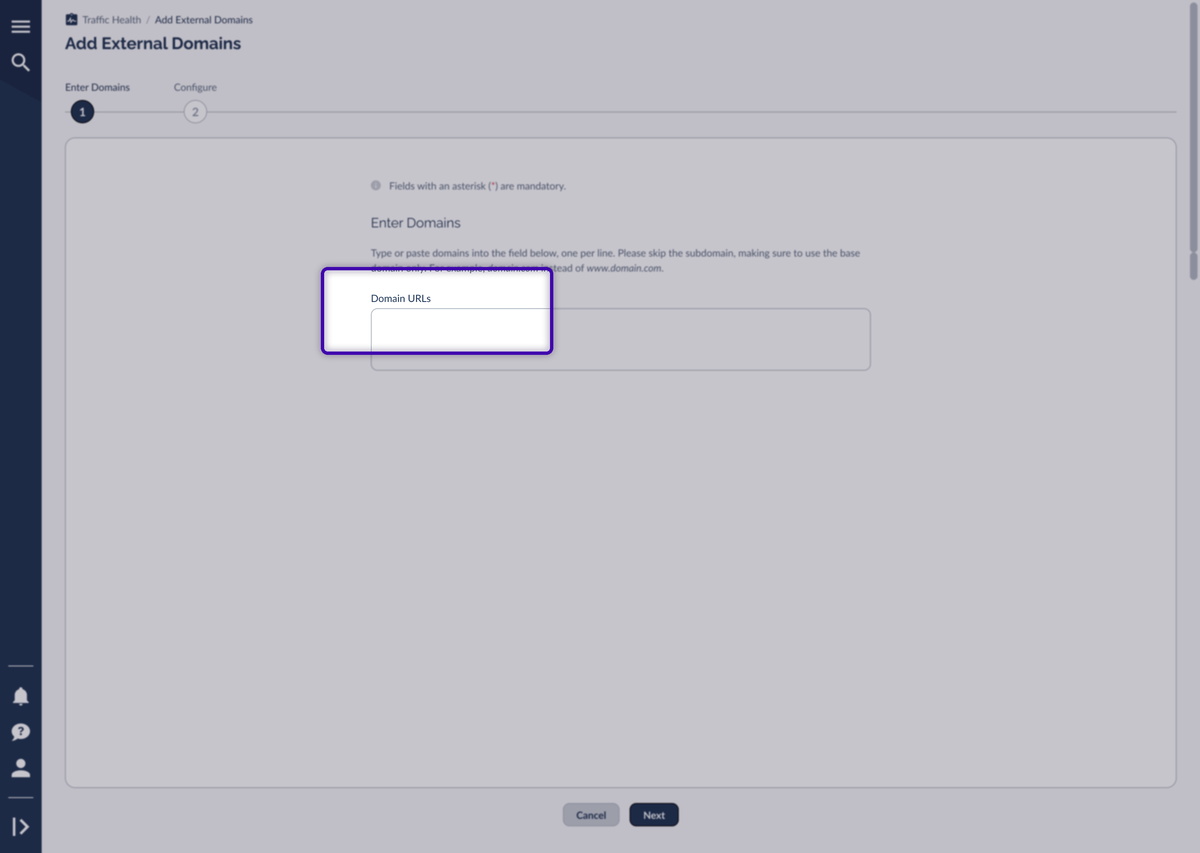
On the first step, type or paste your domains into the Domain URLs field, one domain per line. Skip the subdomain and use the base domain only (for example, domain.com instead of www.domain.com), then click Next.
Step 2: Configure
On the second step, you'll see a row of counters at the top that show how your entry fits your plan:
You can also add an optional Internal Note to any domain, a label for your team that's never shown to anyone outside your network. When everything looks right, click Add to start monitoring.

When You're Over Your Plan Capacity
If you enter more domains than your plan can monitor, Traffic Health shows an amber warning and lets you decide how to handle the overflow. You can either upgrade to cover every domain at full Premium, or use the per-domain Coverage toggles to choose exactly which domains keep Premium monitoring and which drop to Reduced.

Each domain's Coverage setting determines how closely Traffic Health watches it:
Coverage Levels
To guarantee full coverage for every domain on your list, upgrade your plan so nothing falls to Reduced.
What External Domains Are Monitored For
Once added, an external domain opens into the same Domain Details view as your own domains, but with a smaller scope. A grey EXTERNAL badge sits next to the domain name, and the tab bar is trimmed to just the areas that apply to a domain you don't operate.

Every external domain is watched on two fronts:
Uptime
Traffic Health checks whether the domain is reachable and opens an incident the moment it goes down, so you hear about outages as they happen, not hours later from a partner.
Reputation
The domain is checked against Google Threat Intelligence, HetrixTools, and EasyList. Any malicious-activity, spam/abuse, or tracking/advertising flags show up on the Reputation Flags tab.
The tabs available on an external domain are All Activity, Uptime Incidents, Reputation Flags, and Configuration. Because Everflow doesn't manage these domains, the Usage, Assignments, and Mismatches tabs that appear on your own tracking domains are hidden. There's no traffic, partner, or offer data to attribute to a domain you don't run.
The Reputation Flags tab shows the flag status, the kind of issue detected, the specific URLs involved, and the detection source behind each flag, so you can see exactly what tripped a flag and where.

External domains support the same Email, Slack, and Webhook alerts as your own domains.
Managing an External Domain
To manage an external domain after it's added, go to the Configurations tab, find it in the Domains card, and open the action menu (⋮) on its row. From there you can:
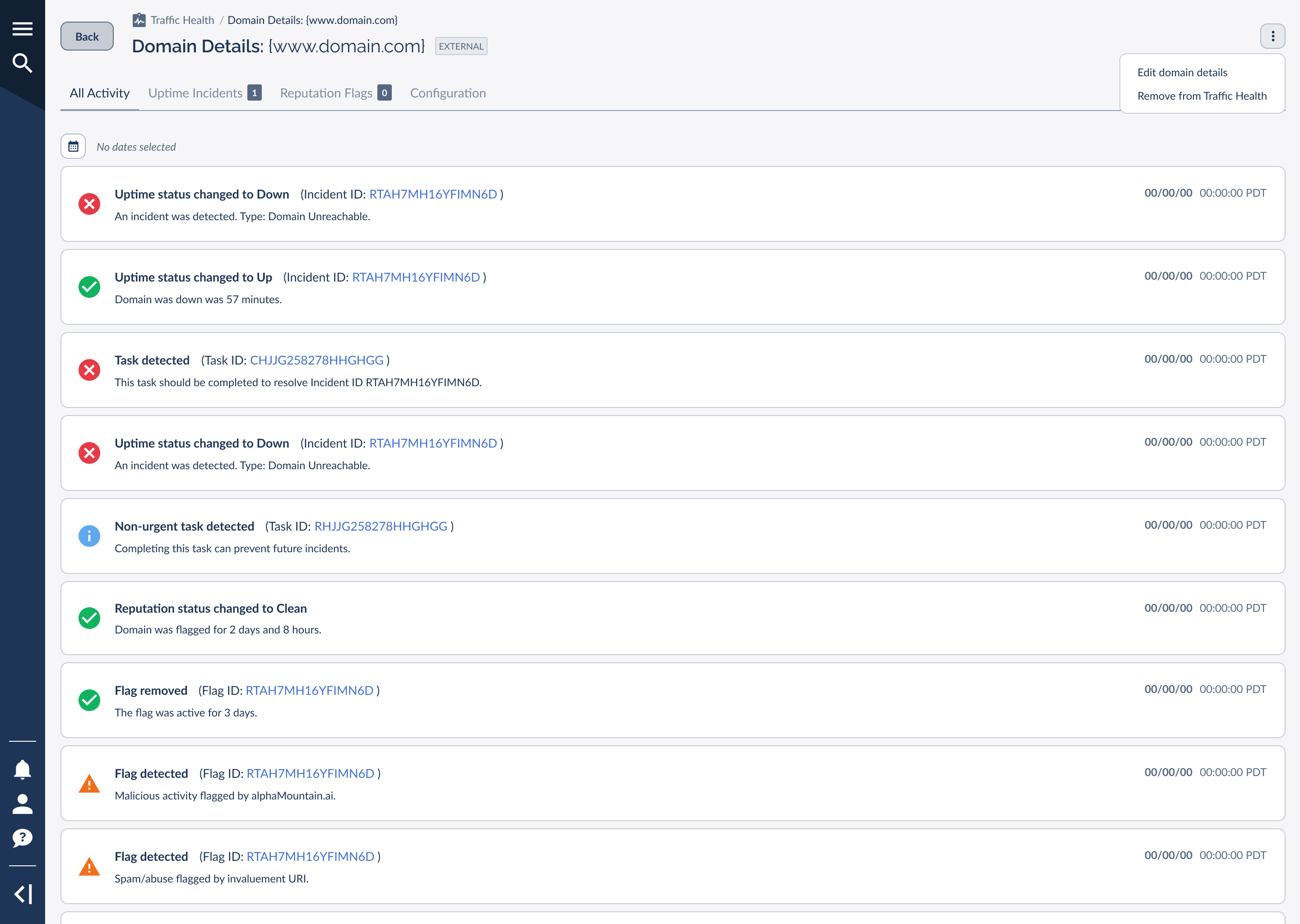
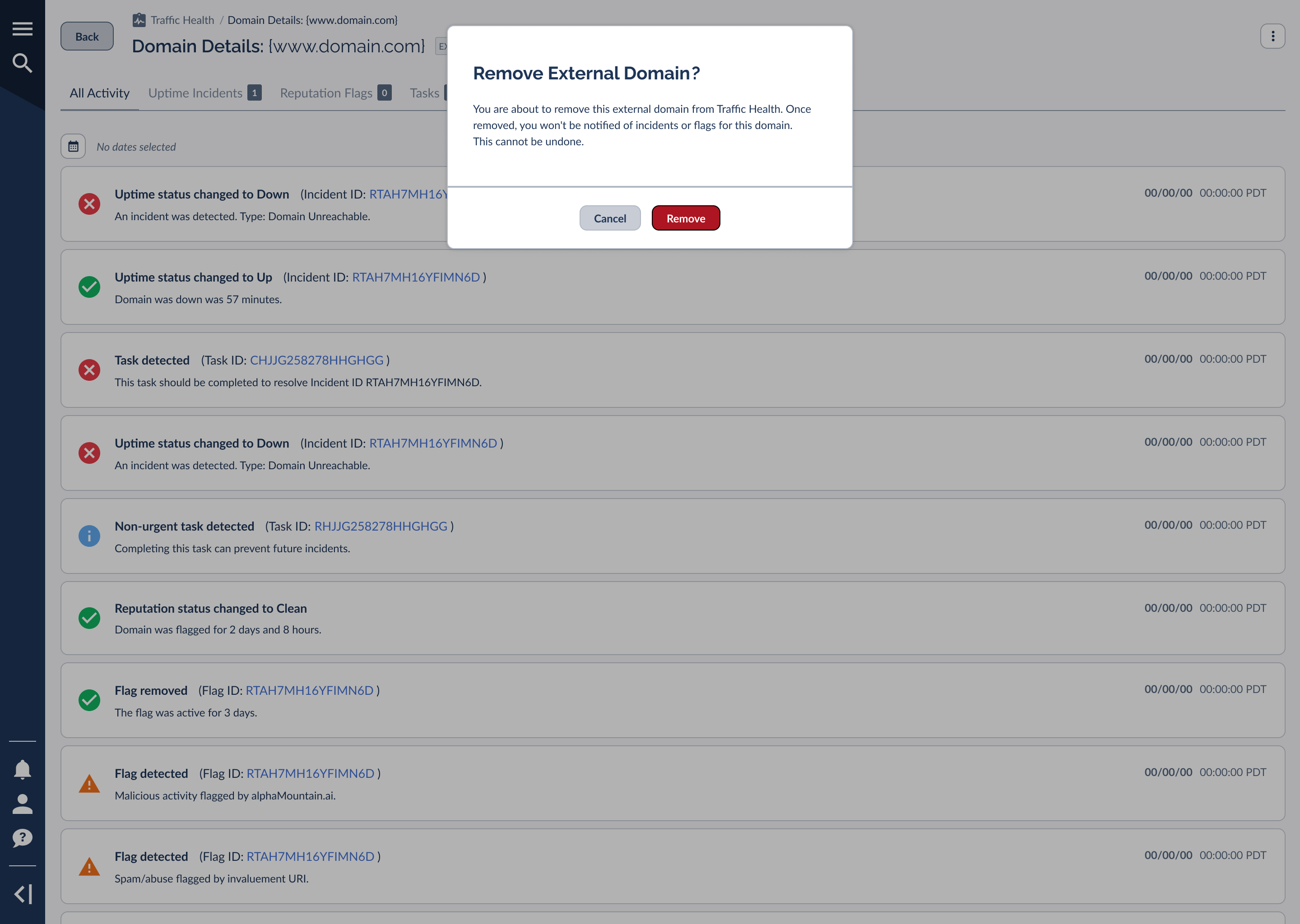
To remove a domain, choose Remove from Traffic Health from the action menu, then click Remove to confirm. A success message confirms the domain was removed.
Frequently Asked Questions
A few common questions about monitoring external domains:
That happens when you enter more domains than your plan can monitor. You can pick which domains keep full Premium coverage and which drop to Reduced, or upgrade your plan so every domain is fully covered.
They stop immediately. You won't be notified of any further incidents or flags for that domain, and the action can't be undone. You'd need to add the domain again to start monitoring it once more.


