


.svg)

Overview
Every tracking link your Partners use runs through a domain, and Traffic Health lets you decide exactly which domain serves which traffic. This guide covers how to see how a domain is being used, how to assign a domain to your Offers, Partners, or specific combinations of the two, and how to catch Partners who are still sending traffic through the wrong domain after a change.
Domain assignment lives inside the per-domain Domain Details view in Traffic Health. From the Traffic Health domain list, open any domain to land on its tabbed detail view, where
How domain assignments work
An assignment tells Everflow which tracking domain should be used by default when a Partner generates links. You can set this at three levels, and Everflow always applies the most specific assignment that matches the traffic.
The three assignment levels
The Assignments tab summarizes each level as a KPI card so you can see at a glance how a domain is being used before you change anything. The three levels stack in order of precedence, and Everflow always applies the most specific match it finds.
Offer · broadest
Tracking links use this domain by default for any Partner running the selected Offers. This is the most general assignment.
Partner · more specific
Tracking links use this domain for specific Partners across any Offer they run. Overrides a matching Offer-level assignment.
Combination · wins
Tracking links use this domain for specific Partner and Offer combinations, the most precise assignment. Overrides both Partner-level and Offer-level matches.
Because the most specific match wins, a Combination assignment overrides a Partner-level one, which in turn overrides an Offer-level one. That layering is what lets you keep most traffic on a shared domain while routing a few sensitive Partner-and-Offer pairs onto a dedicated domain.
Finding Usage & Assignments for a domain
Start from the Traffic Health domain list and open the domain you want to manage. The Domain Details view opens on the
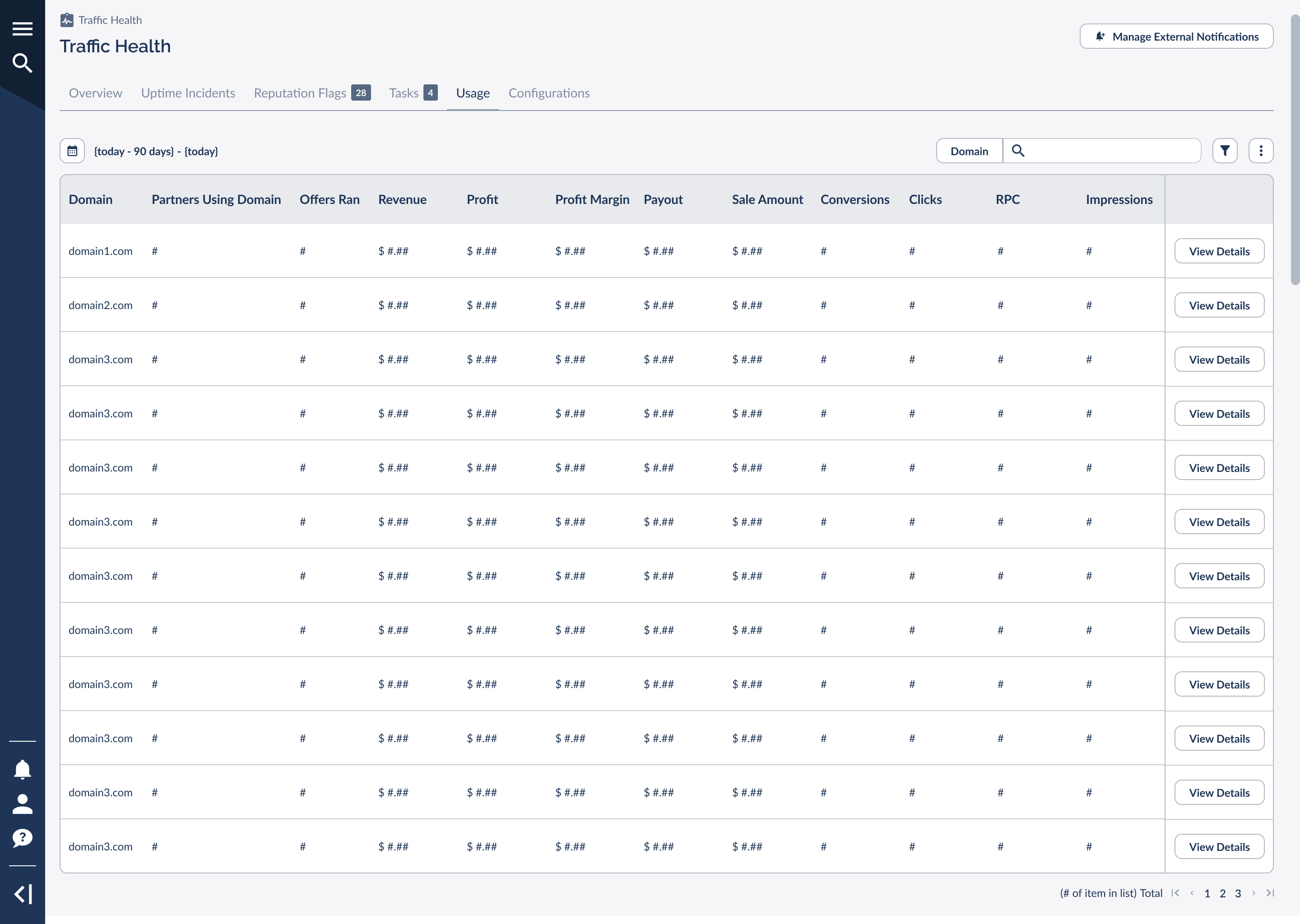
Think of the Usage tab as the domain's report card. Before you touch a single assignment, it tells you exactly how hard this domain is working: how many Partners and Offers depend on it, and the revenue and profit it's driving. Say a domain you thought was busy shows only a couple of Partners and flat revenue. That's your signal to dig in before reassigning anything, and your cue to check the Assignments and Mismatches tabs next.
The tab surfaces these per-domain metrics at a glance:
Revenue
Total revenue from conversions tracked through this domain.
Profit
Revenue minus the payouts owed on that traffic, so you can see what the domain nets.
Partners
How many Partners are currently sending traffic through this domain.
Offers
How many Offers are running on this domain.
Clicks and conversions sit alongside these so you can tie volume back to outcome, confirming a domain is carrying the load you expect before you rotate any traffic off it.
The Assignments tab
The Assignments tab is where you view and change which Partners and Offers a domain serves. At the top, three KPI cards summarize Offers Assigned, Partners Assigned, and Combinations Assigned. Below them, a table lists every assignment with its Partner, Offer, what it's assigned to (Offer, Partner, or Combination), and when it was created and last modified.
The
What the Assignments tab shows
Each row in the table represents one active assignment. From a row's menu you can generate or send fresh tracking links, edit the assignment, or remove it; from the table-level menu you can open the Assignment History, customize columns, or view the underlying API request. We'll walk through the most common of these below.
Assignments Is a Premium Feature
The Assignments and Mismatches tabs are Premium features of Traffic Health. On a Basic plan you'll see the tab with a locked upsell card and an Upgrade option rather than the live table.
Assigning a domain to Offers or Partners
Both assignment flows are short two-step wizards: a Settings step where you pick what the domain should serve, and a Review step where you confirm the change before it takes effect. Choose To Offers or To Partners from the
Assign a domain to Offers
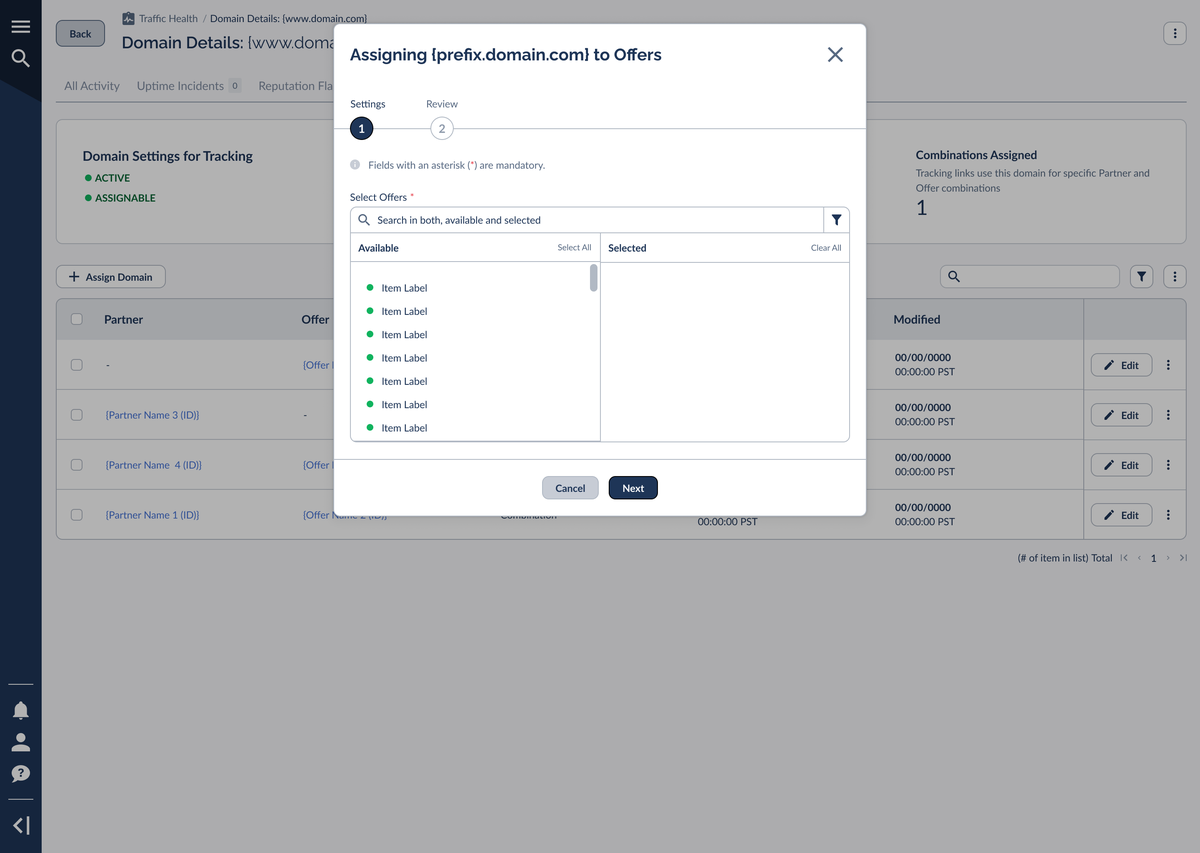
Selecting To Offers opens the Assigning [your domain] to Offers wizard. In the Settings step, use the dual-list picker to move the Offers you want from Available to Selected. You can search across both lists and select or clear them in bulk.
Pick every Offer that should use this domain by default and click Next.
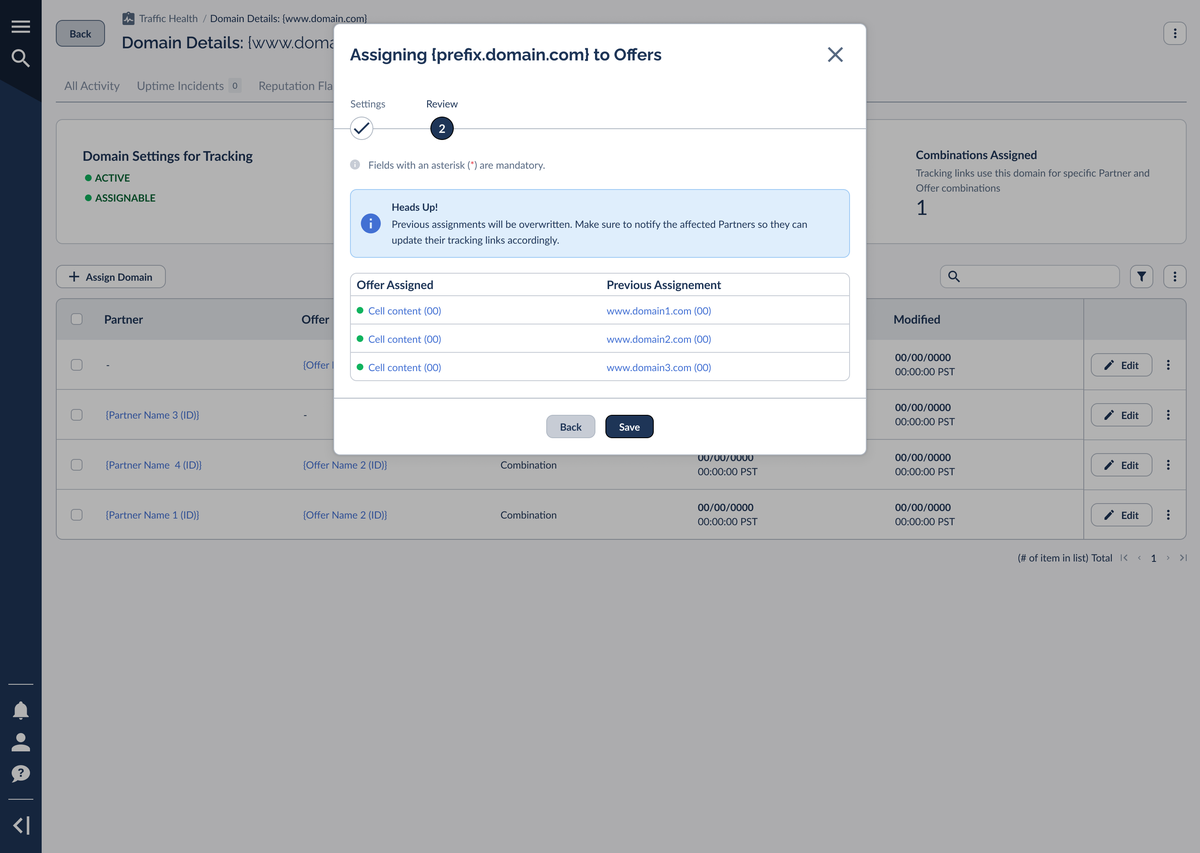
The Review step shows each Offer alongside its previous assignment so you can see exactly what's changing. Confirm and click Save.
Assign a domain to Partners (and Combinations)
Selecting To Partners opens the Assigning [your domain] to Partners wizard. Pick the Partners with the dual-list picker, then decide how broad the assignment should be using the For Specific Offers toggle:
In other words, the Combination level isn't a separate wizard. It's what you get when you turn on For Specific Offers while assigning to Partners.
The Review step works just like the Offer wizard: it shows each Partner against its previous assignment and carries the same overwrite warning. Confirm and click Save.
Editing and re-assigning
Once assignments exist, you'll manage them from the table itself rather than the wizard. To change a single assignment, open its row menu and choose Edit Assignment; the edit modal shows the Partner, Offer, or both (for a Combination) as read-only context and lets you pick a new Domain to move it to.
Re-assign in bulk
When you're rotating off a domain entirely, you rarely want to edit rows one at a time. Select multiple rows using the checkboxes, then open Actions → Edit Assignments. A single modal lets you choose one new Domain and move every selected assignment to it at once.
This is the fastest way to migrate traffic when you retire a domain or stand up a fresh one, and it's exactly the moment to lean on the Mismatches tab afterward to confirm Partners actually moved.
Generate or send tracking links
Each assignment row has a menu with the options that make a change actionable for Partners.
Assignment History
From the table-level menu, choose View Assignment History to see assignments that are no longer active. The history lists each past assignment, what it was assigned to, when it was unassigned, and an Unassigned Reason (for example, "Assignment Deleted") so you can trace why a domain stopped serving a given Partner or Offer.
The Mismatches tab
Changing an assignment only updates what Everflow recommends. It can't force a Partner to swap the link they've already hard-coded. The Mismatches tab catches that gap: it flags any Partner whose traffic is still running through this domain even though they're now assigned to a different one. That's typically an outdated tracking link left over from a domain rotation, and left alone it can drag a clean domain into another domain's reputation problems.
The tab leads with two KPI cards (Partners Mismatched and Offers Mismatched) and a table showing the Partner using the domain, the Offer involved, the domain they're actually assigned to, and when the mismatch was detected. From a row you can Send Tracking Links to nudge the Partner onto the correct domain, or Edit Assignment if you'd rather make this domain their official one.
Like Assignments, the Mismatches tab is a Premium feature. On a Basic plan it appears as an upsell card ("Spot Outdated Tracking Links") with an Upgrade option in place of the live data.
Pair Send Tracking Links with a short Communication Hub note so Partners know why their links changed.
Notifying your Partners
Whenever you re-assign or rotate a domain, the Partners on the old domain need new tracking links, and the cleanest way to deliver them is through the Communication Hub. The Send Tracking Links action on both the Assignments and Mismatches tabs hands the updated links to your Partners directly, so you don't have to copy URLs into a separate email.
Sending the links promptly is what keeps a domain change from turning into a Mismatch later: the sooner Partners update, the sooner their traffic moves to the right domain and the Mismatches tab clears.
Frequently asked questions
A Partner assignment applies to a Partner across every Offer they run. A Combination narrows that down to a Partner plus one or more specific Offers. You create it by turning on "For Specific Offers" in the Assign to Partners wizard. Because it's more specific, a Combination takes priority over a plain Partner assignment.
Assigning a domain replaces the previous assignment for those Offers or Partners. Anyone using the old domain keeps working only until they pick up the new tracking links, so the warning is a reminder to notify the affected Partners and send them updated links.
That's exactly what the Mismatches tab is for. Open it, find the Partner, and use Send Tracking Links to deliver the correct links, or Edit Assignment if you'd prefer to make the domain they're using their official one.
Both are Premium features of Traffic Health. On a Basic plan the tabs show an upsell card with an Upgrade option instead of live data. Reach out to your Everflow account team or billing to enable Premium.


