


.svg)

Overview
Your domains are the foundation of every tracking link, conversion postback, and offer flow you run. When a domain goes down, loses its SSL certificate, or quietly stops being monitored, your traffic feels it. The Configurations tab in Traffic Health pulls it all into one place: how each domain is managed, how it’s hosted, what level of monitoring it has, and when its certificates expire.
This article walks through the Configurations view, the Domains table and its new Coverage column, how to add and manage domains, and the per-domain Configuration tab where you can dig into a single domain’s details.
A quick note on tiers before you dive in: a few things here (external domain monitoring, Dedicated IP details, and the Premium coverage meter) are Premium-only, and you’ll see an upgrade prompt where they apply on the Basic plan. For how the plans compare and how capacity is sized, see Traffic Health Packages & Billing.
The Configurations Tab
Open Traffic Health and select the
At the top of the view, summary cards give you the headline facts before you scroll into the tables below.
Default Domains and Registration Info
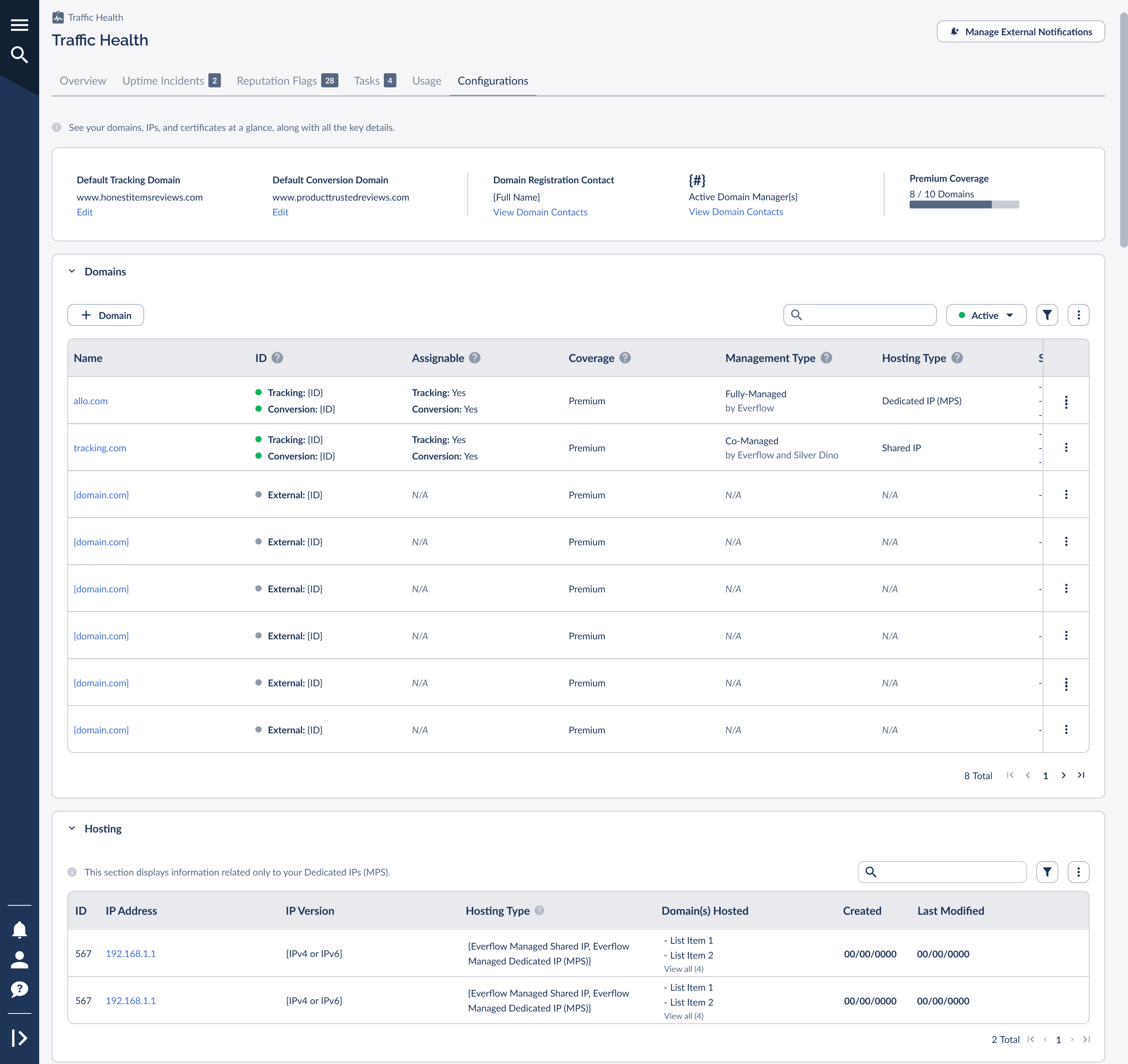
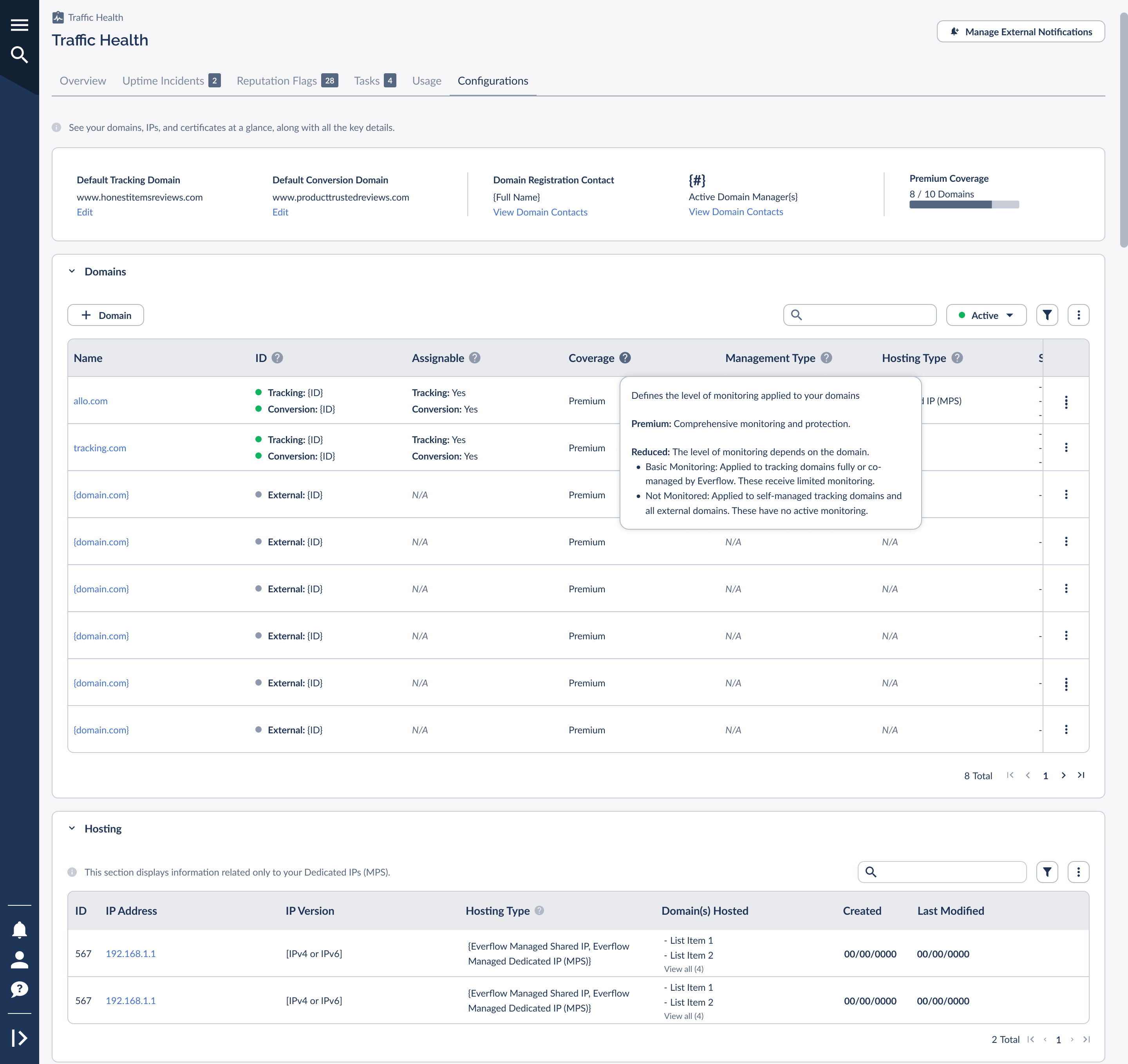
The summary cards at the top of the tab show your Default Tracking Domain and Default Conversion Domain, the domains used automatically when no other assignment applies. Each has an Edit link so you can change the default quickly. You’ll also see your Domain Registration Contact and a count of your Active Domain Manager(s), both linking through to the full Domain Contacts list.
On the Premium plan, a Premium Coverage card also appears here, showing how many of your domains are using Premium monitoring against your plan’s capacity (for example, 8 / 10 Domains). We cover what that meter means in the Coverage section below.
Domain Contacts
Accurate contact information is what lets the right person act fast when a domain needs attention. The Domain Contacts list is split into two groups:
The Domains Table
Below the summary cards, the Domains table lists every domain associated with your account. The default view shows the most important columns; scroll right to reveal the full set, including expiration dates, internal notes, and created/modified timestamps.
The columns you’ll work with most are:
You can filter the table by status (All, Active, or Deleted) using the status dropdown above it, which keeps the list focused on the domains you care about right now.
Management Type and Hosting Type
Two columns describe how each domain is run, and together they determine what Everflow can do for it. The first is who holds the DNS keys; the second is how the domain is served.
Management Type tells you who controls the domain’s DNS. There are three:
Fully-Managed
by Everflow
Who controls DNS: Everflow.
What Everflow can do: handle the domain end to end, including the deepest monitoring.
Typical use: a tracking domain you want Everflow to run for you.
Co-Managed
by Everflow and your team
Who controls DNS: shared. Your team holds DNS access alongside Everflow.
What Everflow can do: monitor and manage its part, while your team keeps direct DNS control.
Typical use: a domain fronted by your own CDN or DNS provider.
Self-Managed
by your team
Who controls DNS: your team. You own and manage the domain.
What Everflow can do: for external domains, watch uptime and reputation only.
Typical use: external domains you add for monitoring are always self-managed.
Hosting Type tells you how the domain is served:
Dedicated IP (MPS)
An Everflow-managed dedicated IP. It isn’t shared with anyone else, which unlocks the deepest monitoring and keeps your sender reputation in your own hands.
Shared IP
A shared Everflow IP. A simple default that works well for most domains, without the dedicated-IP monitoring depth.
Coverage: Premium vs Reduced
New in this version of Traffic Health, the Coverage column shows the level of monitoring applied to each domain. It’s the single best place to confirm that the domains carrying your most important traffic are fully protected.
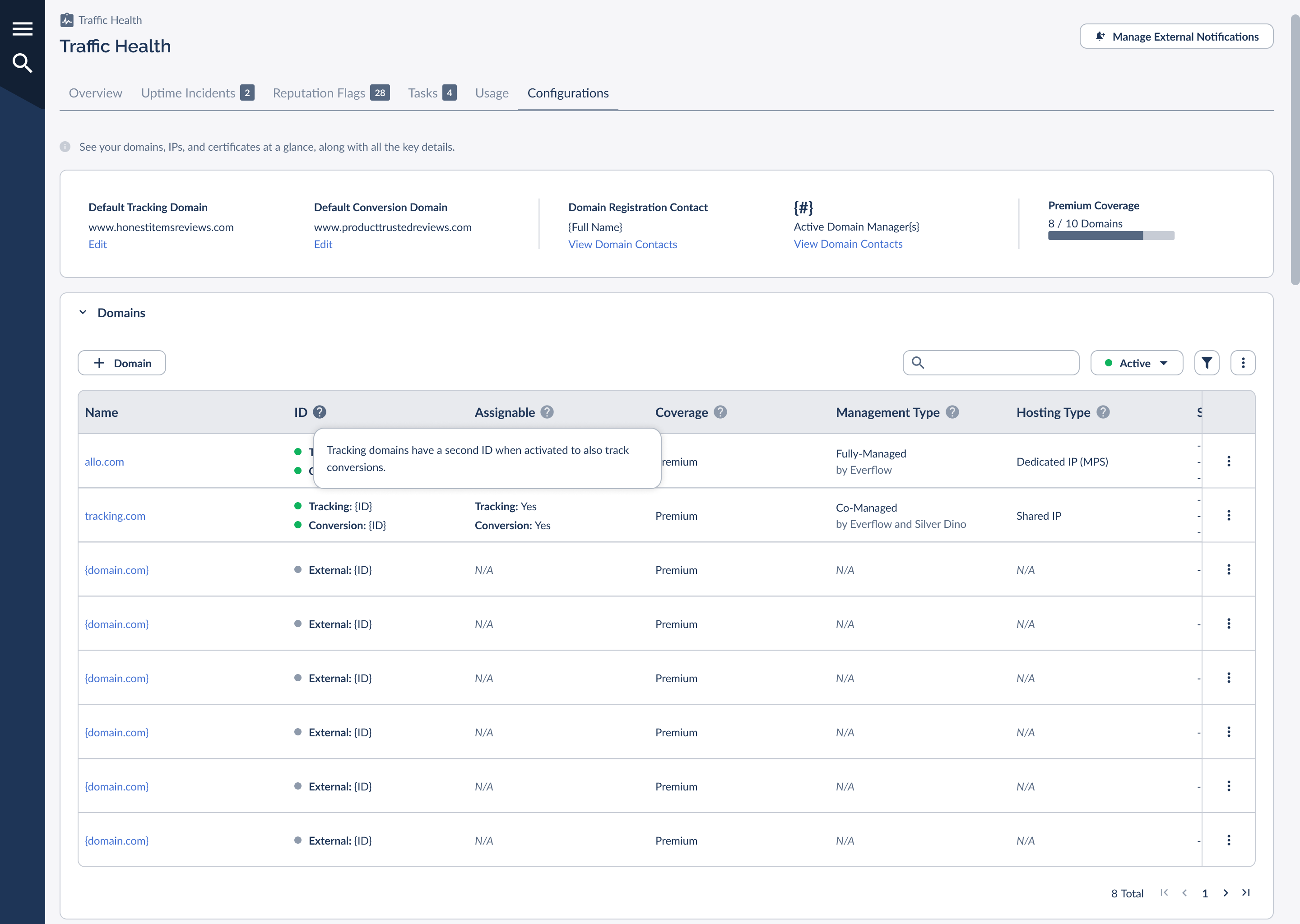
There are three coverage states. The Coverage column header has a ? tooltip that defines them in the product, and that tooltip is where you’ll see Reduced (Basic) labeled as Basic Monitoring. We use that name consistently from here on.
You can confirm what a given domain’s level includes straight from that tooltip, without leaving the table. A Reduced (Not Monitored) value appears with a warning icon so domains with no active monitoring are easy to spot.
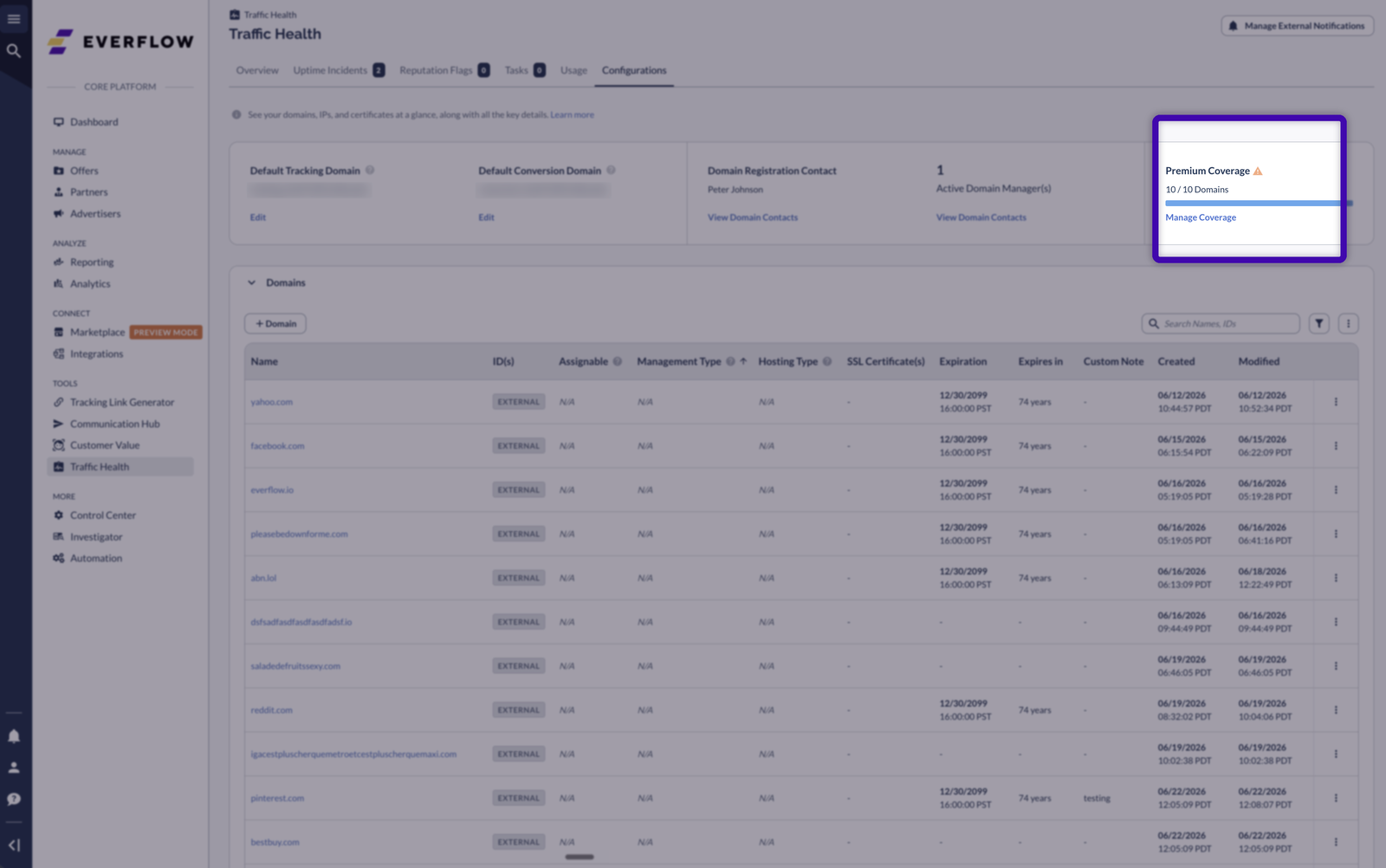
On the Premium plan, the Premium Coverage card near the top of the tab tracks how many domains are on Premium monitoring against your plan’s capacity. Premium capacity is sized by domain count: up to 10 domains, up to 25 domains, or a larger custom amount. When you reach or exceed your limit, the meter switches to a warning state with a Manage link so you can rebalance which domains get Premium coverage.
Managing capacity, moving domains to Premium, and choosing the right plan tier are covered in Traffic Health Packages & Billing.
Adding a Domain
To add a domain, use the
External domain monitoring is a Premium feature. On the Basic plan, the External Domains option shows an Upgrade prompt rather than opening the add flow.
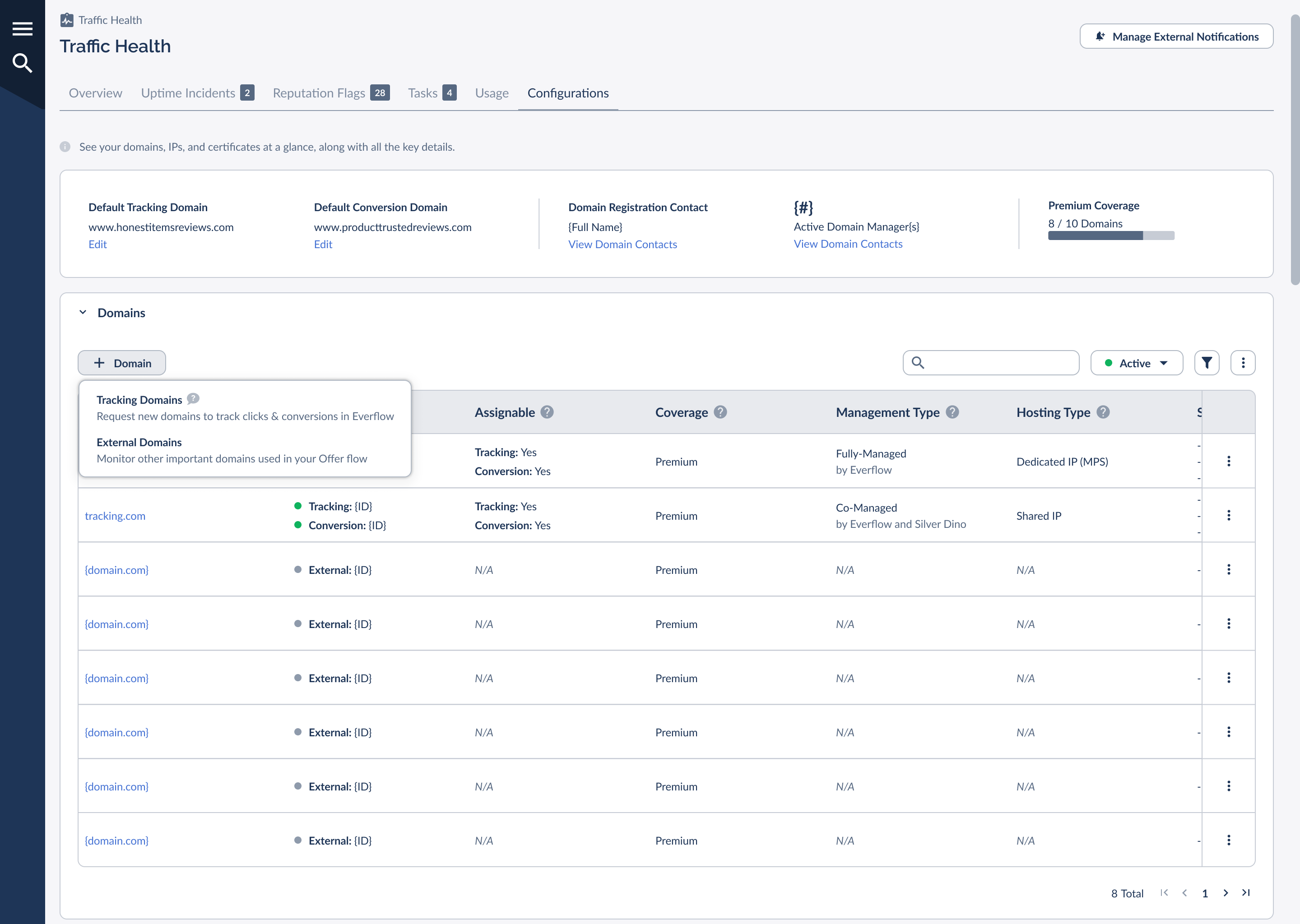
When you add an external domain, Everflow begins monitoring it for uptime and reputation issues. External domains don’t carry the full set of features a tracking domain has (they aren’t used for assignments, for instance), so a few columns show N/A for them in the table.
Editing or Removing a Domain
Each row has a three-dot menu, and the available actions depend on whether the row is a tracking domain or an external domain.
For a tracking domain, the menu lets you edit the domain’s details, set it as your default tracking domain, or set it as your default conversion domain.
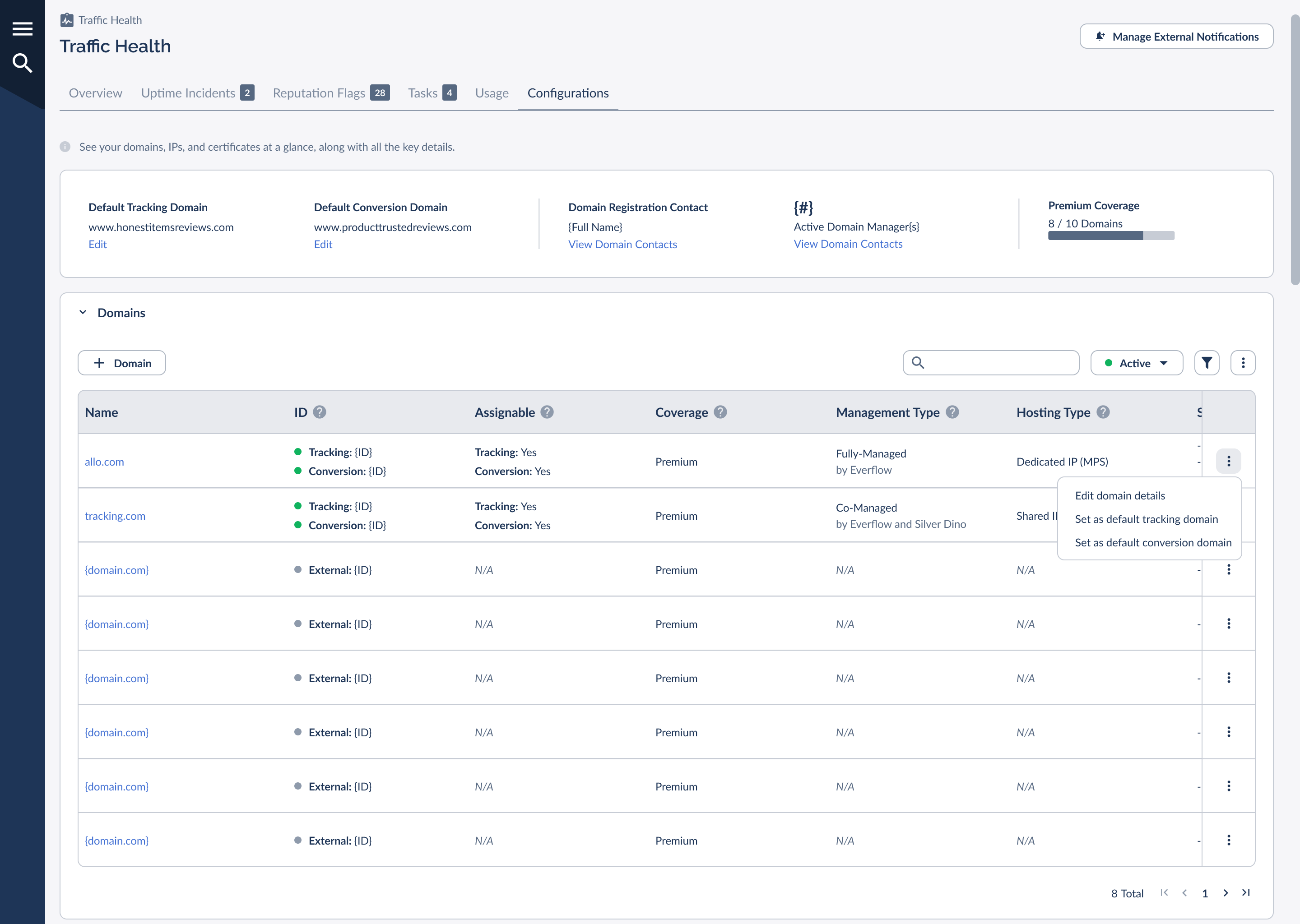
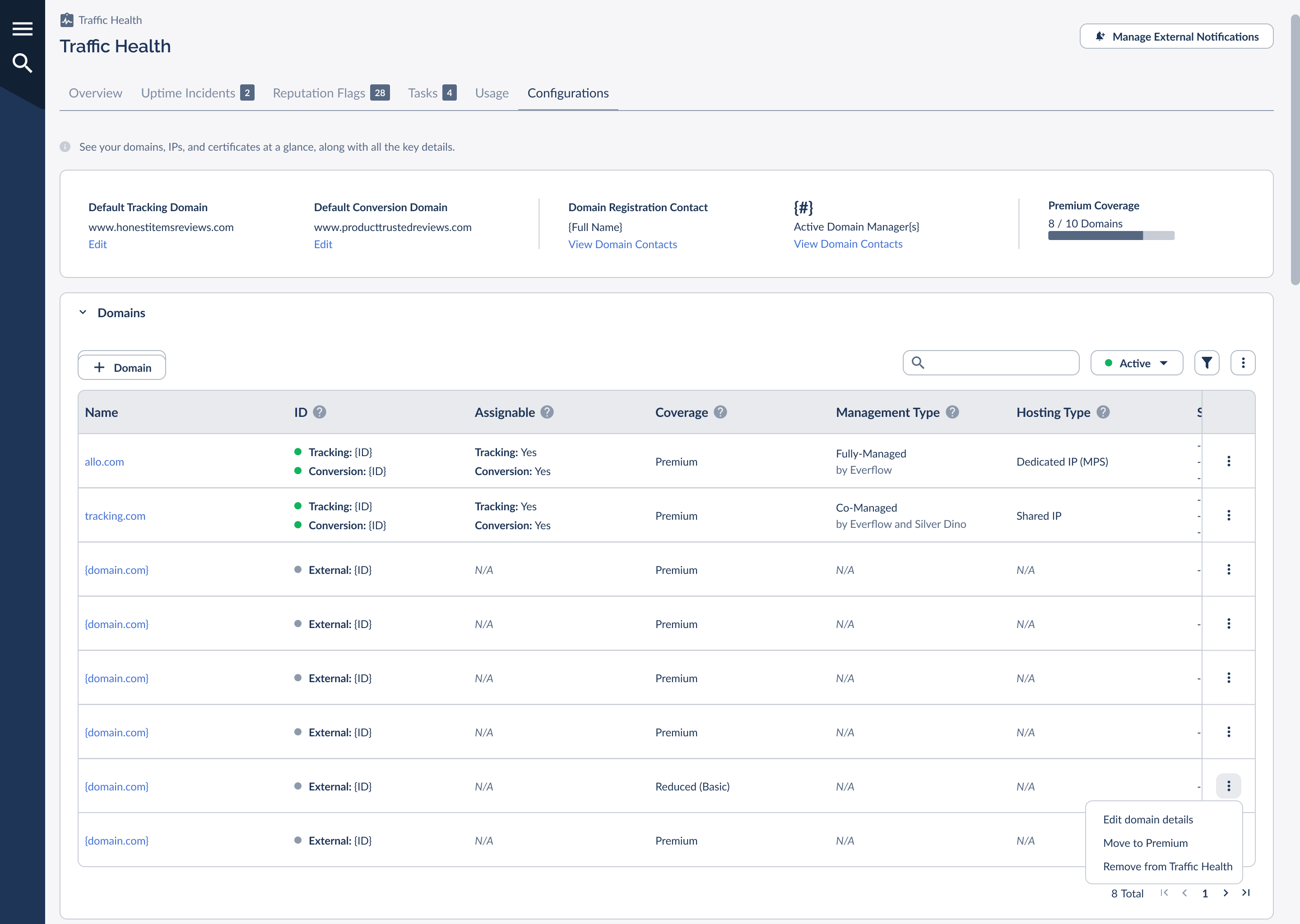
For an external domain, the menu instead lets you edit the domain’s details, Move to Premium (to give it comprehensive monitoring), or Remove from Traffic Health.
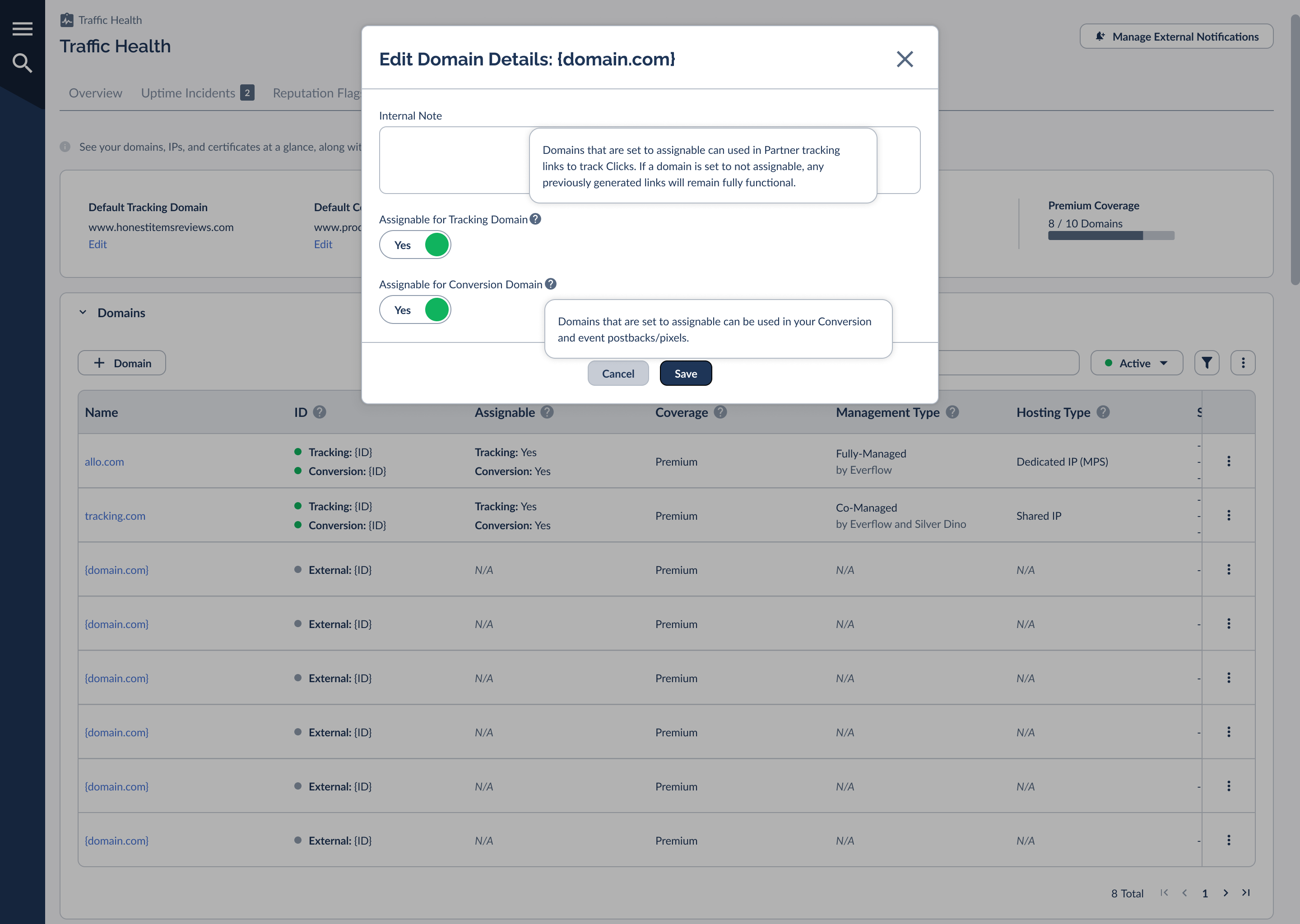
Choosing Edit domain details opens a modal where you can add an Internal Note and control assignability with two toggles: Assignable for Tracking Domain and Assignable for Conversion Domain. Each toggle has a tooltip explaining what it controls. A tracking-assignable domain can be used in new partner tracking links, while a conversion-assignable domain can be used in your conversion and event postbacks/pixels. Turning off assignability doesn’t break links that already exist; previously generated links keep working.
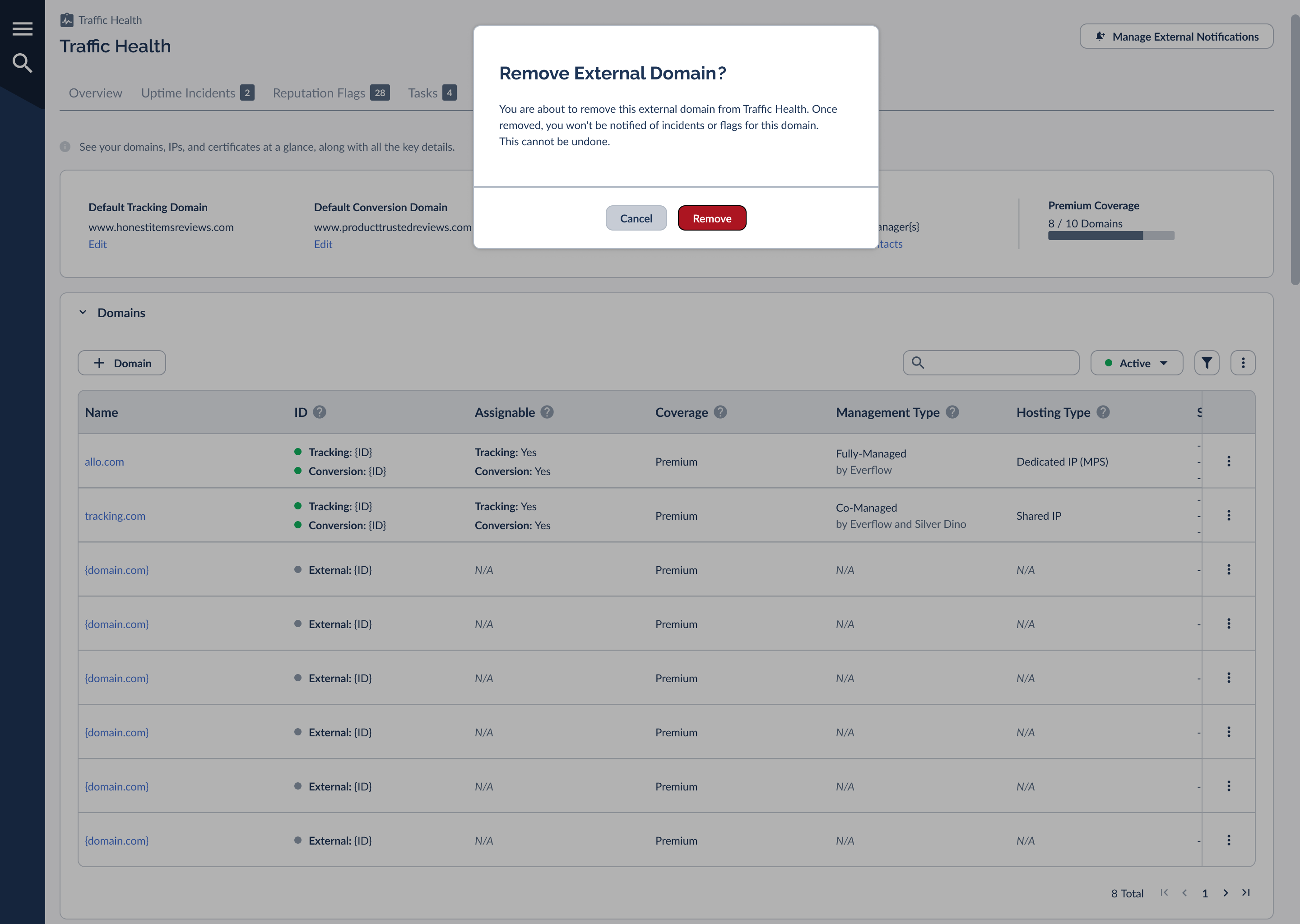
Removing an external domain is permanent, so Traffic Health asks you to confirm before it does anything.
IP Addresses and Hosting
The Hosting section lists the IP addresses behind your domains. It covers only Everflow-managed Dedicated IPs (MPS), the IPs that support the deepest monitoring, so it won’t list shared IPs. Its columns cover the IP’s ID, the IP address, its version (IPv4 or IPv6), hosting type, the domains hosted on it, and created/modified timestamps.
If you’re on the Basic plan, this section shows an upgrade prompt instead, since Dedicated IP information is a Premium detail.
SSL Certificates
The SSL Certificates section is your certificate inventory. Each row shows the certificate’s ID, common name, serial number, the domain(s) it secures, who manages it, who issued it, and its issue, expiration, created, and modified dates, along with how soon it expires.
This view matters because an expired SSL certificate causes browser security warnings that can stop partners and customers from reaching your offers. Watching the Expires In values here lets you act before a certificate lapses rather than after traffic has already been disrupted.
The Per-Domain Configuration Tab
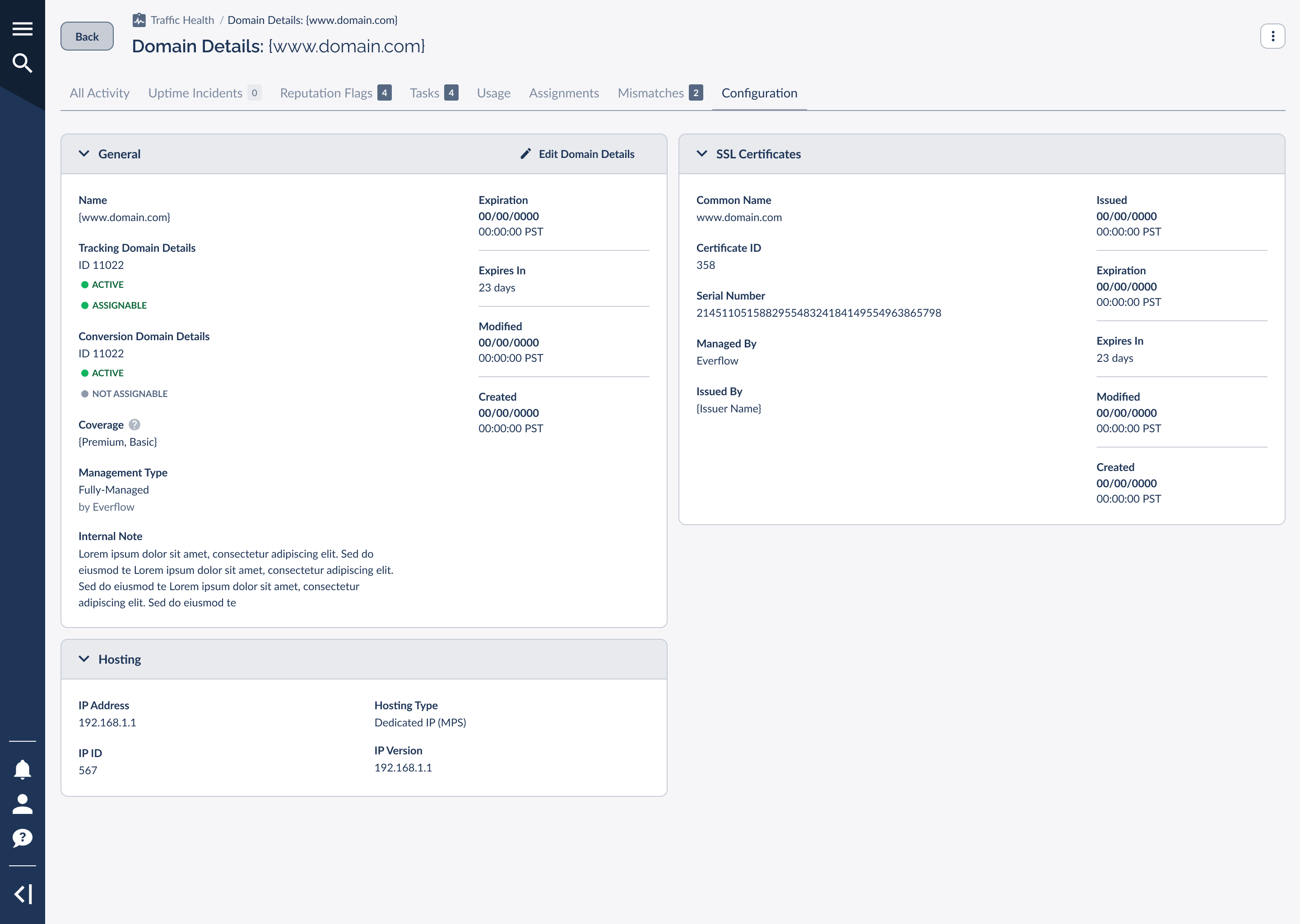
Beyond the account-wide view, every domain has its own Configuration tab inside its Domain Details page. Open a domain from the Overview or from the Domains table, then select
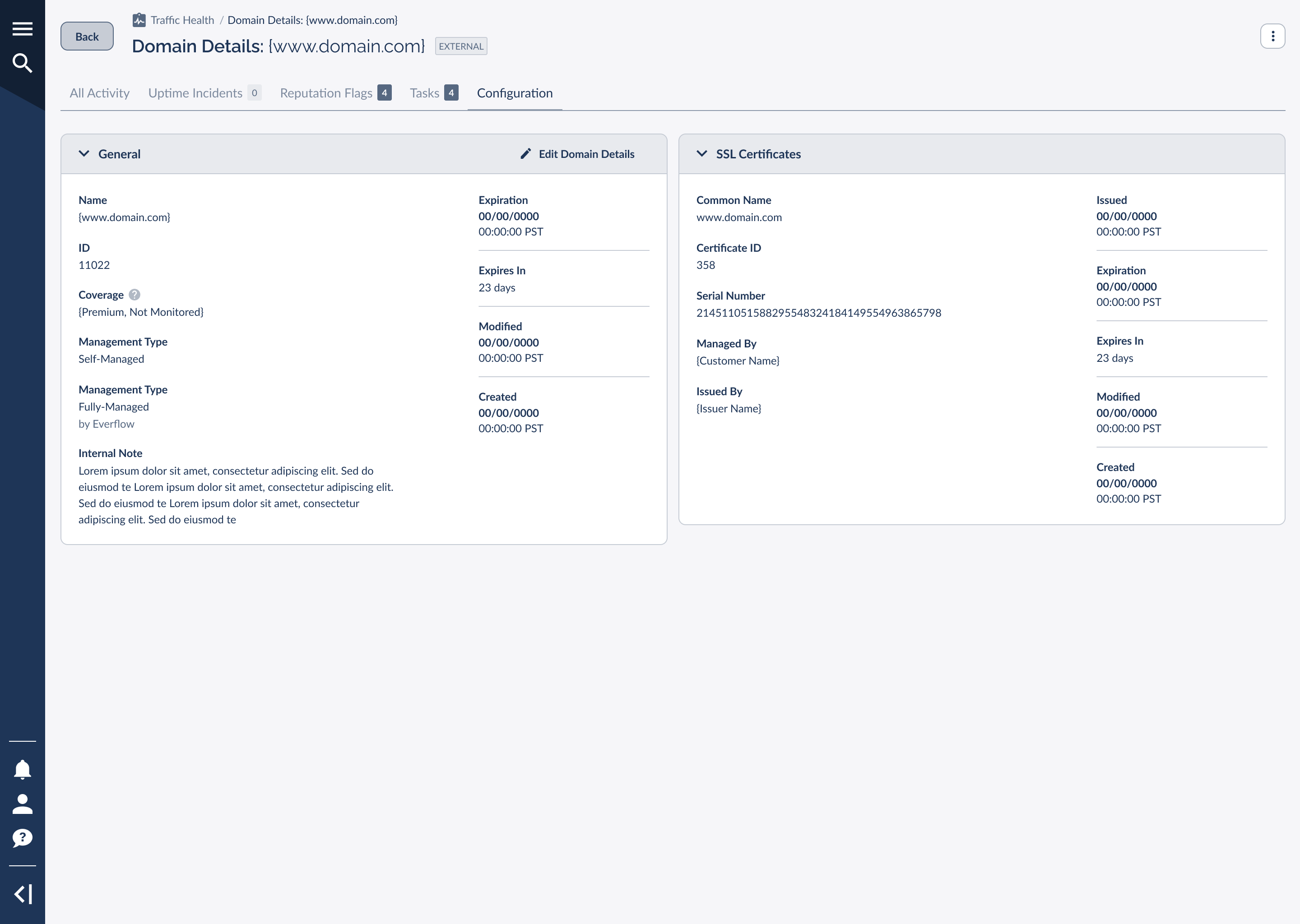
An external domain shows an EXTERNAL badge next to its name and a reduced set of tabs, since it isn’t used for assignments or usage reporting the way a tracking domain is. Its General card includes the Coverage field so you can confirm its monitoring level at a glance, and its Edit Domain Details modal is limited to the internal note (there are no assignability toggles for an external domain).
Frequently Asked Questions
A few common questions about the Configurations tab and how coverage works:
The Premium Coverage meter switches to a warning state, and new domains land on Reduced coverage until you free up a slot. Open the Manage link to move a lower-priority domain off Premium, which opens capacity for the one you care about. If you’re consistently over your limit, that’s the signal to size up a tier.
Management and coverage are separate. Basic Monitoring is reserved for fully or co-managed tracking domains; a self-managed tracking domain stays Not Monitored regardless of who hosts it until you move it to Premium. So a domain can be Everflow-hosted and still show Not Monitored if its Management Type is Self-Managed.
No. Removal is permanent and the incident/flag history doesn’t carry over. You can re-add the same domain from + Domain → External Domains, but monitoring starts fresh from that point. External domain monitoring is a Premium feature, so the option is greyed out on Basic.
That’s expected. Assignability only governs whether the domain can be picked for new tracking links and postbacks; it never rewrites links already in the wild. To actually stop traffic on an existing link, you have to retire the link itself, not just the domain’s assignability.
Both. This is normal for co-managed domains where a CDN issues its own certificate alongside the Everflow-managed one, and each renews on its own schedule. Watch the nearest Expires In value, since whichever lapses first is the one that can trigger browser warnings.


