


.svg)

Overview
Collecting tax documents from Partners is slow, and getting it wrong is expensive. If your business is registered in the US, Everflow Pay does a large part of that work for you: it collects the right form from each Partner, checks their tax ID against IRS records, generates W-9 PDFs, and gives you a clean export at year end.
If your business is registered outside the US, most of this article does not apply to you. Everflow Pay does not handle US tax compliance or documentation for international payers, so there is no W-9, no W-8 and no TIN check on your Partners. Skip ahead to the export section if you still need payment data for your own filings.
Which Partners Give You A Tax Form
This is the single question that causes the most confusion, so here it is in one place. A tax form and a Tax ID are two different things, and they follow different rules.
Whether a Partner completes a US tax form depends on the payer, not on where the Partner is. If the business paying them is registered in the US, they complete one: a W-9 if they are US-based, a W-8 if they are not. If the business paying them is registered outside the US, there is no US tax form step at all, and Everflow Pay does not collect US tax documents on your behalf.
A Tax ID is a number, not a form. Where the setup form asks for one, its help text reads: for US-based users this is your SSN or EIN, and for international users it is your local equivalent tax or business registration number, such as a Business Number or SIN in Canada. It is worth encouraging Partners to fill it in accurately, because some countries will reject an incoming payment outright if the local tax ID is missing or the wrong length.
A W-8 is routine, not exotic. There are three of them in common use, W-8BEN, W-8BEN-E and W-8ECI, and the platform offers the applicable one rather than asking the Partner to choose blind. A US-based Partner completes a W-9 instead.
Tax ID Verification
When a Partner submits US tax information, Everflow Pay checks the Tax Identification Number on it against IRS records automatically. You do not run the check and you do not see a queue: it happens as part of the Partner finishing their setup, and the result lands on their payee record.
When A Failed Check Blocks A Payment
This is the part most people have backwards. A failed TIN check does not automatically stop you paying the Partner. It stops payment only when TIN verification is switched on as a payable requirement on your account. If it is not, the Partner stays payable and the failed check is information rather than a blocker.
That is why two payers can see the same failed check and get different outcomes. If you want a failed check to hold payment, that is a configuration choice on your side, not a platform default.
The Three Attempt Limit
A Partner gets three attempts to enter tax information that passes. After the third failure the attempts stop and you are alerted, so a Partner cannot sit in a silent retry loop. From there you review what they submitted and approve it yourself if it is correct.
Your Partner is told about the failure too, if you have the alert switched on for them. That is the TIN Matching Failure notification, and you control whether it goes out from the Everflow Pay Notification Center.
Generating W-9s
Everflow Pay builds the W-9 PDF for you from what the Partner already submitted, so you are not chasing anyone for a signed copy or retyping details into a form. You will find the generated forms on the Payee page, and you can download one Partner's form or a batch of them at once.
A Partner does not need a verified tax ID before you can download their W-9. Generation and verification are separate, and a Partner whose check is still running or has failed still has a downloadable form.
Exporting Your Year End Tax Data
At year end you need the numbers, not the forms. Everflow Pay gives you the payment totals per Partner for the tax year you pick, split the way the IRS wants them split: 1099-NEC for domestic contractors and 1042-S for international ones.
Where To Find It
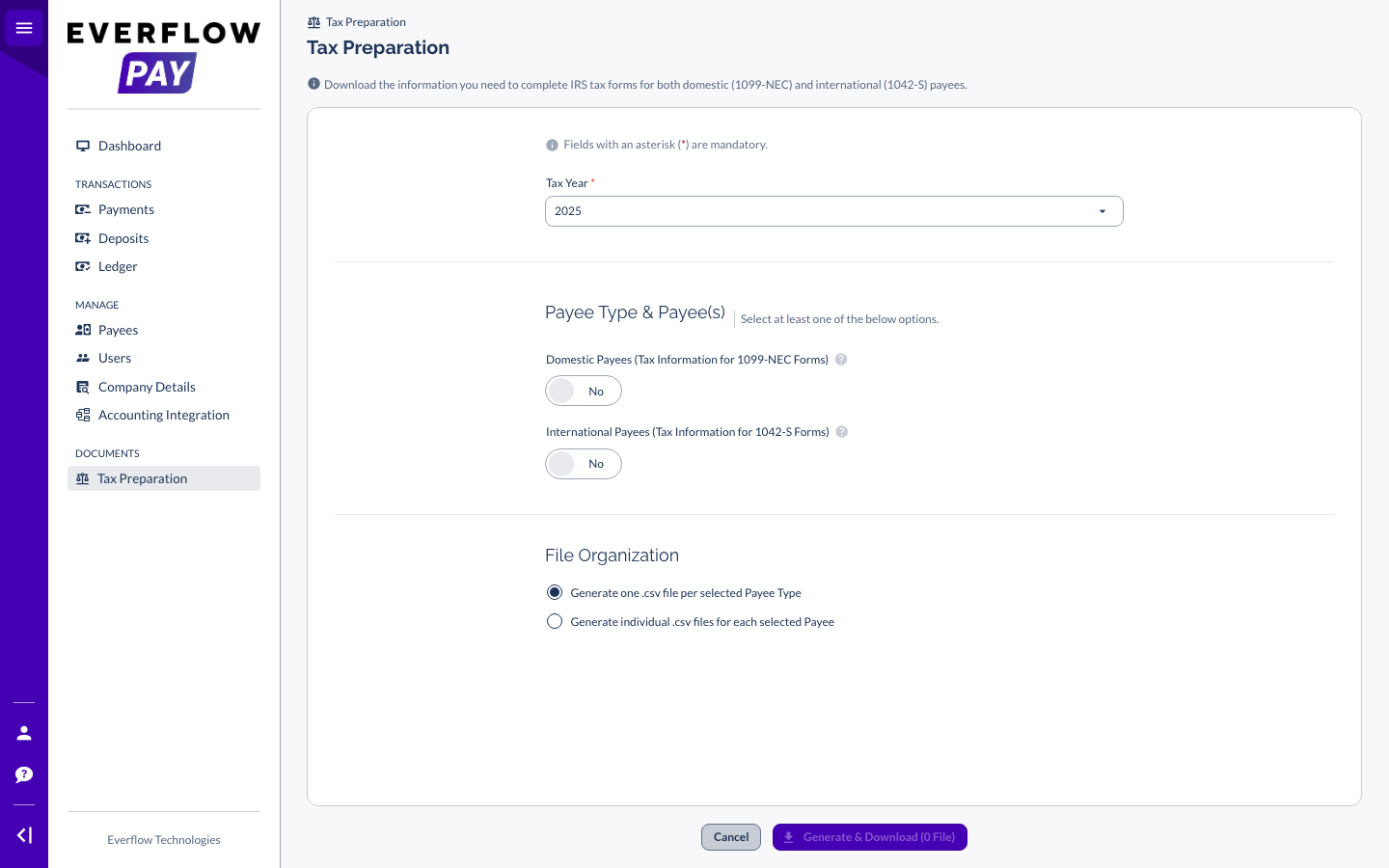
The Tax Preparation screen lists the exports available to you. You pick the tax year first, then choose which set of payees you want, and the platform tells you how many files it is about to generate before you commit to the download.
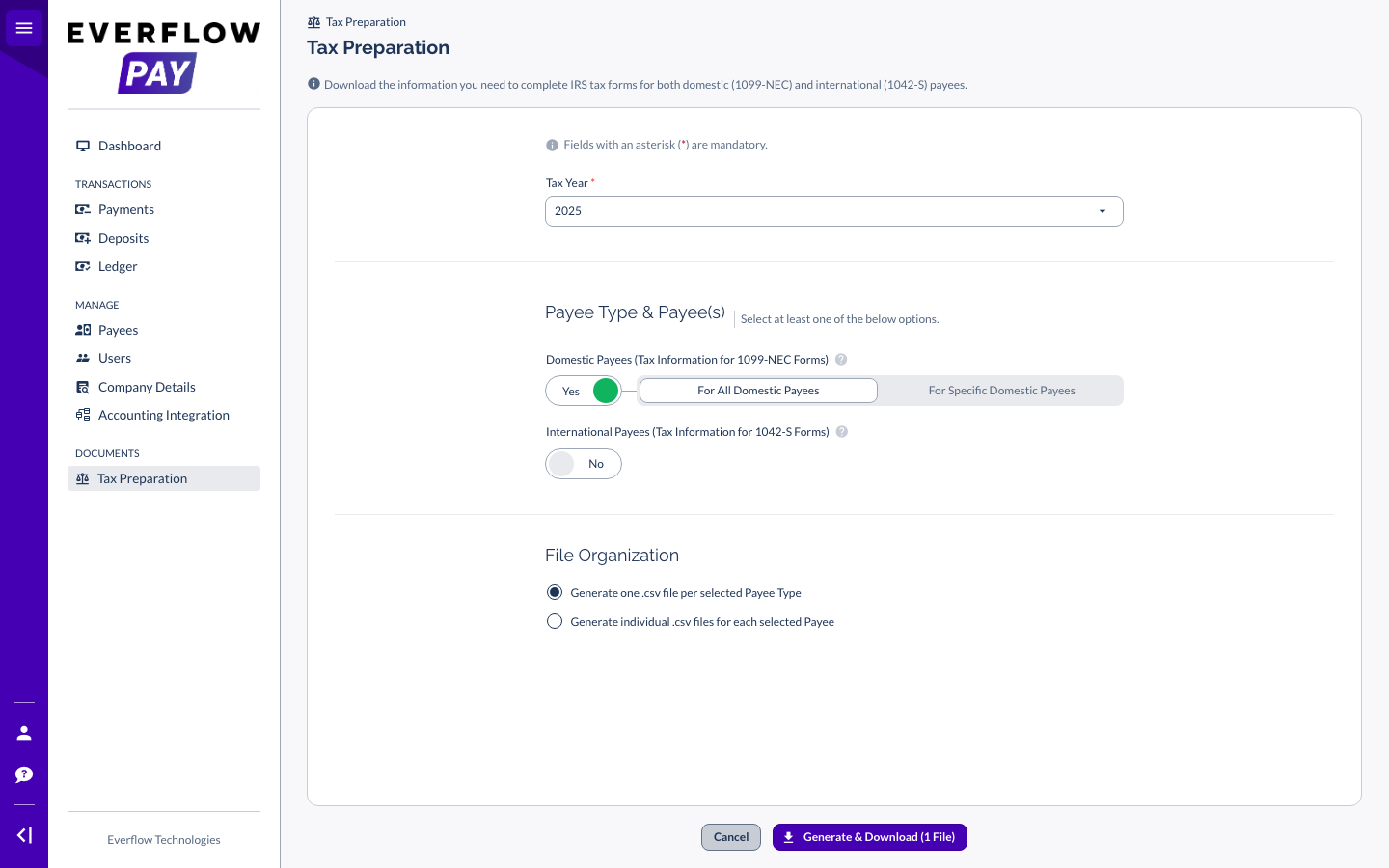
1099-NEC Data For Domestic Payees
This is the export for your US-based Partners. You can take every domestic payee at once or pick specific ones, and the figures are built from the payments you actually made during the tax year you selected. It comes out as CSV, individually or in bulk.
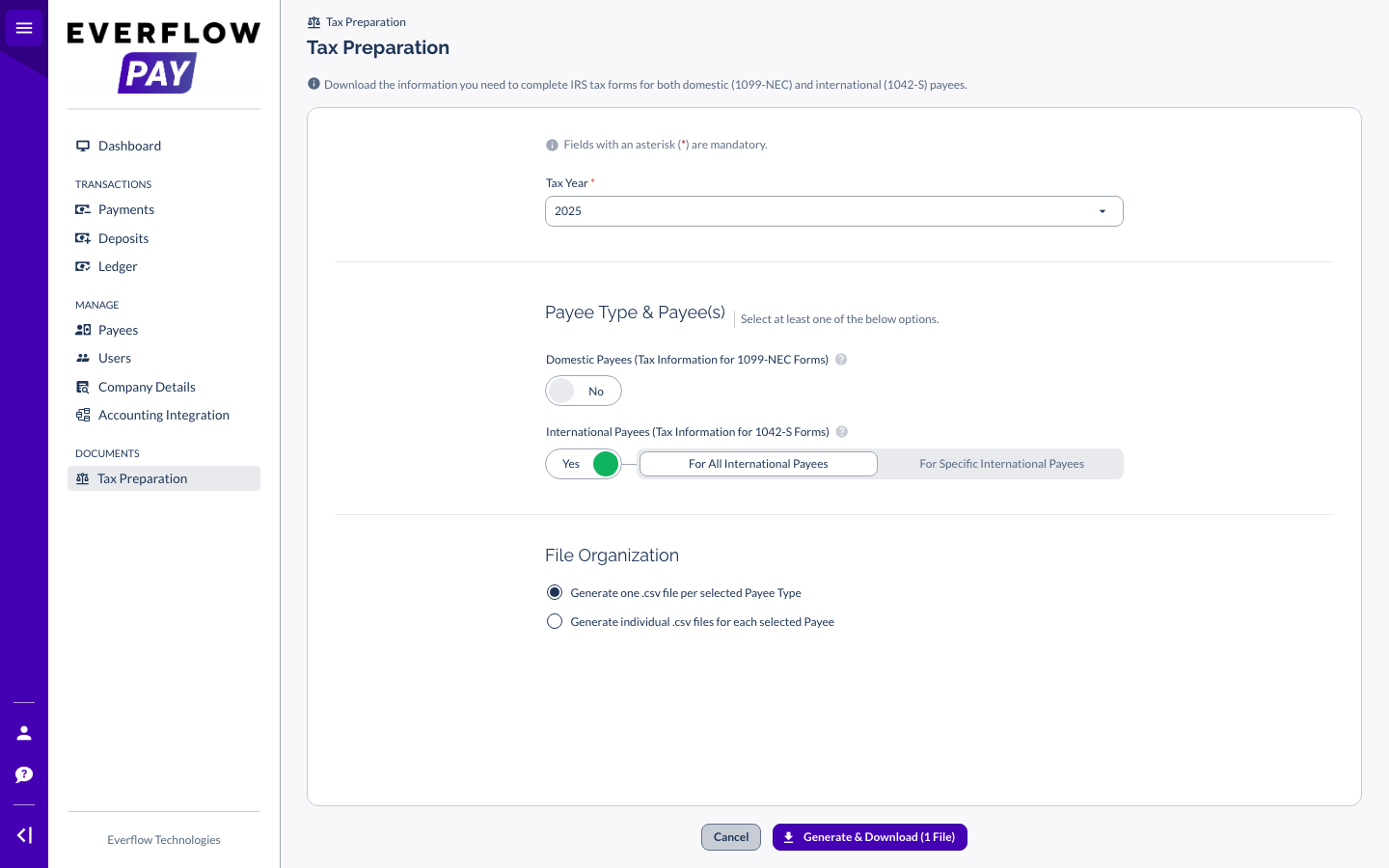
1042-S Data For International Payees
This is the same thing for the Partners you pay outside the US. Again you can take all of them or select individually, and again the totals come from the tax year's payment data. Canada sits on this side of the split, along with everywhere else outside the US.
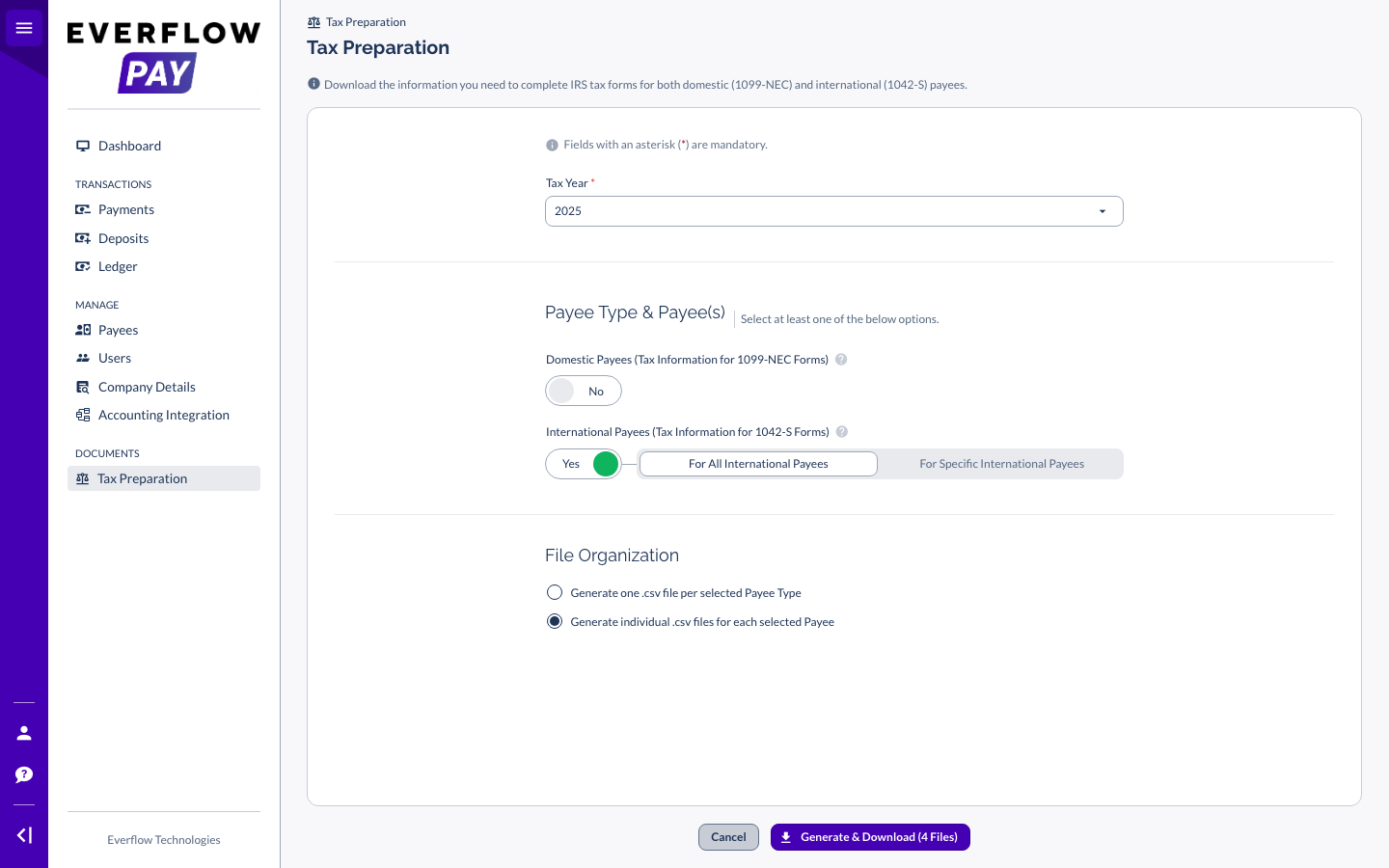
You do not have to run the two exports separately. Domestic and international can be generated in the same pass if you need both.
How The Files Are Organised
Before you download, you choose how the CSVs are split. One file per payee type keeps everything in two files and suits handing the lot to an accountant. One file per payee suits reconciling Partner by Partner. Fields marked with an asterisk are mandatory, and the search box is the fastest way to find a specific Partner in a long list.
The export gives you data, not filed returns. Everflow Pay does not file anything with the IRS on your behalf, and the numbers are yours to check before they go anywhere.
→ Payee Account Types & Statuses In Everflow Pay explains what a Partner sees when their tax step is outstanding.
→ Everflow Pay Notification Center is where you switch the tax alerts on or off.
→ Get Partners Started With Everflow Pay covers inviting Partners and chasing the ones who stall.
If an export looks wrong, or a Partner is on the wrong side of the domestic and international split, email pay.help@everflow.io before you file anything.


