Home
Everflow Pay
Notifications For Everflow Pay
Everflow Pay Notification Center

SERIES:

Everflow Pay Notification Center

Manage notifications for payers and payees, covering crucial updates such as account deposits, changes in payee information, etc.

Overview

The Notification Center is where you decide which Everflow Pay emails you and your Partners receive. It is an early warning system more than an inbox filler: it tells you the moment funds land in your account, when a Partner changes their banking or tax details, and when a tax check needs your attention.

What's Changed Last updated Aug 19, 2026
Aug 19, 2026 Updated
Corrected who the tax alerts reach. They follow the payer, not the Partner's country, and a Partner outside the US can receive them.
July 1, 2026 Added
Added the Auto-Approval Payment email to the list of payer notifications.

Every notification here is a switch. Turning one off does not change how Everflow Pay behaves, only whether you hear about it, so the cost of leaving the important ones on is a handful of emails and the cost of turning them off is finding out late.
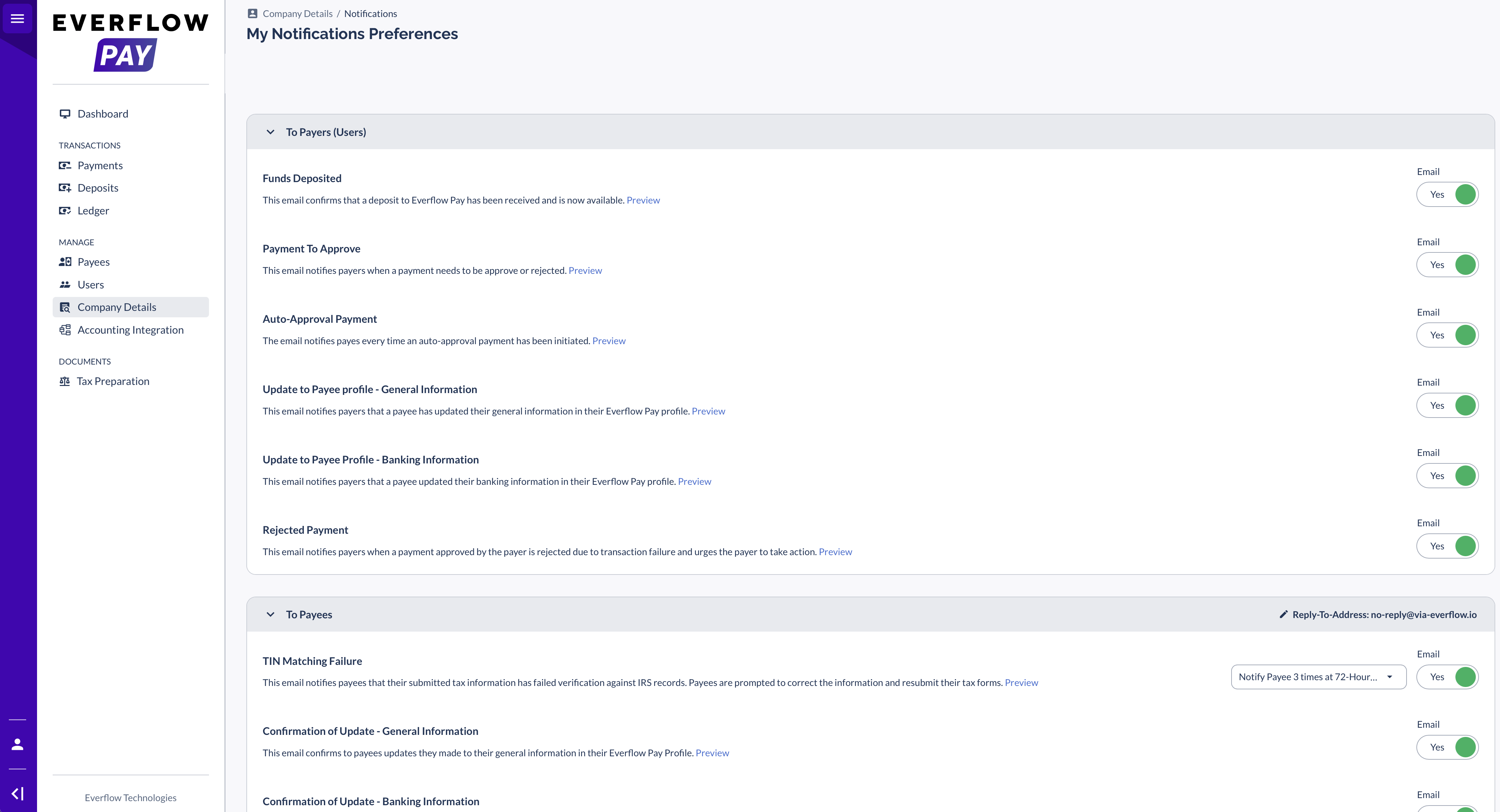
Everflow Pay My Notification Preferences page with payer and payee email toggles

Payer And Payee: Who Gets Which

Notifications split by role, and the two lists are separate. Payers are the account holders who fund the wallet and send payments, which means you and your team. The platform shows you as Users. Payees are the Partners you pay. Each side sees only the list that matches their role, and you control both.

That is worth remembering when a Partner tells you they never got an email. The payee notifications are switched on or off by you, not by them.

Where To Find Your Notification Preferences

The settings live under your own account menu rather than under a company or billing screen, which is why they are easy to miss.

Log in to your Everflow Pay account Go to the bottom left corner of the page Click My Account In the menu that appears, select My Notification Preferences

From there you can see every available notification for both payers and payees, and toggle each one on or off.
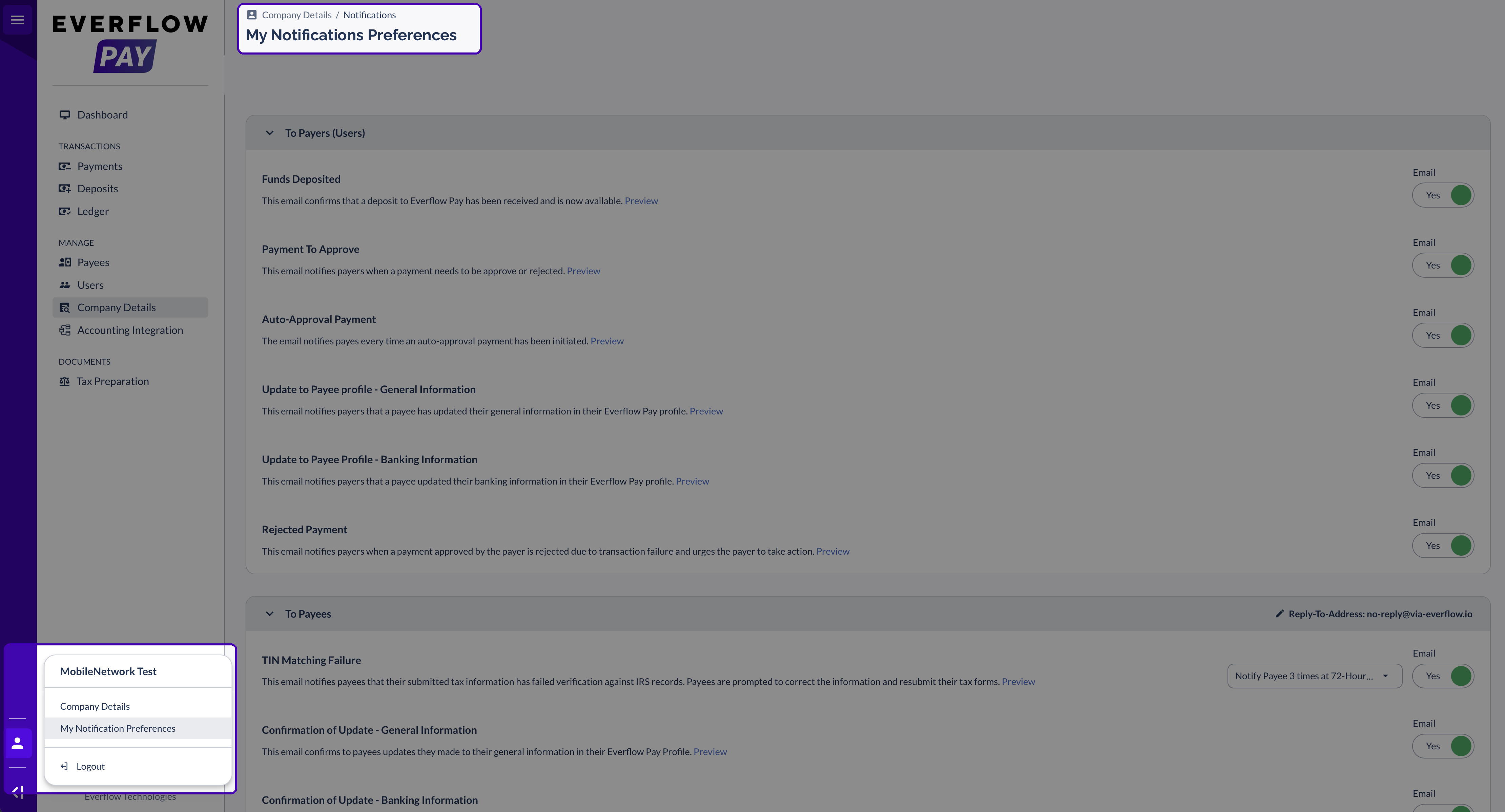
Opening My Notification Preferences from the My Account menu in Everflow Pay

Notifications You Receive As A Payer

These come to you. If you only keep two of them on, make it the banking and tax change alerts: they are your first warning that a Partner's payout details moved, which is exactly the change you want to notice before the next payment run rather than after it.

Notification Name Notification Triggers Description Auto-Approval Payment Every time an auto-approved payment is initiated. Notifies you each time a payment is automatically approved and initiated through Payment Auto-Approval, including its scheduled release date. Deposits Any deposit made to your Everflow Pay account. Notifies you when Everflow Pay has received your deposit and it is being processed. It includes the following details: The exact amount deposited into your Everflow Pay account. The last few digits of the account number receiving the funds. Confirmation that your deposit is being processed and may take a few days to appear in your account. Update to Payee profile - General Information Changes to any of the following fields in the payee's profile: First name Last name Email Phone number Legal entity Informs you when a payee modifies their general profile details in Everflow Pay. It includes: The payee's name and ID. Specific fields that have been changed, typically Phone and Email. The payee's email address for direct contact if needed. A reminder to contact the payee directly for any questions or further information. Update to Payee Profile - Banking Information Changes to any of the following fields in the payee's banking information: Deposit currency Bank name Bank account number SWIFT / BIC Notifies you about changes to a payee's banking details in their Everflow Pay profile. This includes updates to information such as: Bank Name Deposit Currency

Notifications Your Payees Receive

These go to the Partners you pay. You decide which are switched on for them, which means a Partner who is not hearing about a tax problem may simply have a payer who turned the alert off.

Who The Tax Alerts Reach

Two of the notifications below are about tax, and their scope is the thing most people get wrong. They follow the payer, not the Partner's country. A Partner banking outside the US can and does receive them, because a W-8 is a US tax form filed by a non-US person and the checks behind it run on W-8 filers too.

Whether a Partner completes a US tax form depends on the payer, not on where the Partner is. If the business paying them is registered in the US, they complete one: a W-9 if they are US-based, a W-8 if they are not. If the business paying them is registered outside the US, there is no US tax form step at all, and Everflow Pay does not collect US tax documents on your behalf.

So the practical rule for this page is simple. If you collect US tax documents from your Partners, the two tax alerts below are live for all of them. If you do not, neither alert has anything to fire on.

Notification Name Notification Triggers Description TIN Matching Failure Failed attempt to match the payee's tax information with IRS records. Alerts the payee that their tax information does not match IRS records. Payees can be notified of the TIN Matching Failure: 3 times at 72-hour intervals Once This critical notification includes: Information about the mismatch between submitted tax information and IRS records. Steps for the payee to correct and resubmit their tax forms. The importance of resolving this issue for proper payment processing. Confirmation of Update - General Information Changes to any of the following fields in the payee's profile: First name Last name Email Phone number Legal entity Confirms changes the payee made to their general information in their Everflow Pay profile. This notification includes: Acknowledgment of recent updates to the payee's profile. Specific mention of updated fields, typically including phone and email. Instructions to review billing settings for more detailed information. Contact information for the payee's primary contact at the payer's company for any questions. Confirmation of Update - Banking Information Changes to any of the following fields in the payee's banking information: Deposit currency Bank name Bank account number SWIFT / BIC Acknowledges updates the payee made to their banking details in their Everflow Pay profile. This notification includes: Confirmation of changes to the payee's Everflow Pay profile. Specific mention of updated banking information fields, such as Deposit Currency and Bank Name. Instructions to review billing settings for more detailed information. Contact information for the payee's primary contact at the payer's company for any questions. Confirmation of Update - Tax Information Change in the document type for tax information, including switches between: W-9 W-8 BEN W-8 BEN-E Acknowledges changes the payee made to their tax information in their Everflow Pay profile. This notification includes: Confirmation of updates to the payee's Everflow Pay profile Specific mention of the updated tax form (for example, W-9) Instructions to review tax settings for more detailed information Contact information for the payee's primary contact at the payer's company for any questions.

The W-8 BEN and W-8 BEN-E entries in that last row are the proof of the scoping point above. Those are forms only a non-US person files, so a notification that fires on a switch between them is by definition reaching Partners outside the US.

What To Expect After You Change A Setting

Toggles apply to your account straight away. There is no save step and no propagation delay to wait out, so if you switch the banking change alert on now, the next banking change a Partner makes will reach you.

Everflow Pay emails come from no-reply@via-everflow.io, which is worth adding to your allow list before you go looking for a missing notification. As a payer you can also set a custom reply-to that applies to the emails your Partners receive, so a Partner who hits reply reaches your team rather than a dead address.

Explore Related Content Keep going on Everflow Pay notifications:

Everflow Pay Tax Features & Reporting covers TIN verification and what happens after a failed match.

Everflow Pay Payment Auto-Approval explains the payments the Auto-Approval Payment email is reporting on.

Funding Your Everflow Pay Account is the other side of the Deposits notification.

If a notification you have switched on is not arriving, email pay.help@everflow.io with the notification name and roughly when you expected it, and we will check whether it was sent.