


.svg)

Overview
Your Everflow Pay dashboard is where you fund your account, pay your partners, and confirm the money actually moved. The redesigned dashboard adds payment trends and a set of shortcuts, so you can see how you are tracking as well as what needs doing today.
The dashboard at a glance
Logging in opens on a single overview split into four areas: your balance, anything needing attention, your payment trends, and shortcuts to the things you do most.
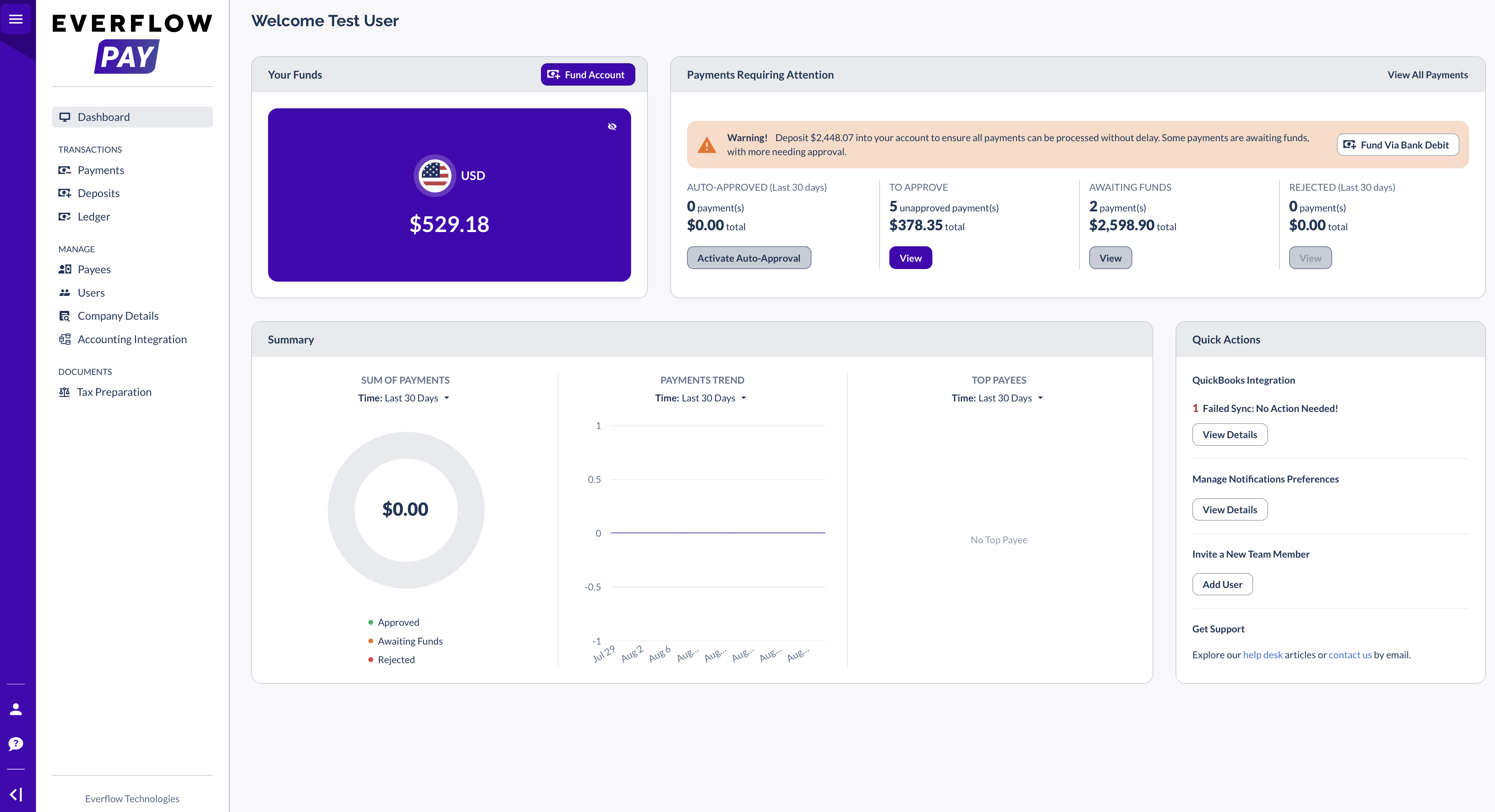
Your Funds
Your Funds shows the balance you can pay partners with right now. Use the eye icon to hide it. When it runs low, select
Payments Requiring Attention
This is the area you will check most. It groups payments into four buckets and warns you the moment your balance cannot cover what you have approved.
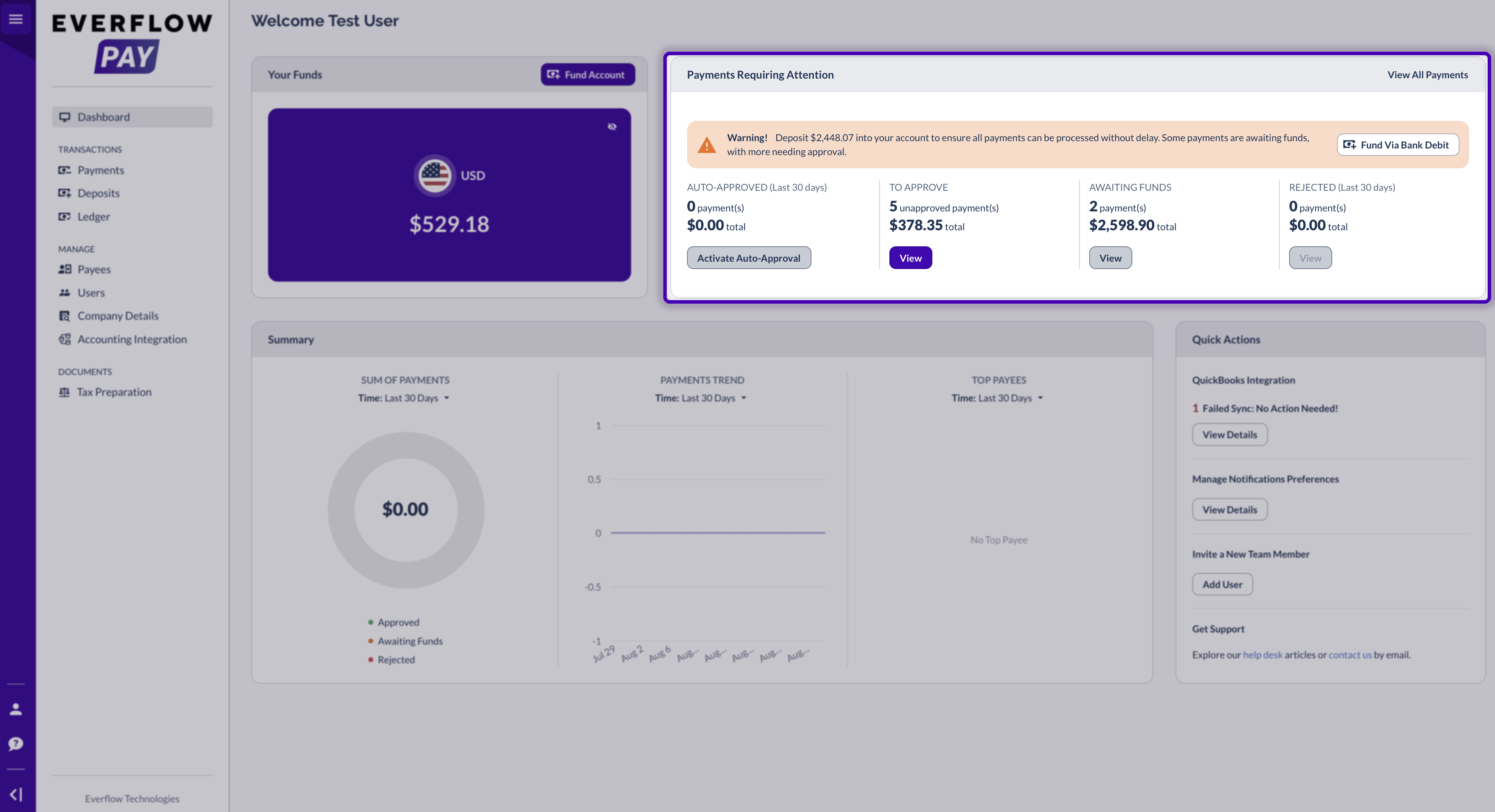
| Bucket | What it means |
|---|---|
| Auto-Approved (last 30 days) | Payments released automatically because they met your auto-approval rules. If you have not set this up, the button reads Activate Auto-Approval. |
| To Approve | Payments waiting for you to approve before they are released. |
| Awaiting Funds | Payments you have already approved, but your balance cannot cover them yet. Fund your account and they process automatically, so you do not need to re-approve them. |
| Rejected (last 30 days) | Payments that did not go through. There is nothing to retry on your end. Contact pay.help@everflow.io and the payments team will look into it. |
The banner adapts to your situation and always names the exact amount to deposit, with a shortcut to fund your account from where you are standing.
Summary: your payment trends
The Summary section is new. It answers how you are tracking rather than what needs doing, across three panels.
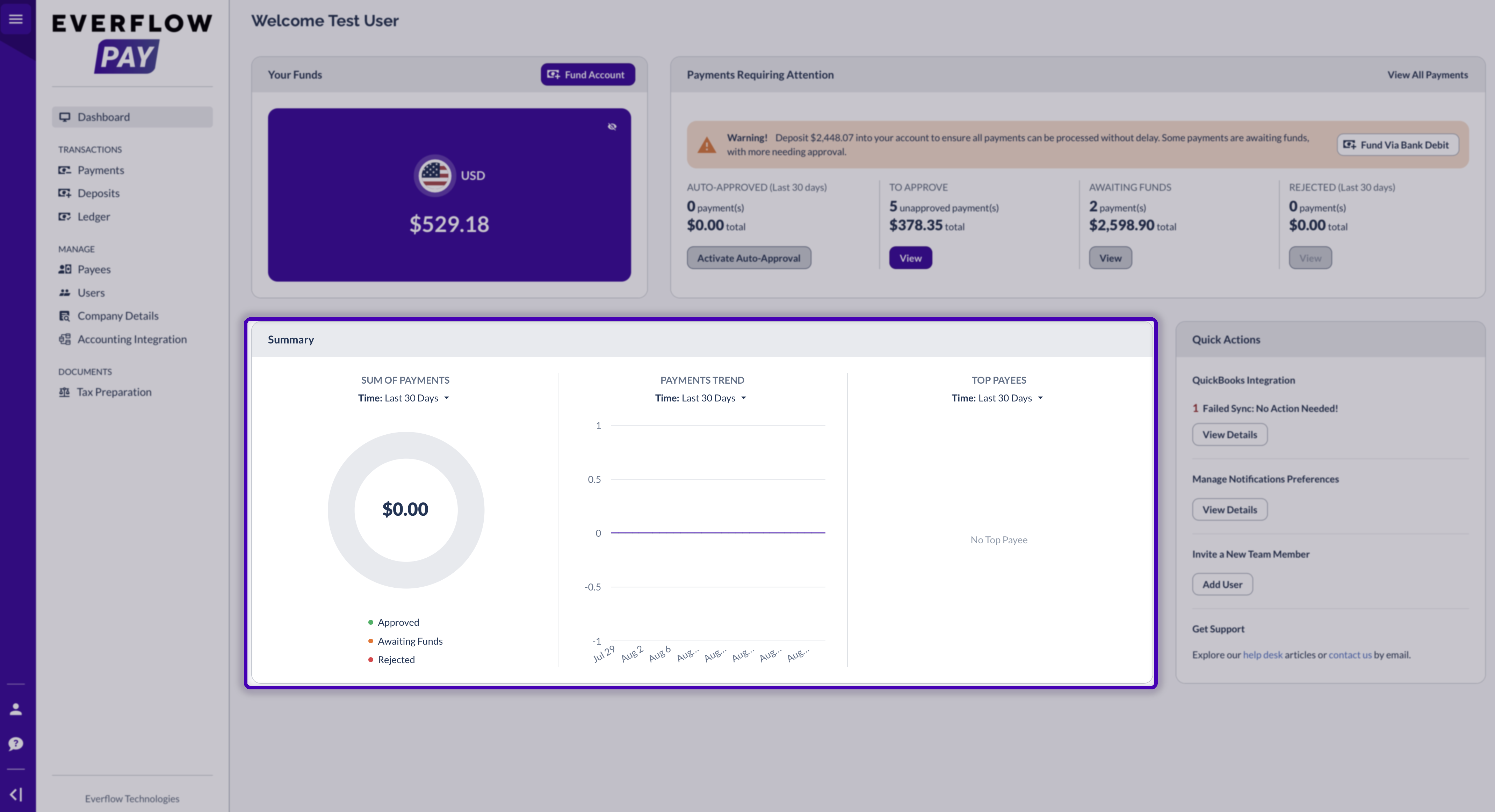
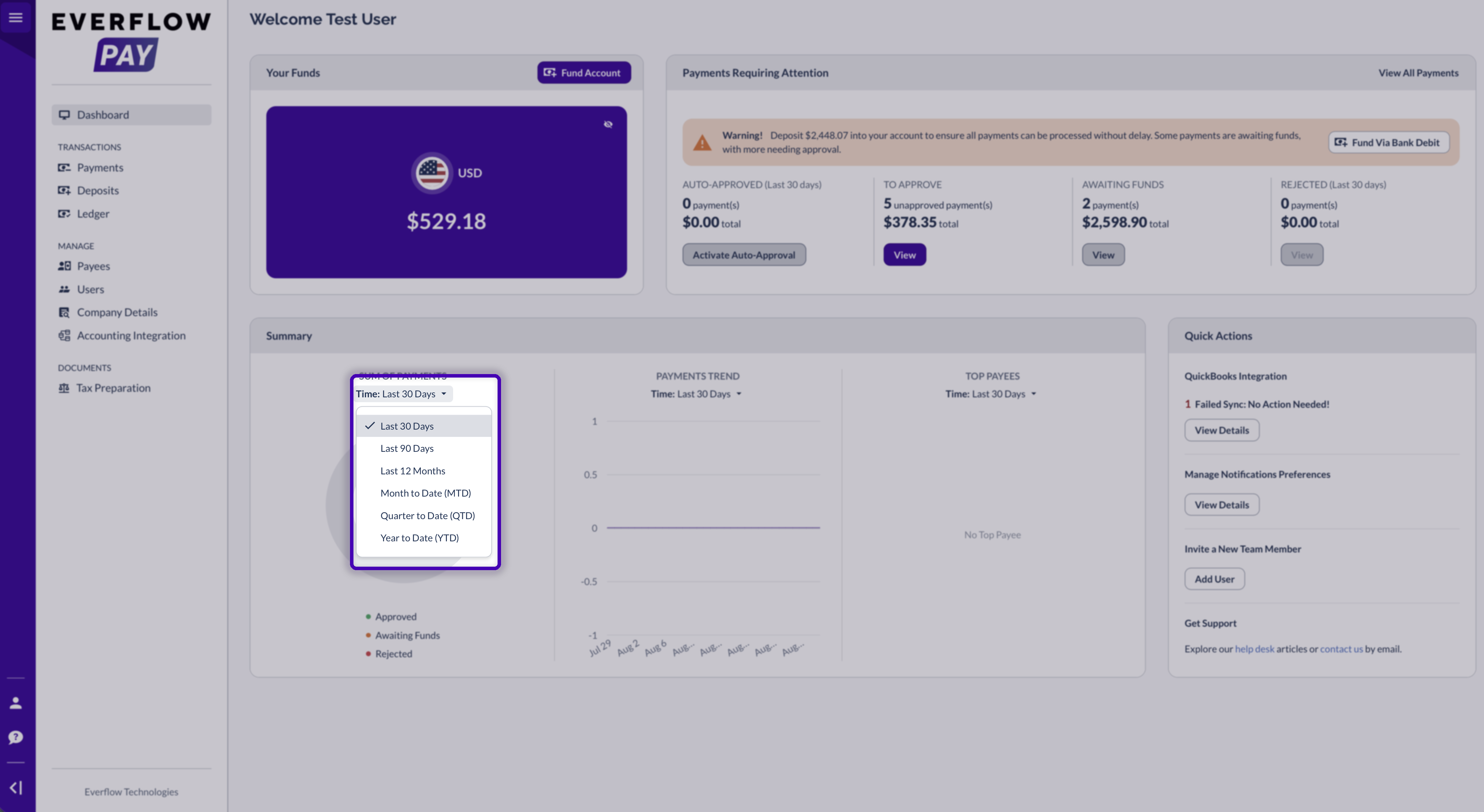
Each panel carries its own time filter, so you can compare a short window against a long one side by side without changing the whole page.
Quick Actions
Quick Actions puts the things you do occasionally within one click, and surfaces your accounting sync status without you going looking for it.
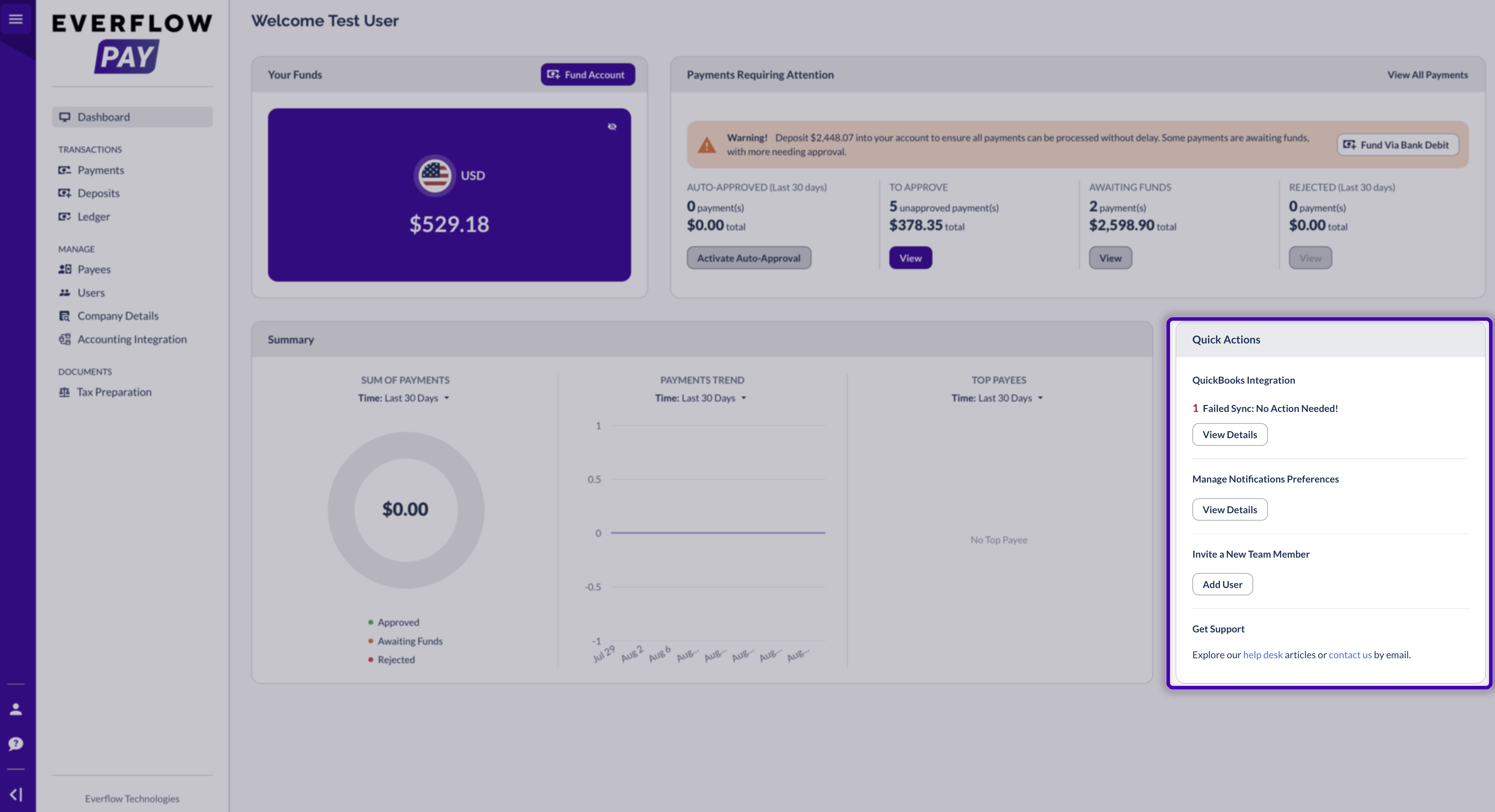
Your accounting integration appears here once connected, with the current sync state and a View Details link. A red line means one or more syncs failed. If it says No Action Needed the system will retry on its own. The full guide is in Checking Accounting Sync Status. The other shortcuts cover notification preferences, inviting a new team member, and getting support.
Where your money is: Transactions
The Transactions menu answers three questions:
Set up once: Manage
The Manage menu holds the things you configure rarely: your payees, your team, your accounting connection and your company details.
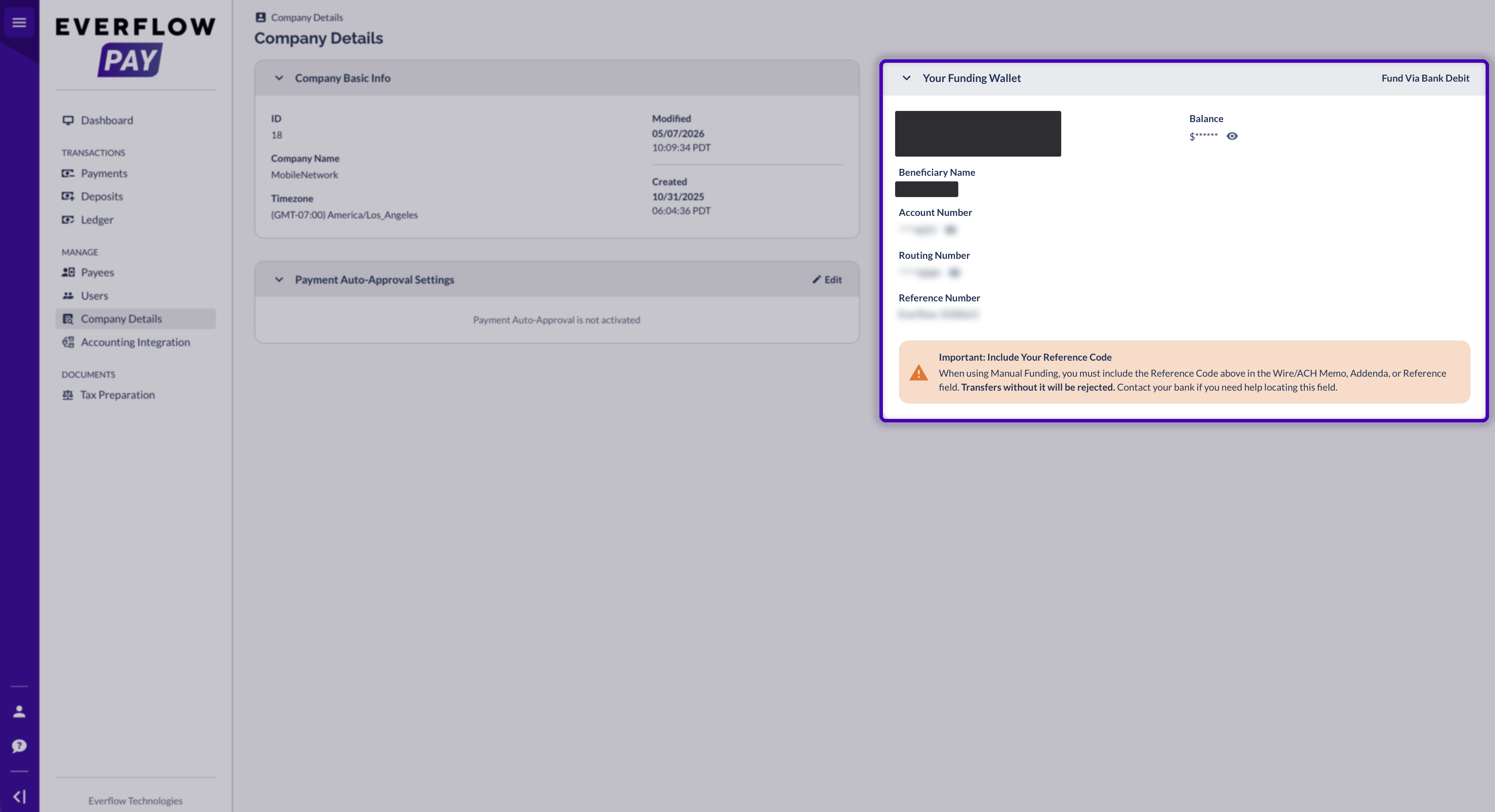
Your banking details live under Company Details in the Your Funding Wallet card: the receiving bank, beneficiary, account and routing numbers, your balance, and the reference number you need for manual funding.
Getting your tax documents
When it is time to file,
Quick answers
Why can’t I pay a partner?
The most common reason is that your balance cannot cover the payment, so it will be sitting under Awaiting Funds. Add funds with Fund Account and it processes automatically. If the partner is not yet payable, check their row on the Payees page: Is Payable and Un-payable Reason will tell you what is missing.
A deposit shows Failed, what now?
Nothing was charged or credited. Check your details and start the deposit again from Fund Account.
Where did my account details go?
They are under Company Details, in the Your Funding Wallet card.
Can I pay partners outside the US?
Yes. International payments are available to all Everflow Pay accounts, so there is nothing to request. Whether a specific partner is set up for domestic or international payment is shown per payee on the Payees page.


