Home
Integrations Library
Media Buying Integrations
Snapchat Integration

SERIES:

Snapchat Integration

Learn how to set up Snapchat Conversions API integration in Everflow to track conversions and send user data including required Snapchat Click ID (ScCid) for campaign optimization.

How to Set Up Snapchat Integration

This guide walks you through setting up Snapchat's Conversions API (CAPI) integration in Everflow to track conversions and optimize your campaigns.

What's Changed Last updated Oct 1, 2026 ▼
Oct 1, 2026 Added
Added a section on sending every conversion on an offer to Snapchat with a Global (Offer) postback, including the steps to set it up in the Core Platform.
Oct 1, 2026 Updated
Updated Postback Configuration to list the required Snapchat fields, and updated Troubleshooting to point to the Partner Postback report.
Oct 1, 2026 Fixed
Removed a duplicated Before You Begin heading from the prerequisites checklist, and removed a leftover Meta reference (fbclid) from the Troubleshooting error description.

What This Integration Does

  • Tracks Conversions: Sends conversion data directly to Snapchat via their API
  • Improves Targeting: Helps Snapchat optimize your campaigns with first-party data
  • Better Attribution: Uses Snapchat Click ID for accurate conversion tracking
  • Real-time Data: Passes conversion events as they happen
  • Offer-Wide Option: Can send every conversion on an offer to Snapchat, whichever partner drove the sale

Before You Begin (Prerequisites)

Stop! Before attempting this setup, ensure you have the following items ready. Missing any of these will cause the integration to fail.

Critical Compliance Warning: Use Direct Linking

We strongly recommend using Direct Linking for all Snapchat campaigns.

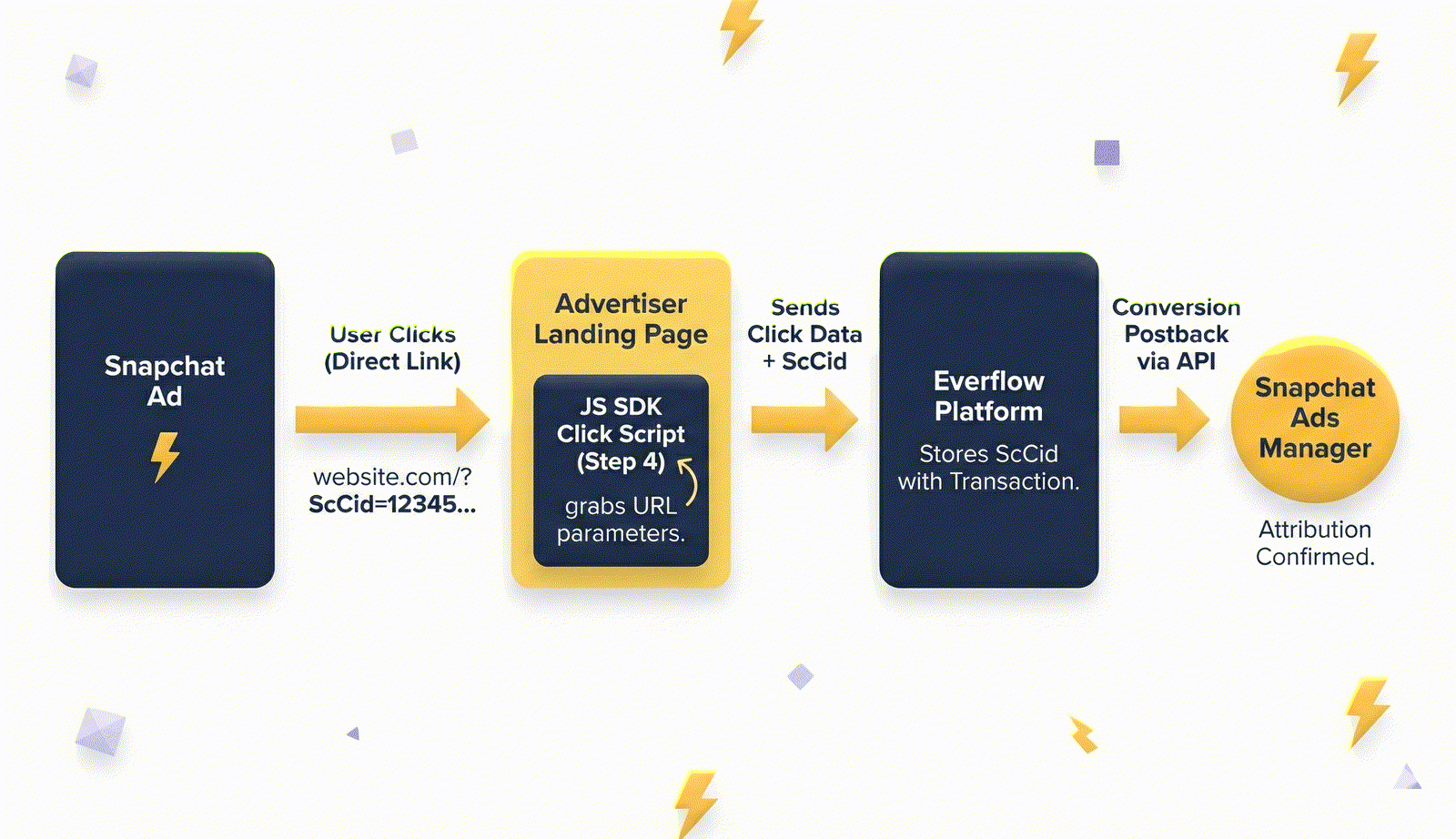
Snapchat requires the ScCid (Snapchat Click ID) to be passed seamlessly from the ad click to the landing page. Traditional Redirect Links often strip this parameter or trigger "flagging" mechanisms in Snapchat's ad review process, risking account suspension. Direct Linking ensures the ScCid lands on the page and is captured by the JavaScript SDK.

__wf_reserved_inherit

Step-By-Step Guide

1
Set Up a Dedicated Partner

Even if you are managing the media buy internally, you must create a dedicated "Partner" in Everflow to represent Snapchat. This isolates the traffic and ensures accurate reporting.

Go to
Partners → Add Partner
and create a new Partner named "Snapchat Media Buying".
Once created, click Manage on the partner, then click the three dots
and select Impersonate.
You are now viewing the portal as the partner. Navigate to
Company Settings → Integrations
.
Select
Snapchat
and click Connect Integration.
Enter your integration details:
Name: Give your integration a name (e.g., "Snapchat CAPI").
Access Token: Paste your Snapchat access token here.
2
Core Platform Setup

Now, switch back to your Admin portal to configure the data mapping.

Navigate to
Integrations → Media Buying → Snapchat
.
Click
Connect Integration
.
Basic Settings:
Delivery Method: Select "Snapchat".
Snapchat Integration: Choose "Affiliate Integration".
Snapchat App/Pixel ID: Enter your ID here.
Snapchat Event Name: Select "Subscribe", "Purchase", or your preferred optimization event.
Event Source URL: Enter your website URL.
User Data Fields (Required Macros):

You must map the following macros. These tell Everflow to look for this data in the click URL and pass it to Snapchat (hashed for privacy).

Phone: Set to {phone} macro.
Email: Set to {email} macro.
Snapchat Click ID (ScCid): Set to {ScCid} macro.
3
Postback Configuration
Go to
Partners → Postbacks → Add Postback
.
Partner: Select the "Snapchat Media Buying" partner you created in Step 1.
Delivery Method: Select "Snapchat".
Snapchat Event ID: Paste {transaction_id}. This is an Everflow macro that automatically passes the click’s transaction ID to Snapchat, so Snapchat can dedupe the postback against the pixel event. Complete the other required fields (Snapchat Integration, Snapchat App/Pixel ID, Snapchat Event Name, Action Source and Event Source URL), and leave the rest as default unless your Snapchat team specifies otherwise.
4
Install the JS SDK & Click Script

Since you are using Direct Linking, the user lands directly on your page. You must install the Everflow JS SDK to generate a Transaction ID for conversion tracking.

Part A: Get Your Tracking Domain

Go to Control Center > Configuration > Domains. Note your active Tracking Domain (e.g., track.mybrand.com).

Part B: Implement the Code

Copy the code below and paste it into the <head> section of your landing page. You MUST replace TRACKING_DOMAIN with your actual domain from Part A.

Everflow Click Script
<script type="text/javascript"
    src="https://www.TRACKING_DOMAIN.com/scripts/main.js"></script>

<script type="text/javascript">
EF.click({
    offer_id: EF.urlParameter('oid'),
    affiliate_id: EF.urlParameter('affid'),
    source_id: EF.urlParameter('source_id'),
    sub1: EF.urlParameter('sub1'),
    sub2: EF.urlParameter('sub2'),
    sub3: EF.urlParameter('sub3'),
    sub4: EF.urlParameter('sub4'),
    sub5: EF.urlParameter('sub5'),
    uid: EF.urlParameter('uid'),
    transaction_id: EF.urlParameter('_ef_transaction_id'),
});
</script>
ScCid Is Captured Automatically
The Everflow JS library automatically captures the Snapchat Click ID (ScCid) from the URL, just like it does for gclid and fbclid. You do not need to manually add it to your click script parameters.
__wf_reserved_inherit

Send All Offer Conversions to Snapchat

By default, Snapchat only receives conversions from traffic that came through Snapchat campaigns. For many brands that is too little data for Snapchat's optimization to work well. A Global (Offer) postback fixes this by tying an offer to a Snapchat integration, so every conversion on that offer is sent to that Snapchat account, whichever partner drove the sale.

Different From Other Snapchat Setups
Other setups only send data for the partner the integration belongs to. A Global (Offer) postback sends data to the integration you choose even when that integration is not tied to the partner who brought the traffic.
Core Platform Only
You create Global (Offer) postbacks in the Core Platform. Partners cannot see or set this level from the Partner Platform.
1
Start a New Postback
In the Core Platform, go to
Partners → Postbacks → Add Postback
.
2
Choose the Postback Type
Select
Conversion
or
Event
.
If you select Event, you also choose the event after you choose the offer.
3
Choose the Postback Level
Select
Global (Offer)
.
Choose the
Offer
. There is no Partner field, because this level covers every partner on the offer.
4
Choose the Delivery Method
Select
Snapchat
. At this level the list only offers HTML, Postback and Snapchat.
Other ad platforms, such as Meta, TikTok or Rumble, are not available for Global (Offer) postbacks.
5
Select the Snapchat Integration
Open the
Snapchat Integration
dropdown and choose the integration that should receive the conversions.
Integrations are listed by name, so give each one a clear name when you connect it (see Set Up a Dedicated Partner above).
6
Complete the Snapchat Fields
Enter your
Snapchat App/Pixel ID
, then choose the
Snapchat Event Name
and
Action Source
.
Enter your
Event Source URL
.
In
Snapchat Event ID
, paste {transaction_id}, as in Postback Configuration above.
Snapchat Custom Data
and
Snapchat User Data
are optional.
Click Add.
When the Integration List Appears
Choose Snapchat as the Delivery Method, with Postback Type set to Conversion or Event and Postback Level set to Global (Offer). Under those settings the Snapchat Integration dropdown lists all of your Snapchat integrations.

Troubleshooting

1
Run the Partner Postback Report
Go to
Reporting > Partner Postback
. For more detail, see Partner Postback Report.
Filter by your
Snapchat Partner
. For a Global (Offer) postback, filter by the
Offer
instead, since it is not tied to a partner.
Look for the specific conversion attempt.
2
View Debug Info
If the status is
Failed
(Red) or even
Success
(Green) but data is missing, click the
Response
column.
Common Error:
The Snapchat Click ID (ScCid) is missing.
The Fix:
This means the click script did not capture the ID. Check your landing page URL. Does it have
?ScCid=12345
attached? If not, check your ad settings in Snapchat.
3
Verify the Click
Go to
Reporting > Click
.
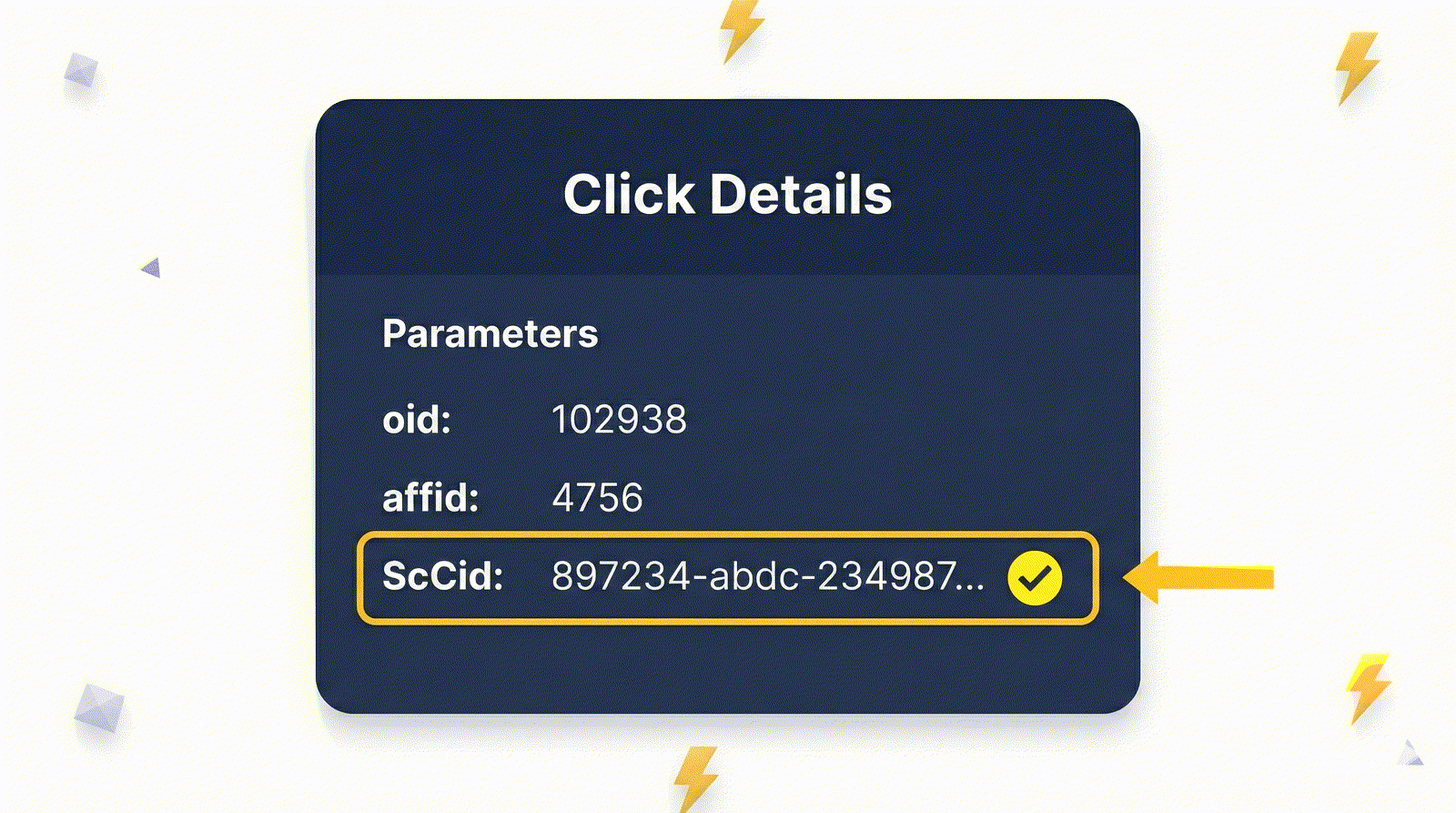
Find the click associated with the conversion.
Click
View Details > Parameters
.
Confirm that
ScCid
has a value. If it is empty, your JS SDK implementation in Step 4 is incorrect.
__wf_reserved_inherit

Supported Data & Parameters

This integration automatically handles the security requirements for Snapchat's CAPI.

  • PII Hashing: Emails and Phone numbers are automatically hashed before being sent to Snapchat.
  • Attribution Window: Snapchat accepts events up to 37 days after the click.
  • Dual-Tracking: This CAPI integration is designed to work alongside the standard Snapchat Pixel for maximum data match rates.
Next in This Series