


.svg)

Overview
Integrating Retreaver with Everflow gives you a unified solution for managing pay-per-call campaigns. Retreaver provides advanced call tracking and routing, helping you attribute inbound calls to any source, enrich leads with real-time data, and route callers to the best agent to boost conversions.
With this integration, you can map Retreaver Campaigns and Sources directly to Everflow Offers and Partners. Once mapped, Everflow automatically displays the assigned phone number for each partner.
Integration Setup
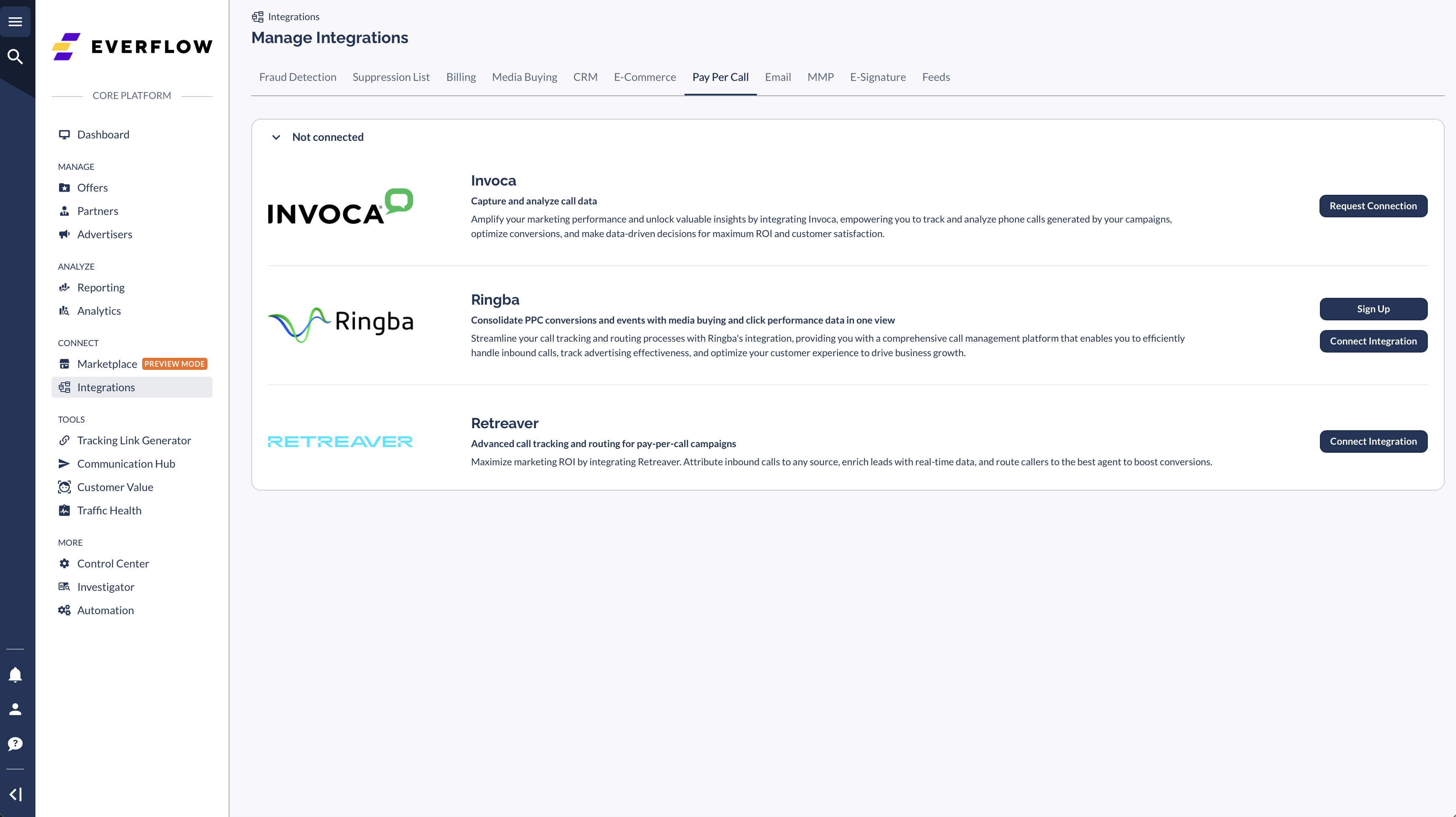
In Everflow, navigate to Integrations > Pay Per Call.
Find the Retreaver card and click "Connect Integration".

Enter your Retreaver API Token and Company ID, then click Add.
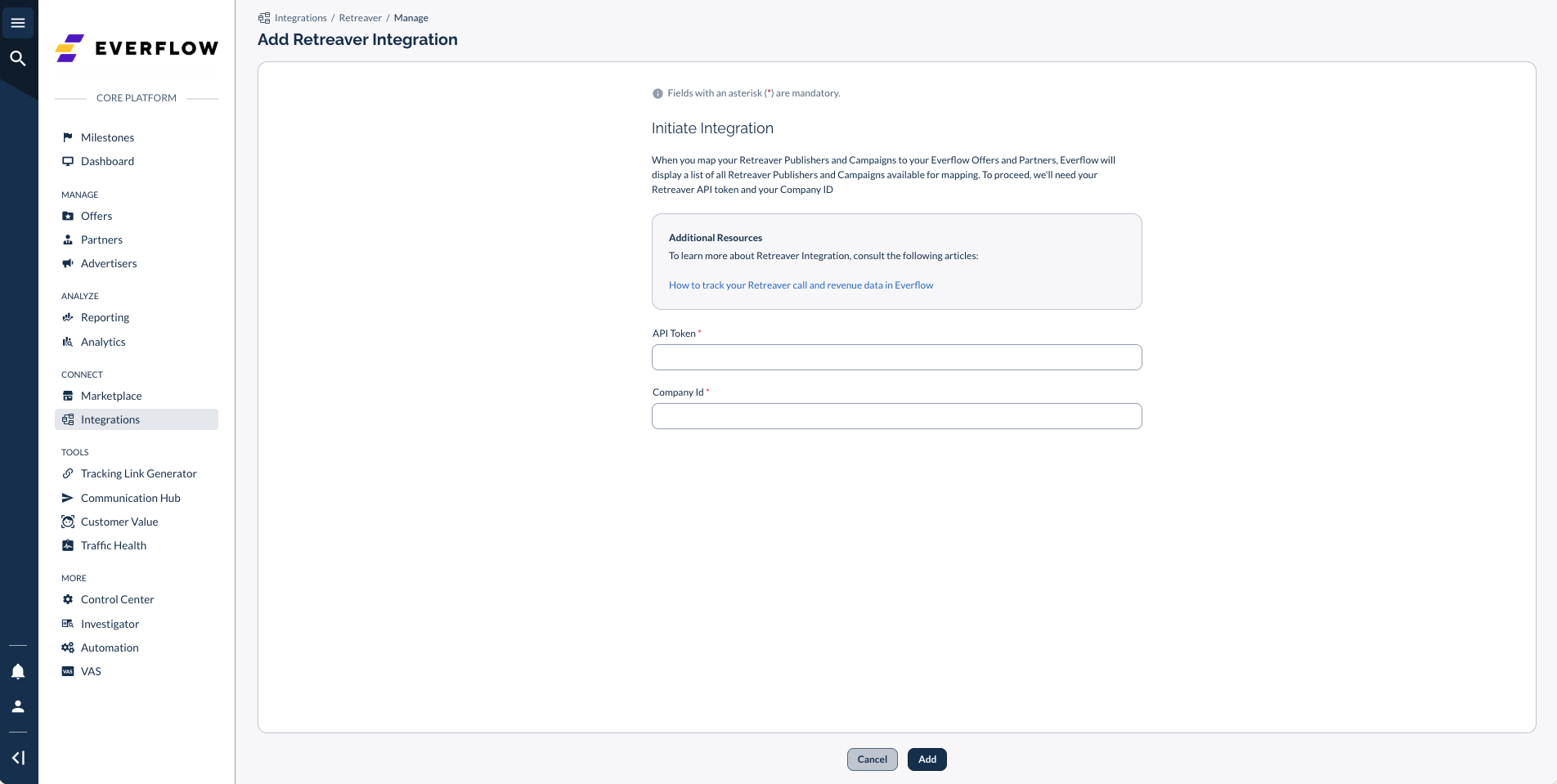
You'll see a "Connection Initiated!" confirmation once your credentials are validated.

Before mapping Retreaver data, you need an Offer in Everflow. Navigate to Offers > Create Offer (or open an existing one).
Configure the following:
- Add all Events you want to track (e.g., call connected, qualified lead, sale)
- Select Server Postback as the Conversion Method
- Set a Default Landing Page URL (a placeholder URL is fine — see note below)
Open your Offer in Everflow and navigate to General > Details.
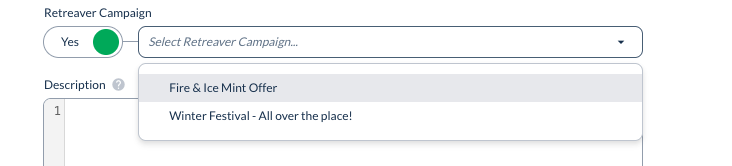
Click Edit, toggle Retreaver Campaign to Yes, and select the corresponding campaign from the dropdown. Everflow automatically fetches all available campaigns from your Retreaver account.
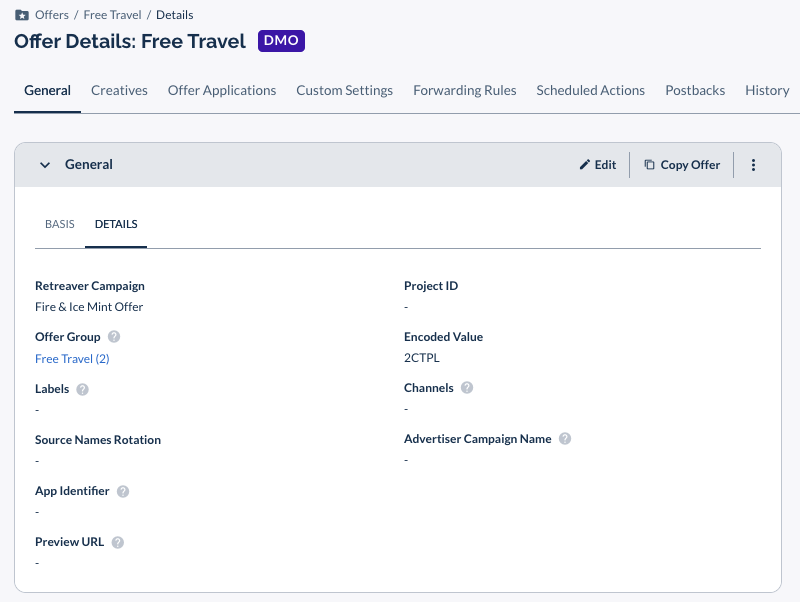
Click Save. The selected campaign will appear in the Offer Details.
Navigate to your Partner in Everflow and go to General > Details.
Click Edit, toggle Retreaver Source to Yes, and select the corresponding source (affiliate/publisher) from the dropdown.
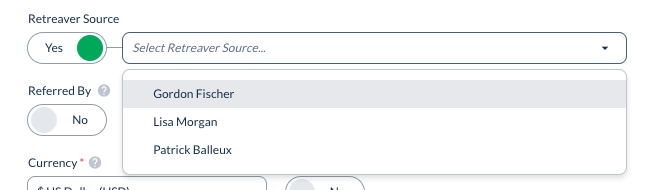
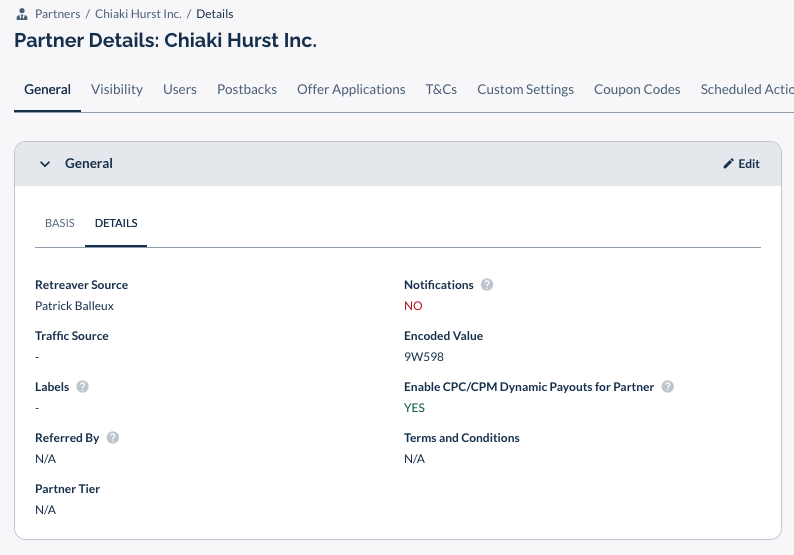
Click Save. The selected source will appear in the Partner Details.
Once both a Retreaver Campaign and Retreaver Source are mapped, the assigned phone number is visible at the affiliate level. Navigate to the Offer, then open the specific Partner (Affiliate) — the phone number appears under a dedicated Retreaver card on the Offer-Affiliate view.

You can dynamically insert the Retreaver phone number into your Offer Creatives using the {retreaver_phone_number} macro.
Navigate to Offers > Creatives, click Add Macro, and select {retreaver_phone_number} from the list.
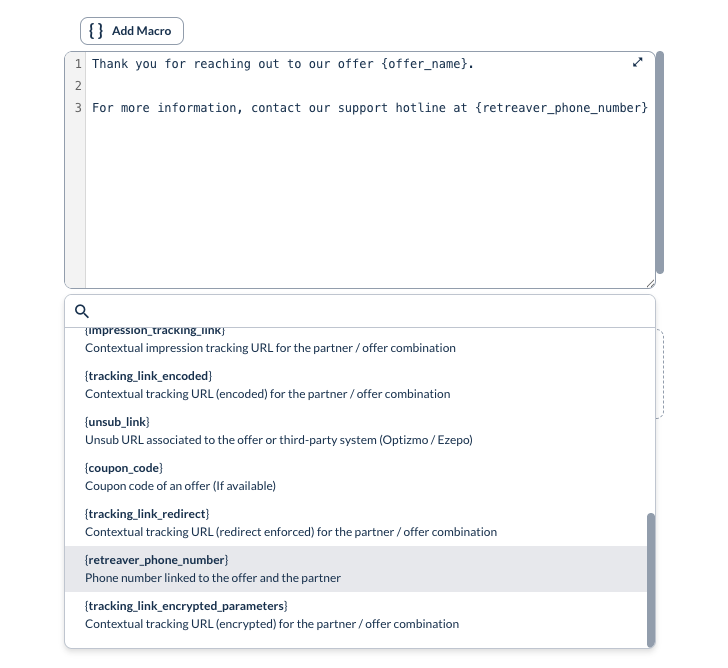
The Retreaver integration must be connected before the {retreaver_phone_number} macro appears in the Creatives macro list.
Troubleshooting
| Issue | Solution |
|---|---|
| Phone number not showing in Offer Details | Verify that both a Retreaver Campaign (on the Offer) and a Retreaver Source (on the Partner) are mapped. Both must be set for the phone number to appear. |
| Cannot connect integration | Double-check your API Token and Company ID. Make sure there are no extra spaces and that the token has not expired. |
| Campaigns or Sources not loading in dropdown | Ensure your Retreaver API Token has the necessary permissions to access campaigns and affiliates. Verify your Retreaver account has active campaigns/sources. |
| {retreaver_phone_number} macro not appearing in Creatives | The Retreaver integration must be connected before the macro becomes available. Go to Integrations > Pay Per Call and verify the connection status. |
➤ Ringba Integration — Set up Everflow's other pay-per-call integration
➤ Clickless Conversion Tracking — How clickless attribution works for phone call campaigns
➤ Understanding Server-to-Server Postbacks — Learn about conversion tracking with postbacks


