Home
New To Everflow
Do More With Everflow
Everflow MCP Server
Everflow MCP Server

SERIES:

Everflow MCP Server

Connect an AI assistant to your Everflow network data with the Everflow MCP Server. Ask questions in plain English and get read-only answers pulled straight from your account. No code required.

Overview

The Everflow MCP Server lets an AI assistant query your Everflow network data in plain English. Instead of writing scripts against the REST API or clicking through reports, you connect an AI client once and just ask. Try “Which partners went quiet this month?”, “How did my top offers perform last week?”, or “Why was this transaction rejected?” The assistant pulls the answer straight from your account.

MCP stands for Model Context Protocol, an open standard that lets AI clients like Claude, Cursor, and Gemini CLI talk to external data sources through a common set of tools. The Everflow MCP Server is the bridge between those clients and your network. It is the same data you see in Core Platform, available to your AI assistant as read-only tools.

Available to every networkThe Everflow MCP Server is generally available to all networks. Any network user with a valid Network API key can connect. There is no waitlist, approval step, or feature flag to request.

What it is (and what it isn’t)

Three things are worth knowing before you connect:

It is strictly read-only. The MCP Server queries your data. It can pull reports, look up offers and partners, and inspect clicks and conversions. It cannot create, edit, or delete anything. Changing an offer status, adjusting a payout, approving a conversion, or updating a partner all stay on the Network REST API.It is the network-operator view. MCP exposes your network’s data: your partners, advertisers, offers, and network-wide reporting. It authenticates with a Network API key. Affiliate and advertiser keys are rejected with a 403 Forbidden error. It is not a partner- or advertiser-facing tool.It is a query interface, not an event system. MCP answers questions on demand. It does not push data to you, fire webhooks, or trigger on activity. For event-driven workflows (“tell me when a new partner signs up”), use Webhooks instead.

The AI assistant can only see what your API key is allowed to see. The same permission boundaries that apply in the portal apply here.

Before you start: get your Network API key

MCP uses your existing Network API key. That is the same credential used for REST API calls, sent in the X-Eflow-API-Key header. There is no separate MCP login or OAuth step.

You create and manage Network API keys in Control Center → Security. For the full walkthrough, follow the How To Best Utilize Security Settings guide. It walks through creating a key, choosing its permission scopes, and copying it safely.
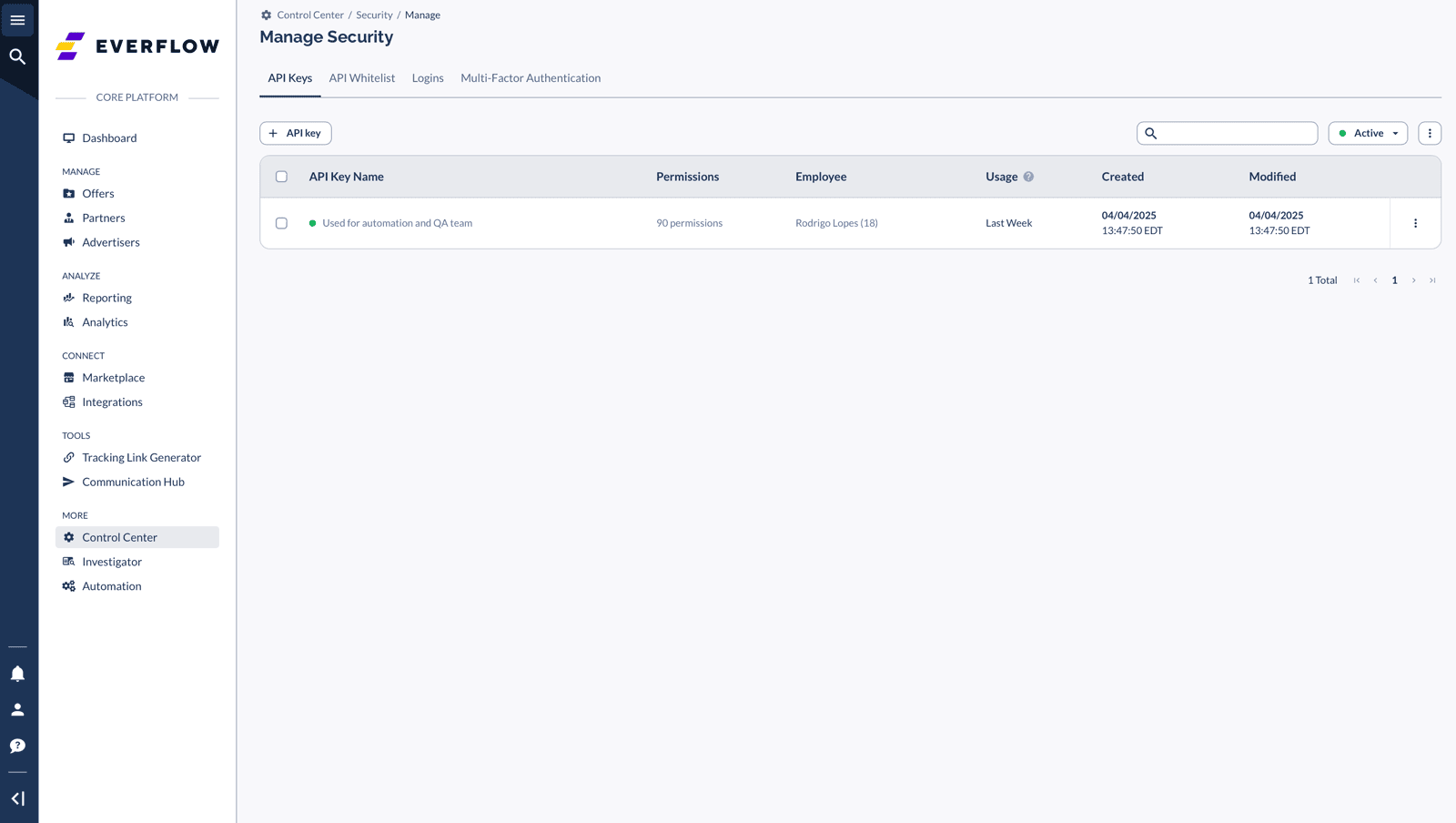
Creating a Network API key in Control Center, Security
Create and manage your Network API key in Control Center → Security.
Network API keys are shown only onceWhen you create a Network API key, the full value is displayed a single time at creation. Copy it into a password manager or secrets vault immediately. If you lose it, you’ll need to issue a new one.

Made your key and saved it somewhere safe? You are good to go. If you could not even find the option to create one, that just means you need a permission turned on.

Don’t have access to create a key? Ask a Super User.API key access is controlled by Super Users on your team. If you open Control Center → Security and can’t create or view an API key, that’s a permissions setting, not a dead end. It’s resolved internally. Ask a Super User on your team (most networks have several) to either generate a Network API key for you or grant you the permission to create one yourself. See How To Manage Roles & Permissions for how those permissions are assigned.

A few good habits with your key: everyone on your team gets their own, you keep it local (your app config or a local file, never a shared doc or repo), and you treat it like a password. It is read-only, so the blast radius is small. Guard it anyway.

For querying, a Read Only key covers every MCP tool. Enable the sections you want the assistant to reach. For example, Reporting for performance data, Partner for affiliate profiles, and Offer → Manage for offer details. Tools your key can’t access are simply hidden from the assistant.

Connect your AI client

Point your AI client at the Everflow MCP Server and pass your Network API key in the X-Eflow-API-Key header. Choose the server URL that matches where your account is hosted:

SettingValueServer URL (US)https://mcp.eflow.teamServer URL (EU)https://mcp-eu.eflow.teamTransportStreamable HTTPAuth headerX-Eflow-API-Key: your-network-api-key

The Everflow MCP Server works with Claude Desktop, Claude Code, Cursor, Gemini CLI, and VS Code (Copilot). Here’s the one-line setup for Claude Code to get you started:

terminal · connect once
# US-hosted accounts (use mcp-eu.eflow.team for EU)
claude mcp add --transport http everflow https://mcp.eflow.team \
--header "X-Eflow-API-Key: your-network-api-key"

Using a different app? Any MCP-ready client connects the same way. One thing to know first:

Claude.ai on the web can’t connect. Its connector UI is OAuth-only and has no field for an API-key header. Use Claude Desktop, Claude Code, Cursor, or Gemini CLI instead. Full config snippets for every client are in the developer docs.

Once connected, confirm it’s working by asking your assistant: “Call get_account_info and tell me my network name, timezone, and default currency.” A clean answer means your key is valid and the server is reachable. Step-by-step setup for every supported client lives in the MCP developer docs.

See it in action

Here are two everyday questions and the kind of answer MCP gives back. You ask in plain language; the assistant queries your network and formats the result however you like: a Slack digest, a spreadsheet-style table, or just a written summary.

Example 1: Find dormant partners and post them to Slack

recipe.prompt · dormant partners
ClaudeChatGPTGeminicURL
# ask your assistant
Using the Everflow MCP server, list every active partner that drove
zero clicks and zero conversions in the last 30 days. Ignore partners
added within those 30 days. Post the result to Slack as a
re-engagement list, newest-inactive first.
7 dormant partners found · posted to #partnerships

The assistant lists your active partners, pulls a 30-day performance report, finds the ones with no activity, and hands back a digest ready to drop into Slack:

EF
Everflow AIApp9:02 AM
#partnerships
Dormant partners, last 30 days (7 found)
These active partners have driven no clicks and no conversions in 30 days. Good candidates for a re-engagement nudge:

Cashback partner, last conversion 41 days ago
Coupon & deals partner, last click 38 days ago
Email newsletter partner, last conversion 52 days ago
Content / blog partner, last click 33 days ago

Partners added in the last 30 days were excluded so new sign-ups don’t show up as “dormant.”

Example 2: Month-to-date revenue by partner, as a table

recipe.prompt · MTD revenue by partner
ClaudeChatGPTGeminicURL
# ask your assistant
Give me a month-to-date rundown of revenue, conversions, and margin by
partner. Compare it to the same point last month and sort by the biggest
drop. Format it as a table I can paste into Google Sheets.
12 partners · biggest drop: Cashback −24% MoM

The assistant runs a performance report grouped by partner, computes the month-over-month change, and returns a spreadsheet-ready table:

Everflow · Revenue by partner · May 2026Saved
Share
File  ·  Edit  ·  View  ·  Insert  ·  Format  ·  Data  ·  Tools
|BIU|$%Filter
E2|fx−24%
ABCDE
1PartnerRevenue (MTD)ConversionsMarginMoM Δ
2Cashback partner$182,4009,12031%−24%
3Search partner$96,7504,01028%−11%
4Content / blog partner$54,3002,18036%+6%
Revenue by partner+ Add sheet

Because the assistant shows which tools it called, you can always see exactly where a number came from. You can also ask a follow-up like “drill into the cashback partner’s top offers” without starting over.

Ready-to-run recipes in the AI Playbook

The fastest way to get value from MCP is to start from a proven prompt. The Everflow AI Playbook is a library of real questions partner-marketing teams ask every week, each with a copy-paste prompt you can run in Claude, ChatGPT, or Gemini. Every recipe carries a Run in AI · MCP option. It pastes the one-time MCP setup block plus the prompt, so the assistant queries your data through MCP with no code.

The server also ships with a few built-in prompts you can call by name in your AI client: offer-launch-readiness, partner-health-check, revenue-analysis, and troubleshoot-click. Each links into the AI Playbook, where you can grab the full version.

A few recipes to try first:

Partners with no traffic for 30+ days: surface dormant partners for a re-engagement list.Payout cap alert: get flagged before a partner blows past its payout cap.Geographic opportunity map: find the countries worth scaling by conversion rate.Unpaid partner invoices: diagnose why partner payouts are stuck.Fraud by sub‑ID: spot the sub‑IDs driving invalid or suspicious clicks this week.Payback period by partner: see how quickly each top partner pays back.

Ask away and explore as much as you want. Here is why that is always safe:

Because MCP is read-only, recipes use it for the reading part (pulling and grouping data) and hand off to the REST API or a tool like Zapier for anything that writes or notifies, like sending the Slack message, updating a record, or firing an action.

Full setup, tools & limits

This article is a quick orientation: what MCP is, why it’s useful, and how to get connected. For everything else, head to the developer docs:

MCP Overview & Quickstart: per-client config (Claude Desktop, Claude Code, Cursor, Gemini CLI, VS Code) and a 5-minute connect walkthrough.Tools Reference: every read tool, its parameters, and response fields (reporting, entities, activity search, traffic health).Limits & Constraints: result caps, the 14-day click window, pagination, and the per-network rate limit.MCP FAQ: access, data scope, and troubleshooting.llms.txt: point your AI assistant at this file so it can also reach the API data points MCP doesn’t cover.

Related help desk articles

Want to go a level deeper? These help too.

How To Best Utilize Security Settings: create and scope your Network API key.How To Manage Roles & Permissions: how Super Users grant API-key access.Ask Everflow AI: the AI assistant built directly into the platform.