Home
Offers & Tracking
Advanced Tracking Options
Deep Linking
Deep Linking

SERIES:

Deep Linking

Learn how to enable and set up Deep Linking in Everflow so Partner Tracking Links can redirect users to relevant pages on your website.

Overview

Deep Links let your Partners send traffic to different landing pages without needing extra Offer URLs. This guide shows you how to turn on Deep Links use the Everflow Deep Link generator to automatically encode your Deep Links, as well as how to manually set up Deep Links between two Everflow subscribers.

Heads up!
When using Deep Links, please ensure your Offers are configured with redirect tracking URLs. This is required for using Deep Links with Everflow Marketplace DMOs (Default Marketplace Offers).

Deep Linking in Everflow

Deep Links help your Partners redirect traffic to a content page specific to the Offer. You can use the Everflow Deep Link generator to add raw destination URLs as encoded deep links to your Partner Tracking Links and automate the encoding process. For Partners and Advertisers who are both Everflow subscribers, manual appending and encoding of the destination URL are still necessary.

Before You Begin

You need the following setup before you start:

Partner Tracking Links and Offers with redirect linking setup
Toggle on support for Deep Links in Everflow

How to Toggle On Deep Links Support

You can enable Deep Links in two ways:

Option 1: Individual Offer

Go to
Offers -> Manage
and click on your offer's name
Click Edit on the General card
Go to
Tracking & Controls
tab.
Check Support Deep Links box.
Click Save.

Option 2: Multiple Offers at Once

Go to
Offers -> Manage -> vertical dots menu above Offers table -> Bulk Edit
Choose the offers you want to update.
Select Field Type:
Tracking & Controls
tab.
Check Support Deep Links box.
Click Review to apply.

Using the Deep Link Generator

This procedure is for setting up Deep Links between Advertisers and Partners who are not both Everflow subscribers.

1
Get Your Tracking Link
In the top righthand corner of the screen, click on
Offer Tracking Links
to create your tracking link.
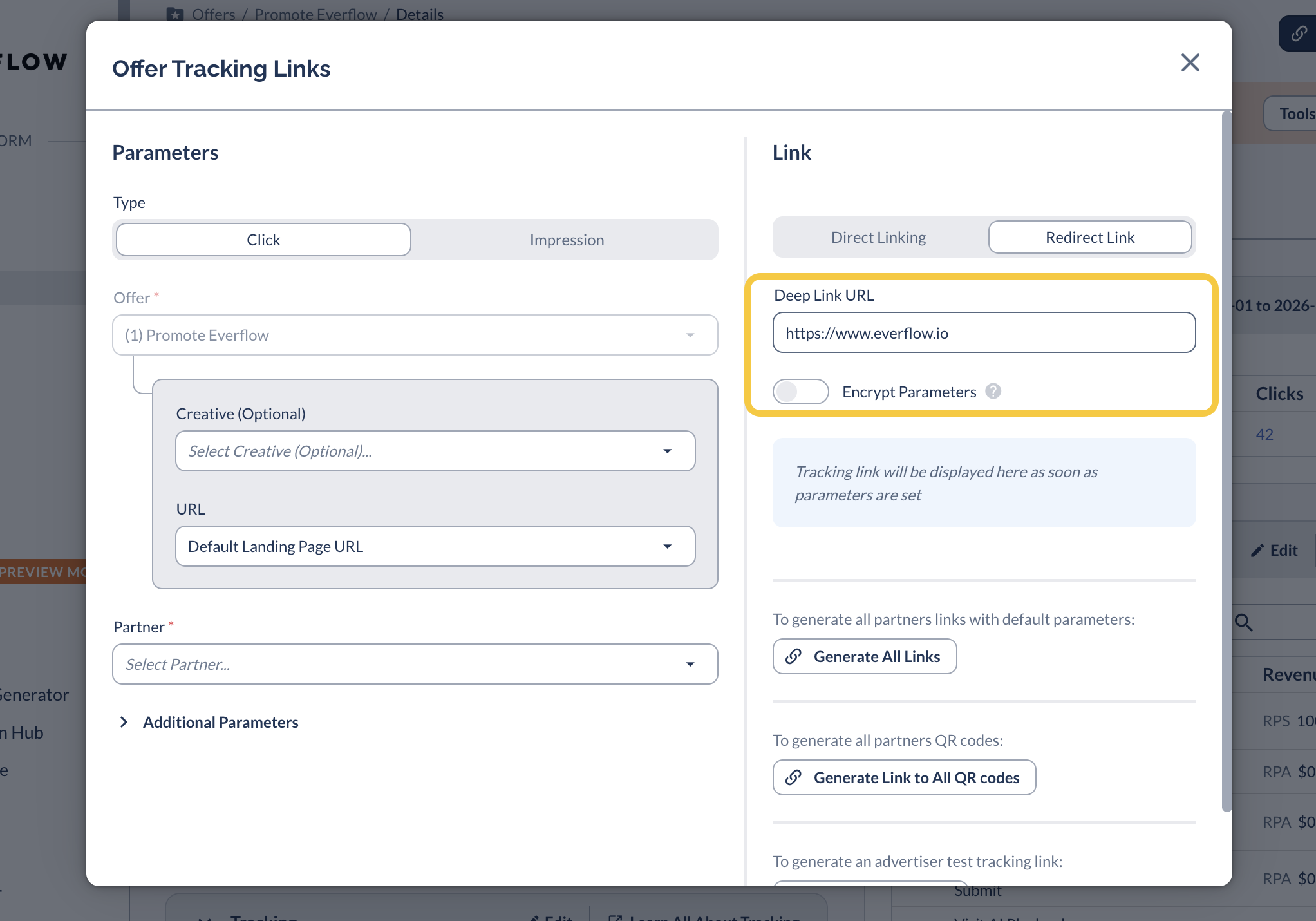
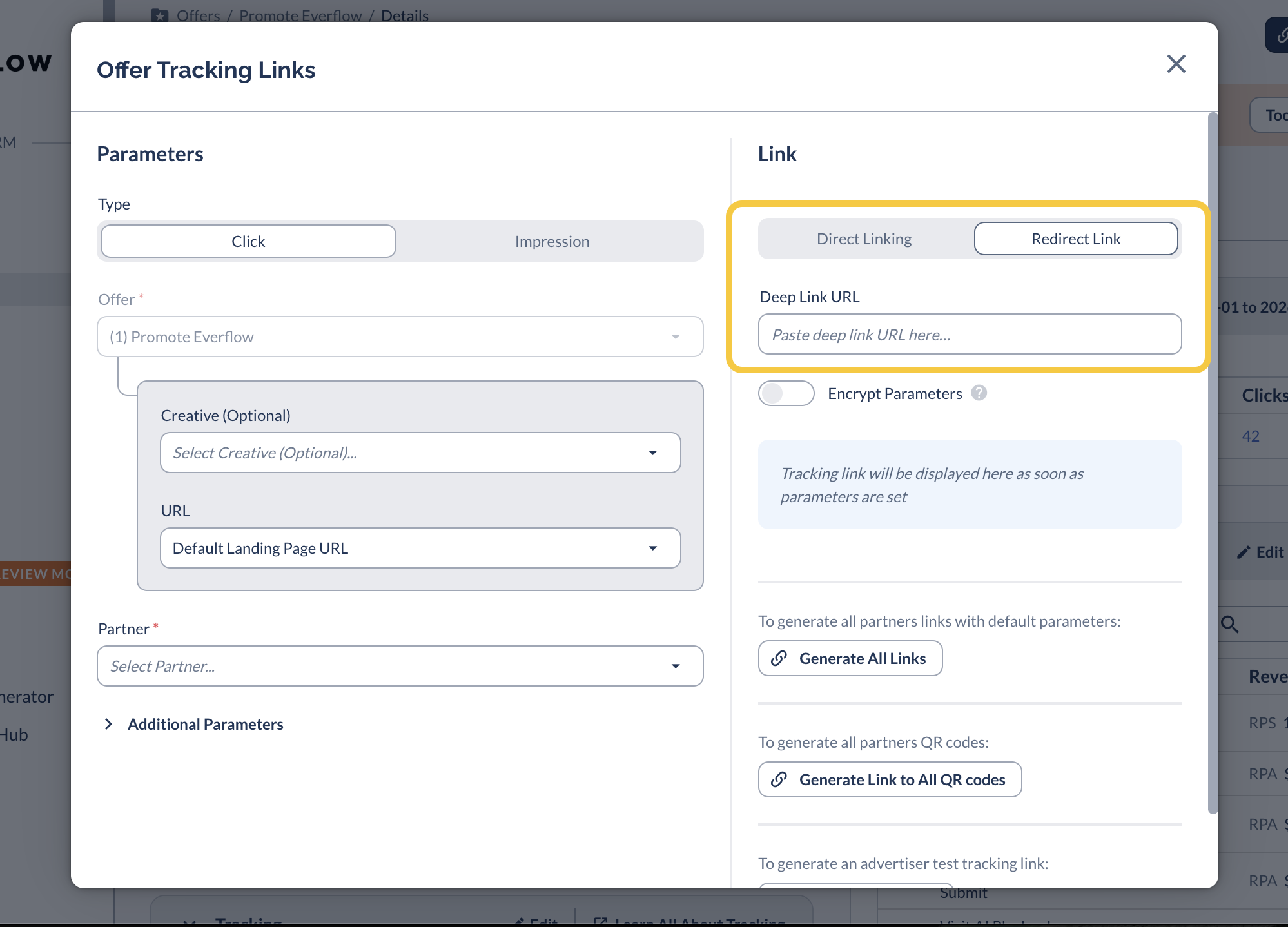
In the popup window, select Redirect Link in the righthand side to reveal the Deep Link input box.
Offer Tracking Links button
Redirect Link and Deep Link URL in Offer Tracking Links window
2
Add the Deep Link URL
Go to
Offers -> Manage
and click on your Offer's name. Make sure this Offer supports Deep Links.
In the Deep Link input box, enter the full URL for your specific landing page, including the protocol (https://). Example: https://everflow.io
Enter Deep Link URL (landing page URL)
3
Select the Partner
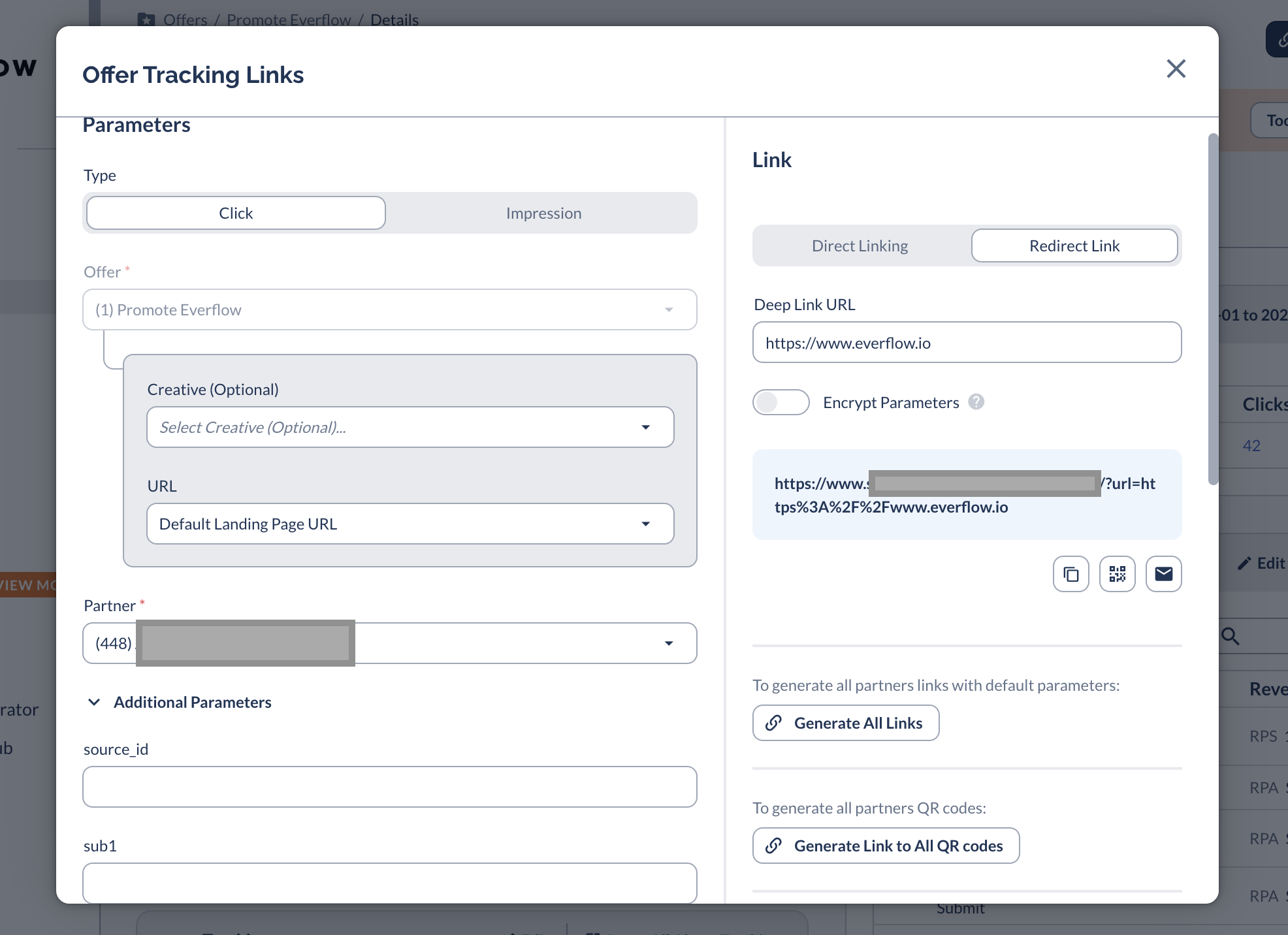
In the Parameters side of the popup, select a Partner from the dropdown menu.
Once you add a Partner, the Partner Tracking Link will populate it in the blue box in the Link panel. The Deep Link generator wll also append the Deep Link after the ?&url part of the Partner Tracking Link.
Example: https://www.partner_tracking.com/partner/?&url=https%3A%2F%2Fwww.everflow.io
Select Partner from Parameters panel
4
Add Additional Parameters
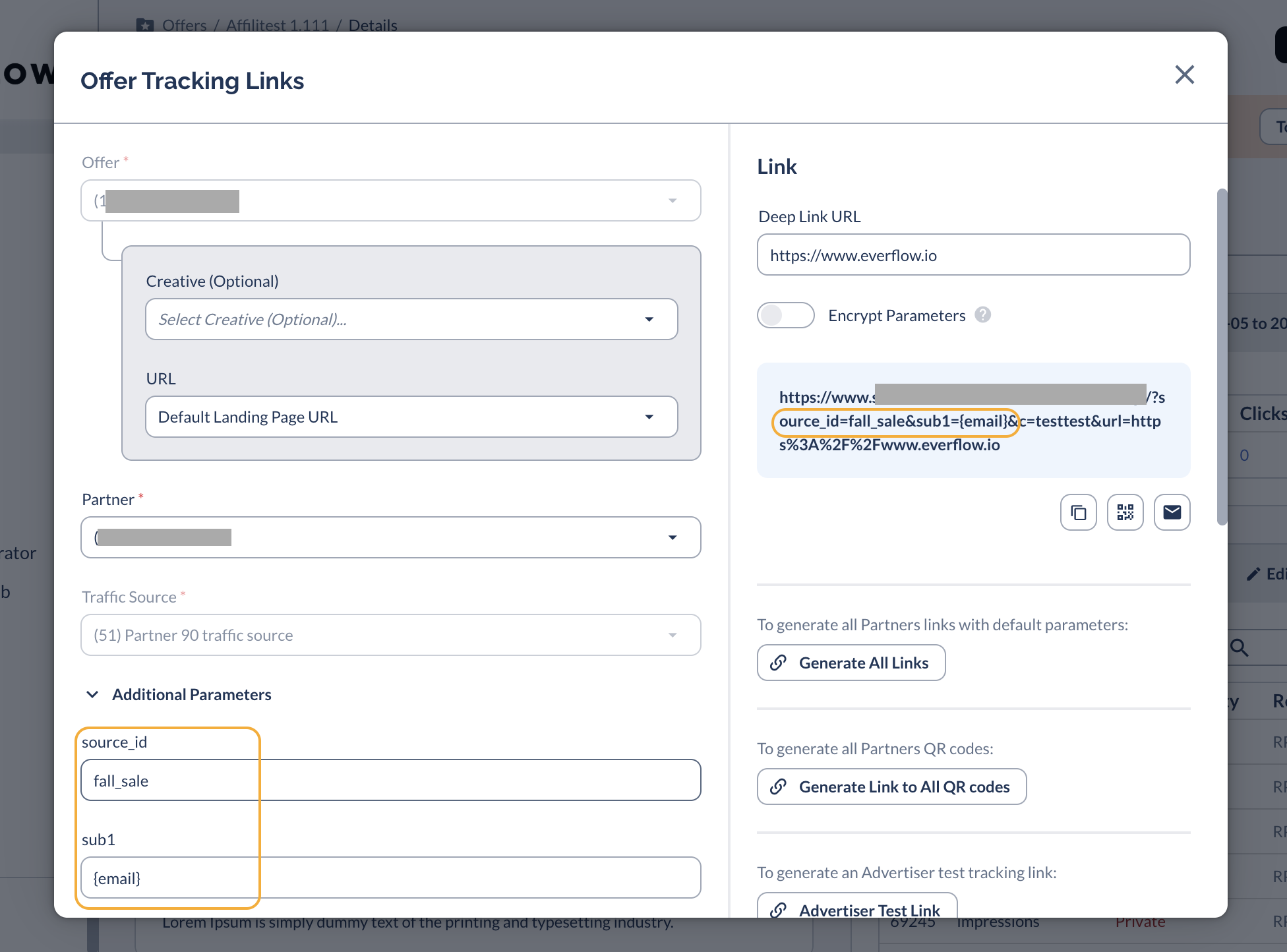
To add additional parameters, such as sub1 to the Partner Tracking Link, you can go to the Parameters side of the panel and click on Additional Parameters.
From the Additional Parameters dropdown menu, fill in the input boxes for the parameters you need. The Deep Link generator will append the parameters to the Partner Tracking Link.
Example: https://www.partner_tracking.com/partner/?source_id=fall_sale&sub1=person@test-domain.com&url=https%3A%2F%2Fwww.everflow.io
In the example, hardcoded values such as source_id load as typed and macro values such as sub1{email} dynamically load as person@test-domain.com.
Add parameters to Partner Tracking Link
5
Add Parameters to Deep Link
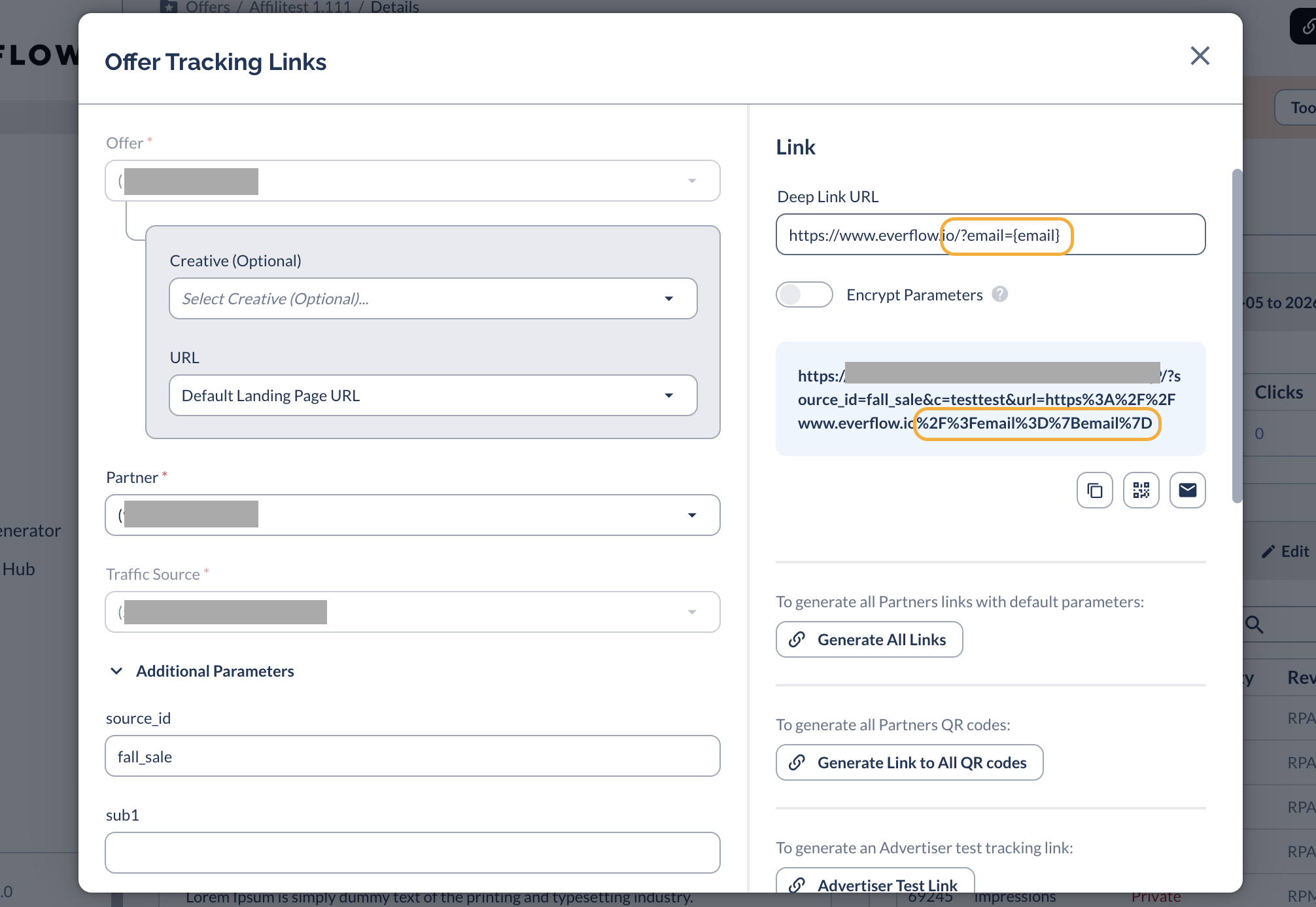
To add additional parameters to the Deep Link, you need to manually add them at the end of the Deep Link URL.
Example: https://www.partner_tracking_link.com/partner_code/&url=https%3A%2F%2Fwww.everflow.io?email={email}
The Deep Link generator will encode these parameters for you, including macros such as {email} once the values load.
Manually add parameters to Deep Links

Limitations

For the majority of Offers, Everflow adds the transaction_ID automatically for you if the Offer's normal destination URL has a parameter set to {transaction_id} . For example if the parameter is set tid={transaction_id}, Everflow appends tid= to the deep link when it's missing, using that same parameter name. However, depending on your Offer setup, there are some scenarios when you will need to manually add the transaction_ID to the base destination URL, such as in the following list.

Base destination URL has no standalone {transaction_id} parameter:
The {transaction_id} is placed somewhere other than the base destination URL, which is the only URL inspected for the {transaction_id}.
The Offer setup does not require a transaction ID, such as when the Offer uses cookie-based pixel conversions, or when there is coupon-code attribution.
The Offer is set up for the JavaScript SDK with only oid and affid parameters.
The value of the {transaction_id} does not match exactly between Everflow and the Advertiser. If the Advertiser uses their own format, such as ref=ef_{transaction_id}, the {transaction_id} will not count because the values do not match.

Deep Linking Between Two Everflow Subscribers

When the advertiser and the partner are both on Everflow (advertiser and partner accounts), a slightly different setup is required to make deep linking work with redirect links. The key is that the partner offer’s default landing page points to the advertiser’s partner tracking link, so the user is routed through the advertiser’s platform first.

In the Advertiser’s Everflow Account

Set the advertiser offer’s default landing page URL to your destination with the transaction macro, for example: https://www.website.com/?_ef_transaction_id={transaction_id}. You can change this URL format at your discretion and the setup below will still work.
Log into your Everflow Partner Platform either by using the partner user credentials or by impersonating them.
Generate the partner tracking link for that offer, for example: https://www.advertiser-tracking-domain.com/xxxyyy/zzzaaa

In the Partner’s Everflow Account

Set the partner offer’s default landing page URL to the advertiser’s partner tracking link with the deep link parameter appended: https://www.advertiser-tracking-domain.com/xxxyyy/zzzaaa/?url={partner_deep_link_url}
The partner then generates their own tracking link and passes the encoded destination using the partner_deep_link_url, for example: https://www.partner-tracking-domain.com/eeefff/tttuuu/?partner_deep_link_url=ENCODED_DEEP_LINK_URL
Manually encode the destination URL first (for example with https://meyerweb.com/eric/tools/dencoder/) before placing it after partner_deep_link_url=.
Important!
When deep linking is turned ON in the partner offer, the partner should pass the destination as partner_deep_link_url, not url. If they use url as the parameter, the user is sent directly to the deep link instead of first passing through the default landing page (the advertiser’s deep linking URL).
Note
If the advertiser wants visibility into which deep link URL was used, the partner can pass it through sub1–sub5 or source_id on the partner tracking link, for example: https://www.partner-tracking-domain.com/eeefff/tttuuu/?sub1=ENCODED_DEEP_LINK_URL
Next in This Series