Home
Offers & Tracking
Offer Fundamentals
Viewing, Creating & Editing Offers

SERIES:

The Complete Guide To Creating An Essential Offer

Viewing, Creating & Editing Offers

This article provides a guide on how to view, create (from scratch or by copying), and edit single or multiple Offers, including utilizing the in-platform search for quicker navigation.

Overview

This article goes through how to create, edit and view Offers within the Core Platform.

Viewing Your Offers

Within the Core Platform:

Navigate to
Offers -> Manage
Click on the Name of an Offer to view Offer details

Creating A New Offer

Note
If you’re looking for a full guide on creating offers, please check out this “The Complete Guide To Creating An Essential Offer” series.

Creating An Offer From Scratch

In order to create a new Offer from scratch within the Core Platform:
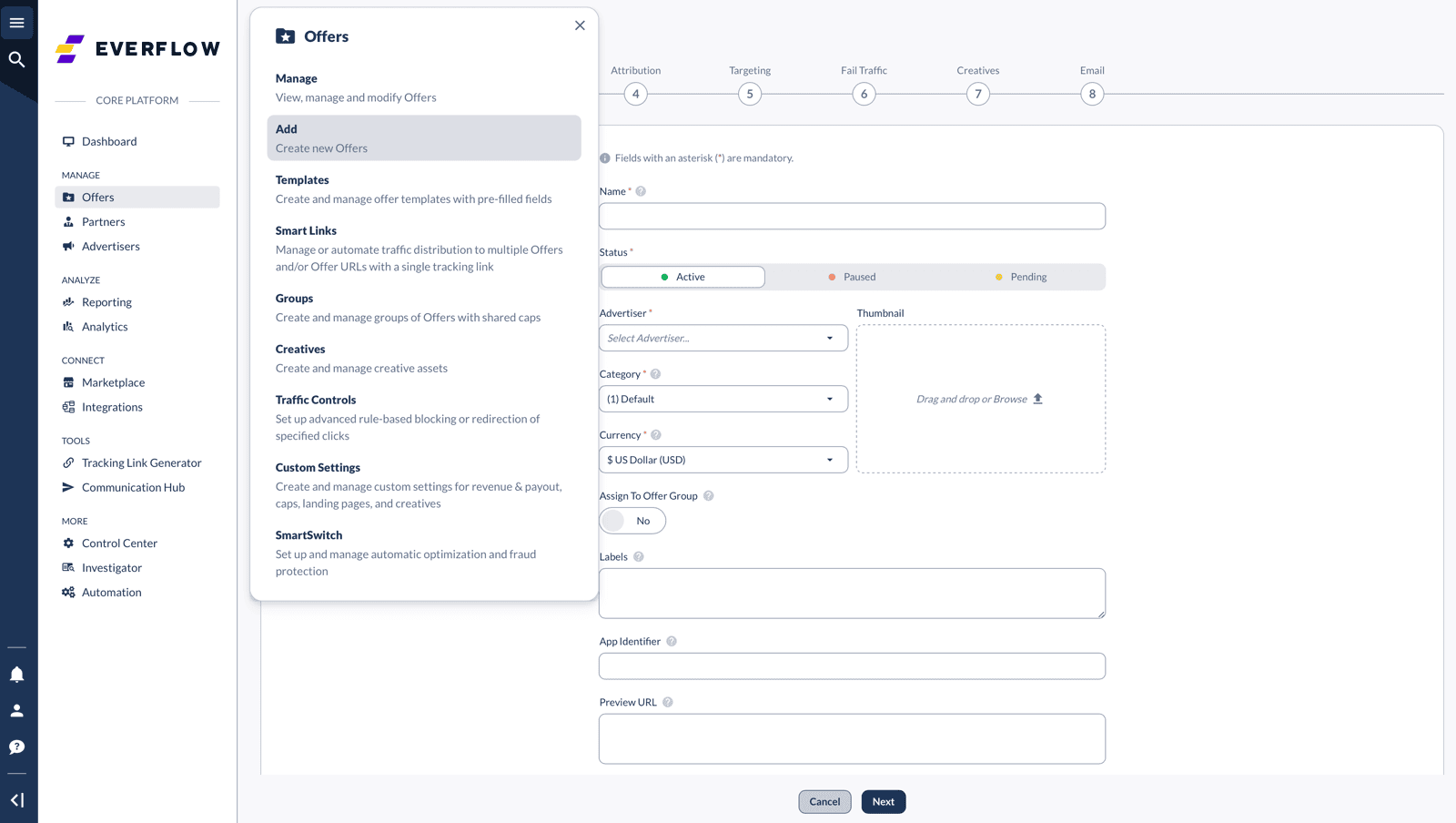
Navigate to
Offers -> Add
This will take you to the Add Offer view and you can follow the steps to create a new Offer
__wf_reserved_inherit

Copying An Already Existing Offer

In order to copy an already existing Offer’s settings into a new Offer within the Core Platform:

On the left Nav Bar, click on
Offers -> Manage
Within the Manage Offers View, you find all your currently existing Offers
On a specific Offer, click
-> Copy Offer
This will show you a modal where you can choose to fine tune the copied Offer fields
After that, click
Confirm
and you’ll be directed to your copied Offer

From here, you’re welcome to rename your new Offer to something more appropriate.

Editing Offers

Editing A Single Offer

In order to edit a specific Offer within the Core Platform:
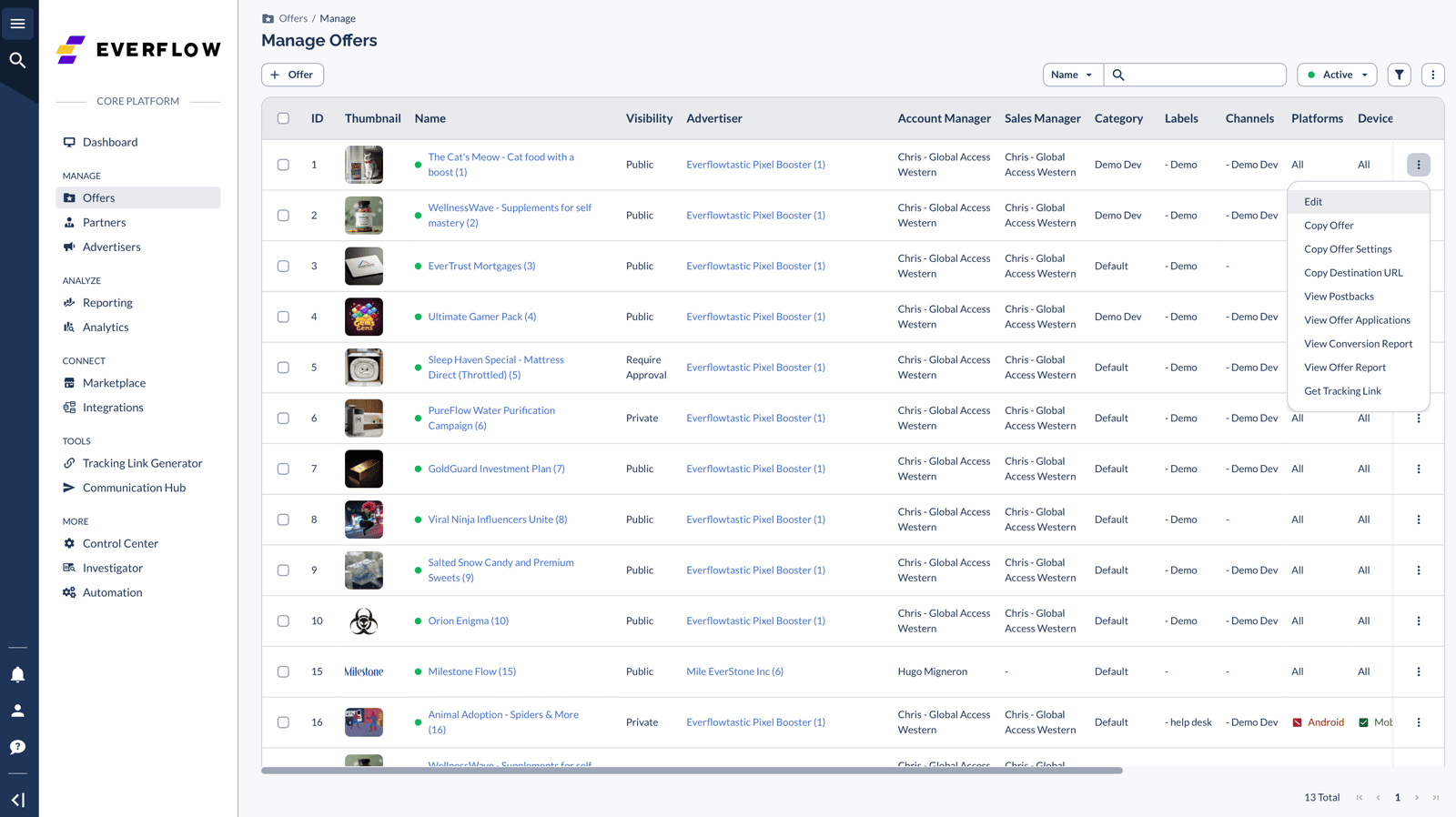
On the left Nav Bar, click on
Offers -> Manage
Within the Manage Offers View, you find all your currently existing Offers
On a specific Offer, click
-> Edit
This will take you to the Offer Edit view
Once you’re done editing your Offer, click
Save
__wf_reserved_inherit

Bulk Editing Offers

Certain Offer settings can be configured in Bulk, saving you an enormous amount of time. In order to do so:

On the left Nav Bar, click on
Offers -> Manage
Within the Manage Offers View, you find all your currently existing Offers
Click on the checkbox on the top left to select all Offers, or specific checkboxes for curated Offer selection
An Actions menu pops up above the Offers table
You’ll have the following three actions presented to you:
Click
Actions -> Bulk Edit
to view editing choices
Click
Actions -> Change Status
to quickly bulk edit the Status of selected Offers
Click
Actions -> Share Offer(s) Details
to send a mass email with Offer Details for each Offer to a selected Audience via the Communication Hub

The Bulk Edit View

If you click
Actions -> Bulk Edit
following the instructions above, you’re in the Bulk Edit View. Here what you can do here:
Edit the Offers you’d selected to be bulk edited under
Offer Selection
Add multiple changes to be applied in bulk under
Changes

Saving Time With Search

One of the best ways to navigate the Core Platform is not to navigate it at all.

All Everflow Platforms come with In-Platform search that can be accessed via the following keyboard shortcuts:

  • On Mac OS: Command + K
  • On Windows: CTRL + K

Simply type in menu items such as “Manage Offers” and navigate the platform via clicking on the search results!