


.svg)

Overview
SmartSwitch enables automatic traffic filtering based on predefined rules, helping you:
- Block invalid traffic automatically.
- Redirect traffic via Fail Traffic logic.
- Trigger notifications to alert Partners before action is taken.
- Optimize performance based on KPIs
Enabling the SmartSwitch Feature
Navigate to:
Control Center -> Accounts -> Roles
Click the three vertical dots
next to the Role you want to modify
Under Offers, check the box for
SmartSwitch
(Full Access or Read Only)
Click
Save
Note
Access to roles requires having Administrator Access
How to Create a SmartSwitch Rule
1
Start a New Rule
Go to
Offers -> SmartSwitch
Click
Add New Rule
Fill out the fields—a live preview of your rule will appear on the right side
Note: You can create up to 30 SmartSwitch rules.
2
Configure General Settings
Start/End Dates
→ Set optional timeframes for when the rule is active.
Enable Notifications
→ Alerts Employee Users when traffic is affected by the rule.
Notify Partners
→ Sends notifications to Partner Users if their traffic is affected.
Note: Employee & Partner notifications must be enabled in their individual accounts in order to receive these notifications.
Targeted Entity Type:
Advertiser-Level: Applies to all Offers from that Advertiser.
Offer-Level: Applies only to a specific Offer.
Click Next to proceed to the Settings tab.
3
Configure Rule Settings
Variable:
Choose the data source for the rule:
Source ID
Sub1 - Sub5
Action:
Choose what happens when traffic violates the rule:
Block Clicks → User is sent to a blank page.
Follow Fail Traffic Logic → Redirect to an alternative Offer.
Send Notifications Only → No action, just alerts employees/Partners.
Run Frequency:
Define how often SmartSwitch checks traffic data.
Data Lookback Window:
Set the historical time window used for analysis.
Action Delay:
Define the waiting period before the rule takes effect after sending a notification (e.g., 1, 2, 4, 6, 12, or 24 hours).
Click Next to proceed to the Rules tab.
4
Define Rule Activation Criteria
Set Activation Thresholds
Choose the Base, Event, or the particular Event name to which the KPI will be applied.
Triggers rule enforcement based on specific metrics.
Select a data point and set a minimum or maximum value.
Metrics include:
Total Clicks, Revenue, Payout, Impressions, Events, Conversions
All Conversions (Approved, Pending, Rejected)
Define KPI Rules
Choose regular KPIs (basic thresholds) or advanced KPIs (complex metrics).
Multiple Thresholds use "OR" logic, while multiple KPIs use "AND" logic.
Advanced KPI Options:
% of conversions from Mobile Traffic (excluding WiFi).
% of conversions from WiFi Traffic.
% of conversions with duplicate IPs.
% of conversions with empty Source ID.
% of conversions missing Sub1-Sub10 values.
% of conversions without device IDs.
Operator Options:
Greater Than, Less Than, or Range
Click Next to proceed to Additional Options.
5
Exclusions & Finalization
Exclude specific Partners/Variable combinations from the rule.
Click Save to finalize the SmartSwitch rule.
Managing SmartSwitch Activations
View & Manage SmartSwitch Rules
Navigate to
Offers -> SmartSwitch

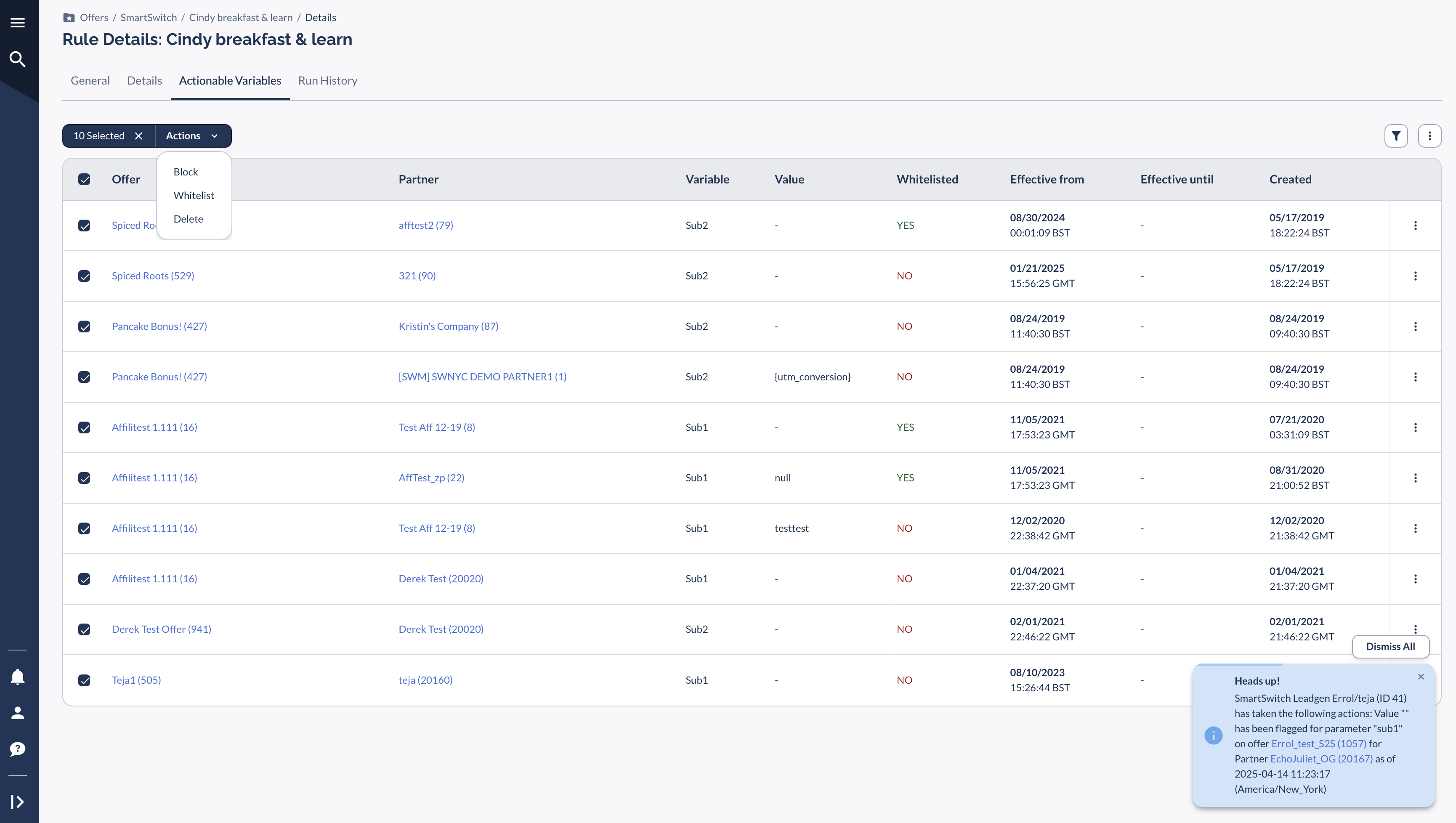
- Click a SmartSwitch Rule and go to the Actionable Variables tab.
- Show Filters: Filter data by Offer, Partner, Rule, Status, and Time Intervals.
- Apply to Selected: Select rules and choose Block, Delete, or Whitelist from the dropdown.
Monitor Rule Execution via Run History
Go to the Run History tab to see:
- SmartSwitch activations & their associated results
- Click the three vertical dots for a detailed view of each activation.


