


.svg)

Overview
This integration allows you to pass conversions and events from Segment into Everflow whenever the events as defined inside Segment occur.
This integration is configured entirely inside Segment. There is nothing to configure on your Everflow account.
Step 1: Adding the Click Script to the site
- The Click Id is generated when a user lands on the website.
- You will need to implement Everflow’s JavaScript library along with Everflow’s EF.click() method into the <head> tag on your website to register a click and store click data with that user’s session.
- For more information on that please reference this documentation.
Step 2: Defining the source
- When using Segment, you will first need to decide what the source of the events you wish to track in Everflow will be.
- It could be a piece of Javascript code that will run on your website just like it could be Salesforce event.
- In your segment account, under “Connections”, pick “Sources” and add the source you will be working with.

Step 3: Add the destination (Everflow)
- This is where you will define how the conversions and events will be created on the Everflow side.
- Under “Connections”, pick “Destinations” and click on “Add Destination”.
- In the Catalog, search for “Everflow” and add the destination.
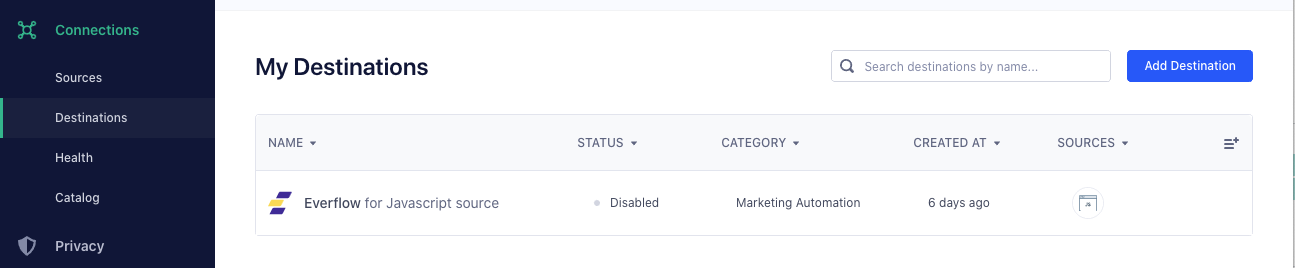
- You will need to configure it based on your account and offer settings in Everflow:
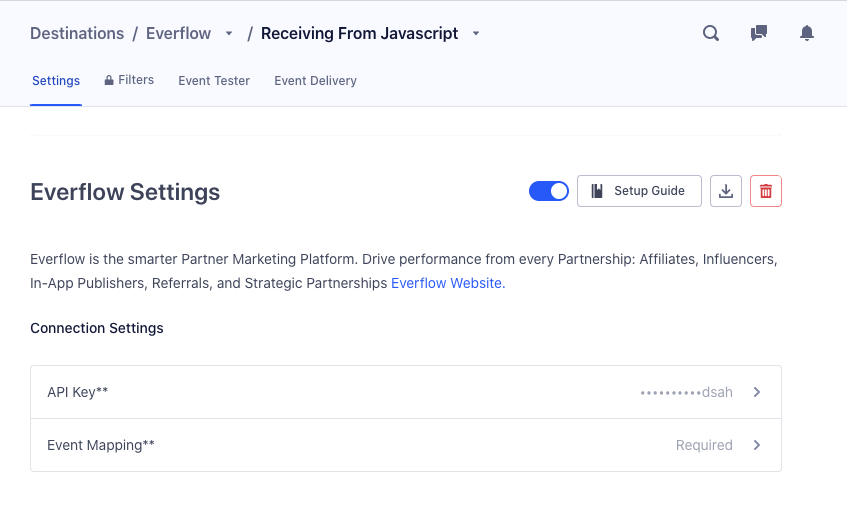
- The API key will come from your Everflow account. Your API key can be created and managed under Control Center - Security.
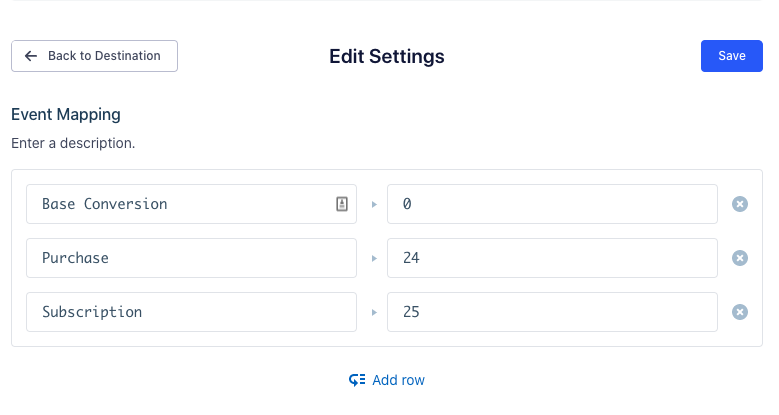
- The Event Mapping refers to “Advertiser(Brand) Events” that are setup on your Everflow account.
- The ID 0 will always refer to the “Base Conversion”, regardless of the offer.
- In this example, the advertiser (Brand) event named “Purchase” has the ID 24.
- When setting up your Offer, the Event should look like this:

And it would result in the following configuration on Segment:
Step 4: Updating the Analytics.track
- This click will then be accessible via the EF.getAdvertiserTransactionId() method.
- This method is documented here.
- This ID should be integrated into the referrer object as shown below:
- The parameter “7” in the example above comes from the Everflow UI and is visible on the Advertisers(Brands) > Manage screen, this is the advertiser(Brand) ID.
- After setting up the integration, make sure to test it at least once. You should be able to query the reporting data quickly after running your test.
Step 5: Event Mapping
All Sources
Segment Property
Everflow Parameter
Required
Type
context.ip
conversion_user_ip
False
String
context.userAgent
http_user_agent
False
String
context.traits.email
email
False
String
properties.adv1
adv1
False
String, Number, Boolean
properties.adv2
adv2
False
String, Number, Boolean
properties.adv3
adv3
False
String, Number, Boolean
properties.adv4
adv4
False
String, Number, Boolean
properties.adv5
adv5
False
String, Number, Boolean
properties.coupon
coupon_code
False
String, Number
properties.orderId
order_id
False
Number
properties.affiliateId
affiliate_id
False
Number
properties.products[i].quantity
order_line_items[i].quantity
False
Number
properties.products[i].name
order_line_items[i].name
False
String
properties.products[i].sku
order_line_items[i].sku
False
String
properties.total
amount
False
Number
Mobile Sources
Segment Property
Everflow Parameter
Required
Type
context.ip
conversion_user_ip
True
String
context.app.namespace
app_id
True
String
context.device.adTrackingEnabled
limit_ad_tracking
False
Boolean
context.app.name
app_name
False
String
context.app.version
app_version
False
String, Number
context.device.manufacturer
device_make
False
String
context.device.model
device_model
False
String
context.network.carrier
carrier
False
String
context.os.name
os
False
String
context.os.version
os_version
False
String, Number
context.network.wifi
connection_type
False
String
context.location.latitude
latitude
False
Number
context.location.longitude
longitude
False
Number


