


.svg)

Overview
ReCharge integration allows you to track and attribute both initial and recurring subscription purchases from your Shopify store.
When properly configured, this integration will automatically pass subscription events to Everflow, helping you accurately measure customer lifetime value and track the performance of your subscription products.
Heads Up!
Shopify V2 RequirementAll Shopify integrations must be migrated from V1 to V2 before August 22nd to prevent tracking interruption. If you're setting up ReCharge for the first time, you should install Shopify V2 first.
Before You Start
- To capture subscription purchases, you'll need to add an Additional Conversion Event to your Offer. Without this, you'll have to allow duplicates on your Base Conversion Event for recurring purchases - otherwise, recurring purchases will show up as Invalid Conversions.
- Additionally, ensure that ad blockers are disabled in your browser when setting up and testing this integration. Ad blockers can prevent cookies and tracking parameters from functioning properly, which may cause tracking issues with Shopify and ReCharge.
Quick Reminder
This integration will not work with Price Per Product.
Prior to completing this integration, you must:
Have ReCharge installed on your Shopify store
Have your Everflow instance already connected with your Shopify store using Shopify V2
For a guide on connecting Shopify - [Click Here]
Step-By-Step Guide
1
Install ReCharge in Shopify
Before connecting ReCharge to Everflow, you need to ensure ReCharge is properly installed in your Shopify store:
Log into your Shopify admin dashboard
Navigate to the
Apps and sales channel
section in the settingsSearch for
ReCharge Subscriptions
in the Shopify App Store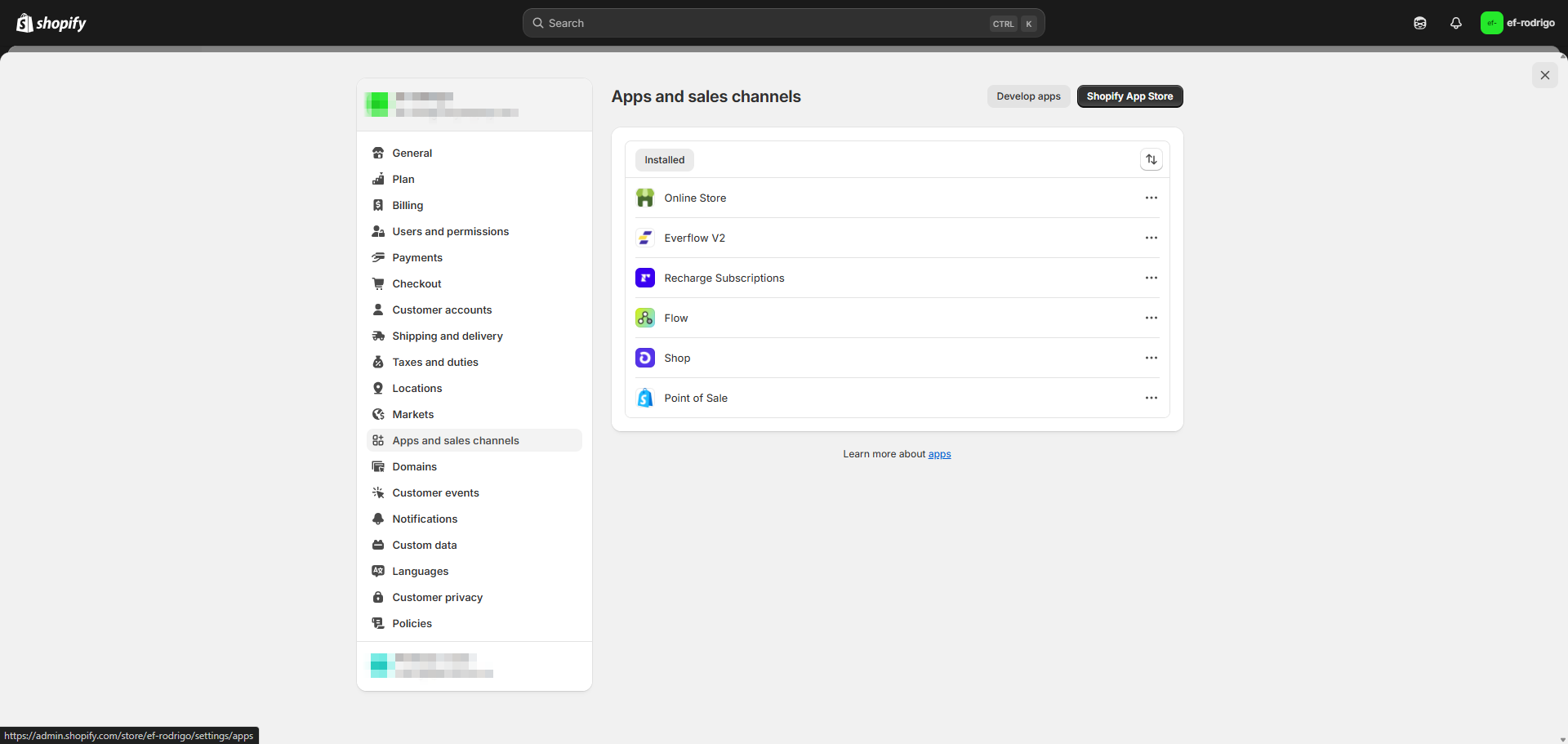
Click
Install
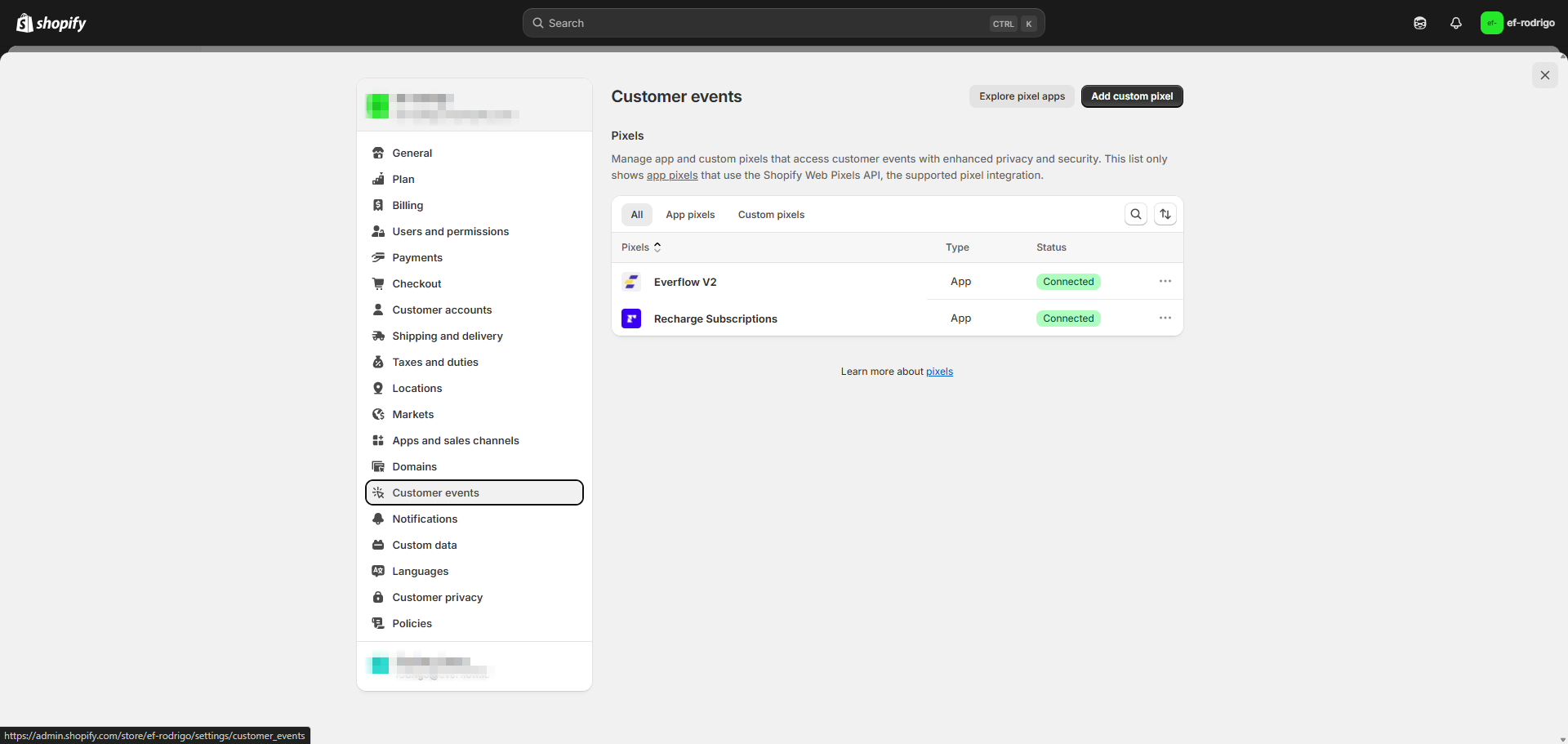
(if already installed, you'll see "Open" instead)Your Recharge connection should show as "Connected"
2
Connect ReCharge in Everflow
Navigate to
Integrations > E-Commerce
tab in Everflow.Click
Connect Integration
next to the ReCharge integration.Click the
Add
icon up top.
Quick Reminder
Make sure you have Additional Events set up.
3
Configure ReCharge Settings
Turn the toggle for
Is Enabled
to ON.Select either
Offer
or Advertiser
from the Target
drop-downThese choices refer to an Offer-level Event and an Advertiser-level Event.If you have not created an Advertiser-level Event, select Offer.
Make selections for the required fields:
Offer
- This is the Offer to which you want to attribute the ReCharge subscription events.Initial Event
(Base) - The first subscription Event, typically the initial purchase.Recurring Event
(Additional Event) - This is the recurring subscription Event, typically added as an Additional Event on the Offer.
Ensure Email Attribution is set up correctly:
In Everflow, configure
Email Attribution Ownership
for the events.This is essential for recurring conversions to be properly tracked.
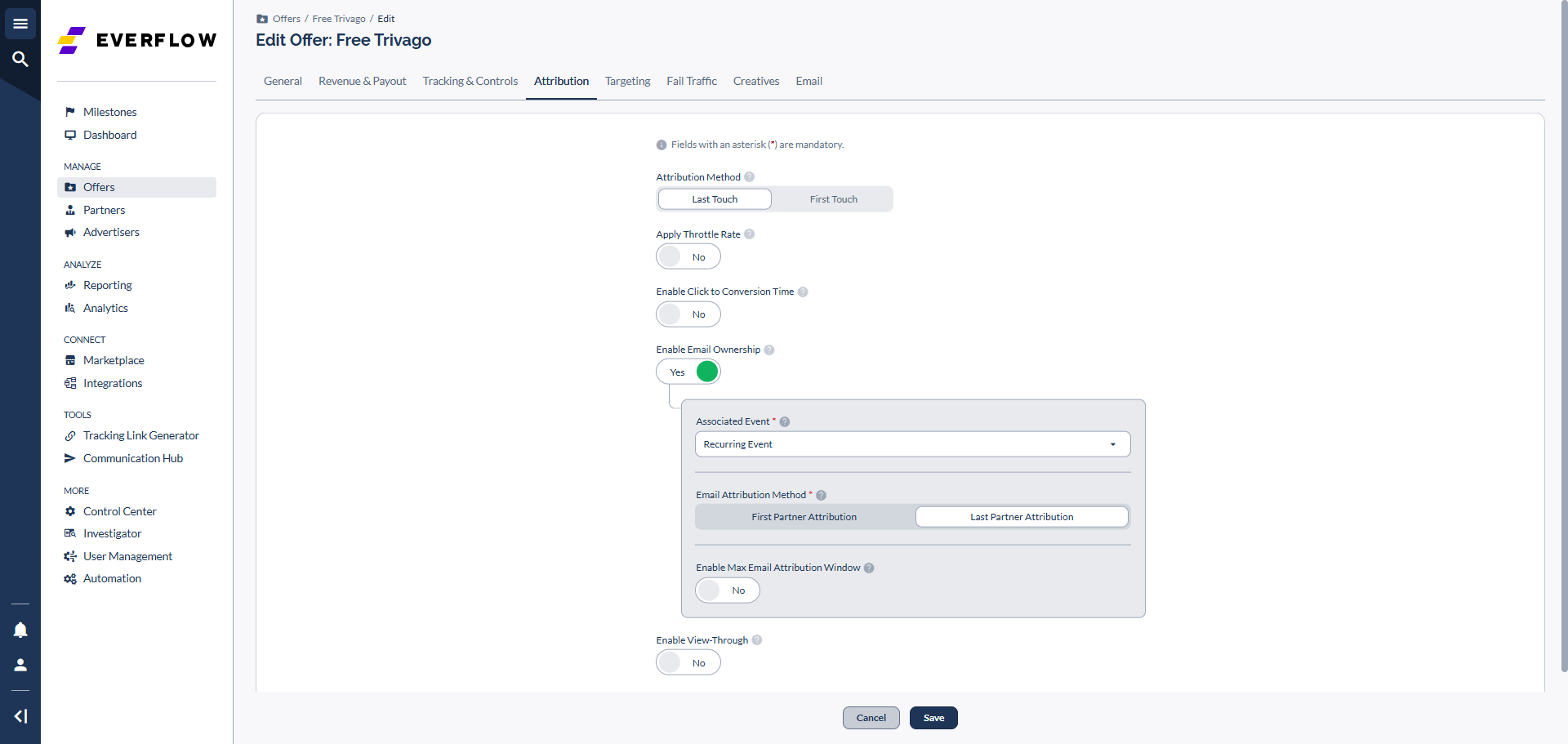
Note: The Recharge configuration will automatically override the Associated Event you choose here, but this setup is still necessary for recurring Conversions to be logged in your system.
4
Testing Your Integration
After saving the integration, be sure to test it by:
Generating a Partner tracking link
Initiating a test subscription purchase
Confirming that both initial and recurring events are tracked properly
Quick Reminder
When testing, ensure that:
Ad blockers are disabled (very important)
You wait for the first recurring charge to verify the integration is working properly
How It Looks on the Shopify Side
Once properly integrated, here's what you'll see in your Shopify admin:
In Apps and Sales Channels:
- ReCharge will appear in your installed apps
- Under Customer Events, Everflow will show as "Connected"
- ReCharge Subscription status will initially show as "Disconnected" but will change to "Connected" after the first recurring charge occurs
In Orders:
- Initial orders will be tagged with "Subscription" and "First Order"
- Recurring orders will be automatically tagged with "Subscription" and "Recurring Order"
- Order details will include subscription information such as frequency and any applied discounts


In ReCharge Dashboard:
- You'll see upcoming subscription charges
- Subscription details including frequency and customer information

Troubleshooting
If you're experiencing issues with your ReCharge integration:
Conversions Not Tracking:
- Ensure ad blockers are disabled (this is a common issue with Shopify's new code)
- Verify Email Attribution is properly set up
- Check that both Initial and Recurring events are correctly configured
Missing Order Information:
- Recurring charges should show the attribution method as "Email"
- If order ID or order number does not appear, contact support
For additional help, please contact Everflow support.


