


.svg)

The Goal
Your Shopify store is set up to offer customers additional products after their initial purchase is complete. You want to track these valuable upsells as a distinct conversion event in Everflow to properly reward the partners who drive them.
This guide walks you through the process of placing a script in your Shopify settings to track those post-purchase events.
Before You Begin
- You need an active Shopify account with a post-purchase upsell app or feature enabled.
- In Everflow, you must have an Offer ready with a specific Advertiser-Level Event created for the upsell (e.g., "Post-Purchase" or "Upsell").
Heads Up!
On the Offer level, you must Allow Duplicates
. Additionally, please contact the Everflow Support team to configure your account to deduplicate conversions by order_id + adv1. Without this setting, your upsell conversions will be tracked but flagged as invalid
.
1
Gather Your Everflow Data
First, you'll need three key pieces of information from your Everflow Offer page.
In this example:
Tracking Domain: Found on the
Tracking
card.Advertiser ID (aid): Found on the
General
card.Advertiser Event ID (adv_event_id): This is the ID for your specific upsell event, found on the
Revenue & Payout
card.Tracking Domain is
https://www.serve-eflow-test.com
Advertiser ID is
139
Advertiser Event ID is
26
Note
On the Offer's Tracking
card, ensure the Conversion Method
is set to Javascript SDK
. If it isn't, navigate to Edit -> Attribution
and select it from the dropdown menu.
2
Prepare the Shopify Post-Purchase Code
Here is the code snippet you will place in Shopify. Copy this code and replace the three placeholder values with the data you gathered in Step #1.
INSERT_TRACKING_DOMAIN
INSERT_ADVERTISER_ID
INSERT_ADVERTISER_EVENT_ID
Code Snippet:
<script type="text/javascript">
var script = document.createElement('script');
script.onload = function() {
    (function() {
        var aid = INSERT_ADVERTISER_ID;
        var adv_event_id = INSERT_ADVERTISER_EVENT_ID;

        Shopify.on('CheckoutAmended', function(newOrder, previousOrder) {
            var previousOrderSubtotal = previousOrder.subtotalPrice
            var oldItems = previousOrder.lineItems.map(function(line) {
                return line.id;

            });
            var addedItems = newOrder.lineItems.filter(
                function(line) {
                    return oldItems.indexOf(line.id) < 0;
                }
            );

            // no new items were added, so we skip conversion tracking
            if (addedItems.length === 0) {
                return;
            }

            // track additional purchase
            var order = window.Shopify.order;
            var amount = order.subtotalPrice - previousOrderSubtotal;
            var order1 = {
                "oid": order.id,
                "items": []
            }
            for (var i = 0; i < order.lineItems.length; i++) {
                var a = {};
                a.ps = order.lineItems[i].title;
                a.p = order.lineItems[i].price;
                a.qty = order.lineItems[i].quantity;
                order1.items.push(a)
            }
            EF.conversion({
                aid: aid,
                adv_event_id: adv_event_id,
                amount: amount,
                order_id: order.id,
                email: order.customer.email,
                coupon_code: order.discounts ? order.discounts[0].code : "",
                order: order1,
            })
        });
    })();
}
script.src = 'https://INSERT_TRACKING_DOMAIN/scripts/sdk/everflow.js';
script.async = true;
document.head.appendChild(script);
</script>
Example (Using our sample data):
<script type="text/javascript">
var script = document.createElement('script');
script.onload = function() {
    (function() {
        var aid = 139;
        var adv_event_id = 26;

        Shopify.on('CheckoutAmended', function(newOrder, previousOrder) {
            var previousOrderSubtotal = previousOrder.subtotalPrice
            var oldItems = previousOrder.lineItems.map(function(line) {
                return line.id;
            });
            var addedItems = newOrder.lineItems.filter(
                function(line) {
                    return oldItems.indexOf(line.id) < 0;
                }
            );

            // no new items were added, so we skip conversion tracking
            if (addedItems.length === 0) {
                return;
            }

            // track additional purchase
            var order = window.Shopify.order;
            var amount = order.subtotalPrice - previousOrderSubtotal;
            var order1 = {
                "oid": order.id,
                "items": []
            }
            for (var i = 0; i < order.lineItems.length; i++) {
                var a = {};
                a.ps = order.lineItems[i].title;
                a.p = order.lineItems[i].price;
                a.qty = order.lineItems[i].quantity;
                order1.items.push(a)
            }
            EF.conversion({
                aid: aid,
                adv_event_id: adv_event_id,
                amount: amount,
                order_id: order.id,
                email: order.customer.email,
                coupon_code: order.discounts ? order.discounts[0].code : "",
                order: order1,
            })
        });
    })();
}
script.src = 'https://www.serve-eflow-test.com/scripts/sdk/everflow.js';
script.async = true;
document.head.appendChild(script);
</script>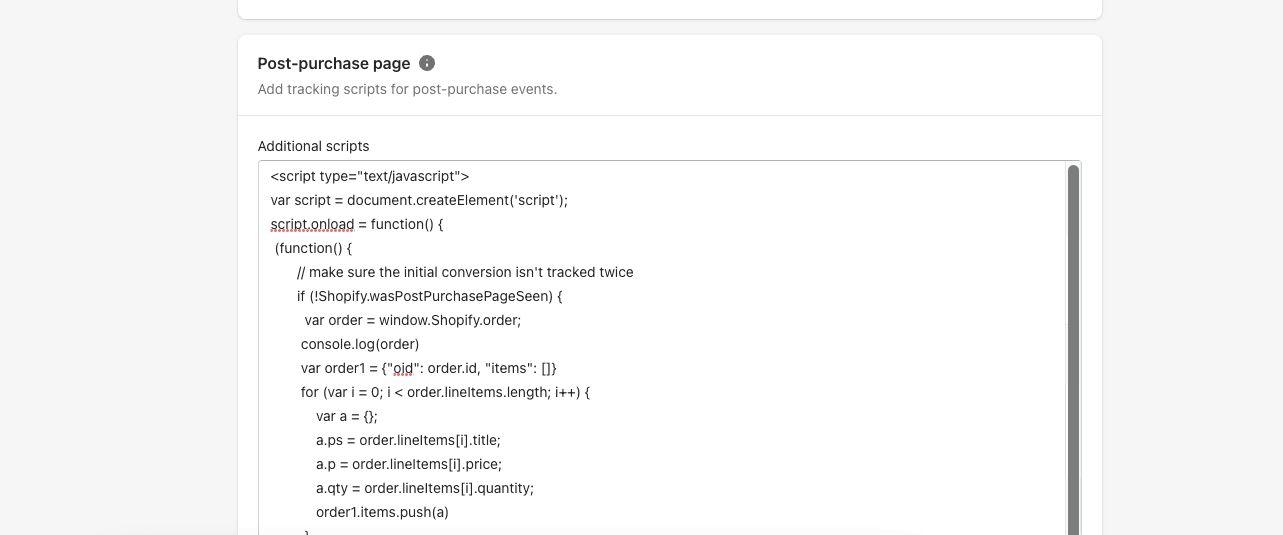
3
Place the Code in Shopify
In your Shopify admin dashboard, navigate to
Settings -> Checkout
Find the
Additional scripts
text box for the Post-purchase page
Paste your completed code into this box
Click
Save
The Result
You're all set! When a customer completes an upsell after their initial purchase, the script will fire and send the conversion data to Everflow.
You will see it recorded under your designated upsell event, allowing you to accurately track performance and manage payouts for these high-value actions.


