


.svg)

Overview
From here, you can access different neighborhoods (sections) like
Plus, our newly enhanced search function serves as your GPS, helping you find anything instantly.
Core Navigation Features
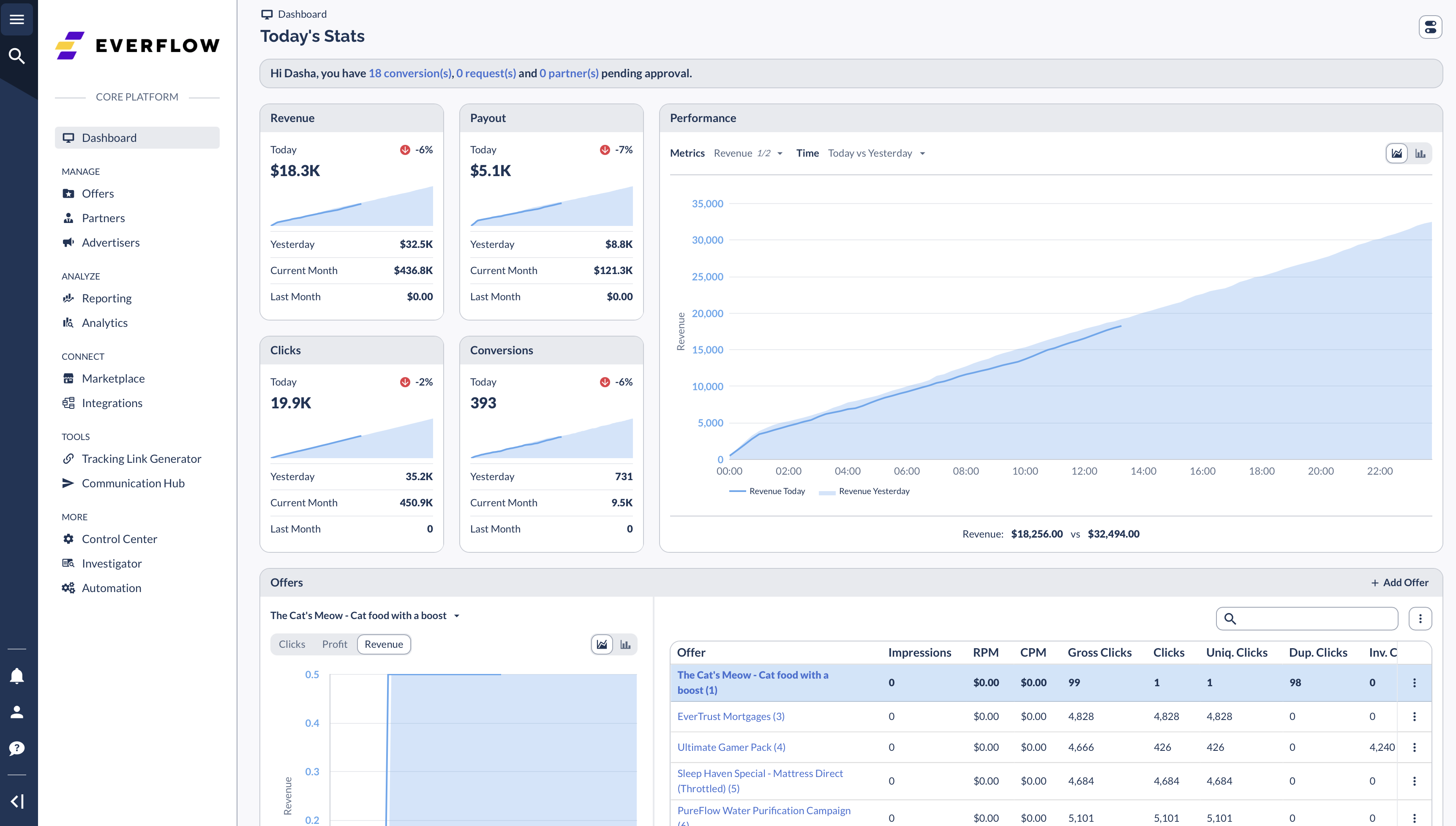
Main Menu
So you can pin section you reach for the most:
MANAGE Section
ANALYZE Section
CONNECT Section
TOOLS Section
MORE Section
Enhanced Search Experience
Some of the features include:
- Access full search history
- Filter by category for clearer results
- Search pages, menu items, and help articles
Customization Options
Pins
- Click the pin icon beside any menu item for quick sidebar access
- Drag to reorder your pinned items
- Create your perfect workflow
Sticky Mode
- Click the |> icon at the bottom to keep the navigation menu always visible
Quick Actions
Notifications
- Click the bell icon to view important alerts
- Track invoice creation, partner activities, and system updates
My Account
- Access your profile via the person icon
- Manage notification preferences
- Update account settings
- Change password
Best Practices
Customizing your navigation experience can significantly improve your workflow efficiency.
Start by pinning the sections you use most frequently to create quick access points directly on your sidebar. This simple step eliminates unnecessary clicks and helps you move smoothly between different platform areas. For users who regularly reference the navigation menu, enabling sticky navigation keeps these options constantly visible as you work, preventing the need to repeatedly open and close the menu.
When looking for specific items or features, the search function serves as your fastest path to any destination in the platform. A quick keyboard shortcut (Cmd/Ctrl + K) activates this powerful tool, saving you time navigating through multiple menus.
Make it a habit to regularly check your notifications for important updates about invoices, partner activities, and system changes. This proactive approach ensures you stay informed about critical developments without having to manually search for this information.
By implementing these simple navigation strategies, you'll create a more streamlined and productive Everflow experience tailored to your specific needs.


