


.svg)

Overview
Pre-Landers, Offer Walls, and Listicles are powerful tools for enhancing engagement and increasing conversion rates by providing users with multiple Offer options before they reach the final destination.
Using Traditional Redirects
How It Works
- The Offer Wall/Listicle is created as a single Offer.
- Each individual offer within the Offer Wall/Listicle is also set up as a separate (individual) Offer.
- Reporting will track clicks to the Offer Wall/Listicle as well as clicks to each individual offer within it.
Code Example
HTML Example
JavaScript Example
Adjusting for Smart Links
If using Smart Links, update the JavaScript to include /cmp/ after the tracking domain:
Steps
- Each button in the HTML must have a unique ID or class name for proper selection. If using a class name, use document.getElementsByClassName instead of document.getElementById to target them correctly in JavaScript.
- In the provided example, buttons are identified as "button-1", "button-2", and "button-3".
- JavaScript will dynamically replace the href="" value with the partner tracking link, ensuring seamless redirection.
- If needed, you can include sub1 - sub5 parameters by defining them in the var line items within the script.
- See the sample code below for implementation.
Setting Up Tracking Parameters
- Ensure the Offer’s Default Landing Page includes tracking macros:
- If using Smart Links, update the Default Landing Page as follows:
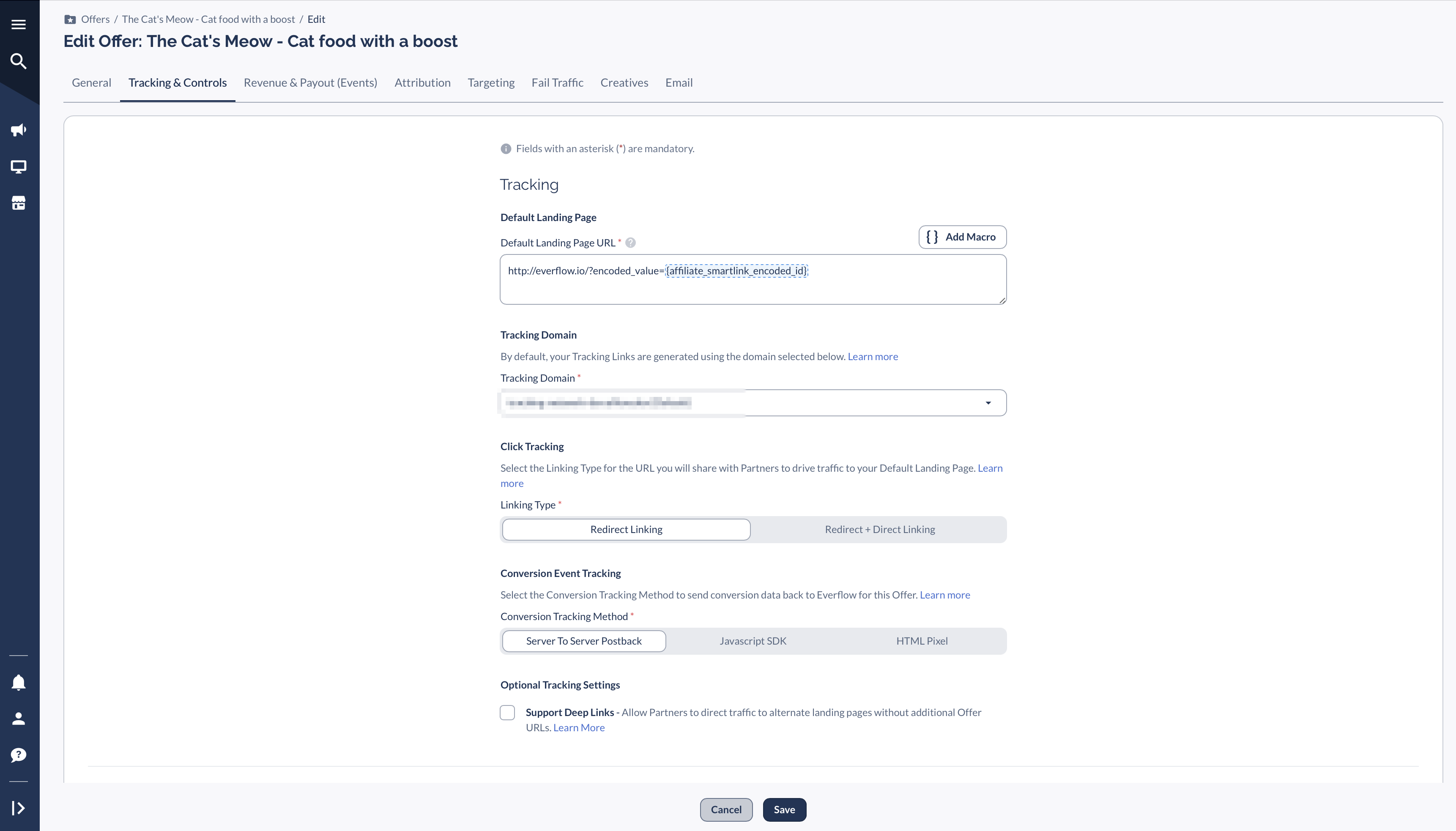
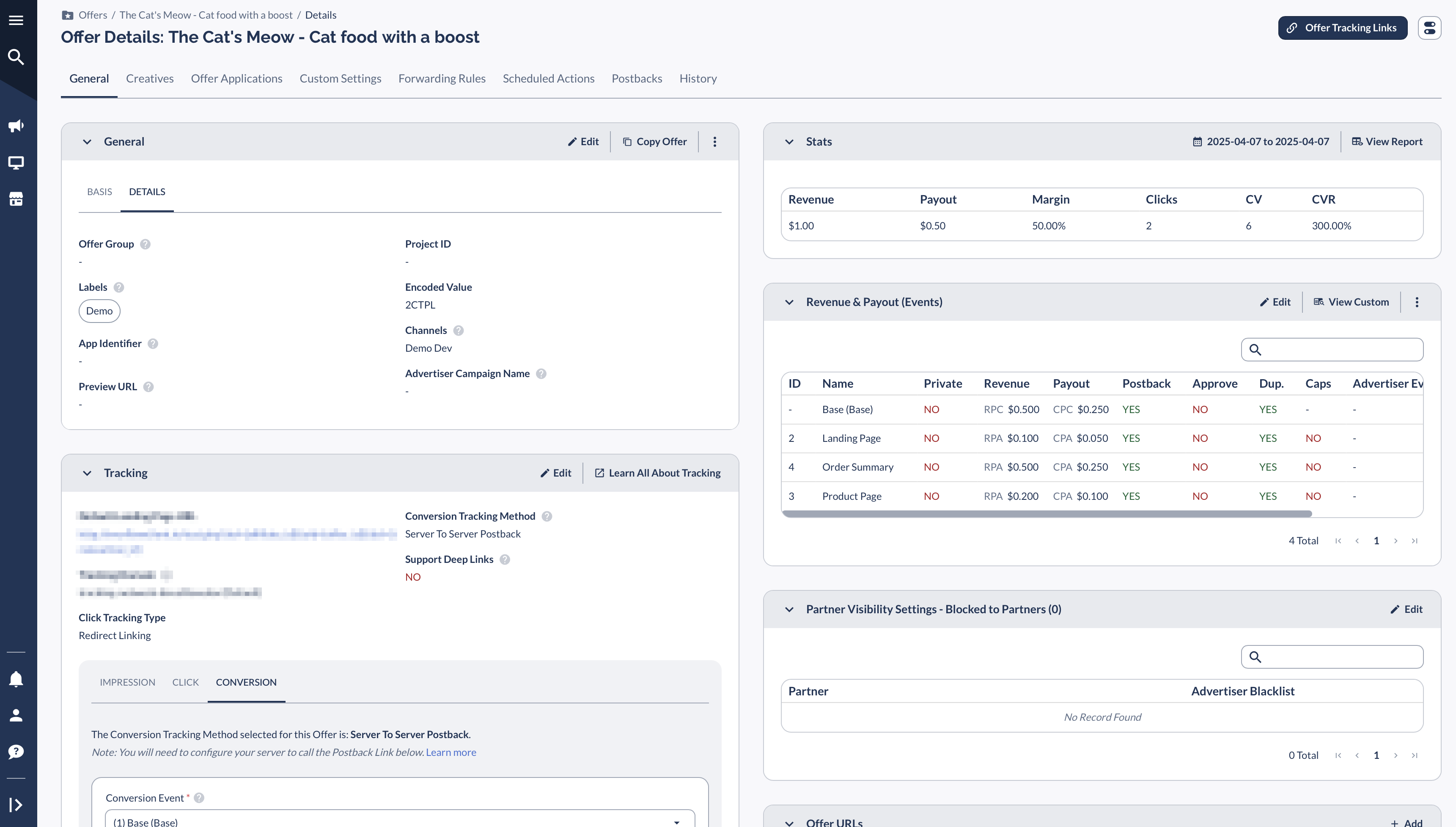
- Additionally, you will need to replace {INSERT_YOUR_TRACKING_DOMAIN} with the tracking domain found on the same page in the conversion method section here.
- Final Step: Replace {INSERT_YOUR_TRACKING_DOMAIN} with the actual tracking domain.
- To test, generate a tracking link for the offer wall / listicle offer and then click a button on the offer wall / listicle page to make sure it redirects to the correct offer. You will see a click for the offer wall / listicle offer as well as the individual offer.
Using Direct Linking
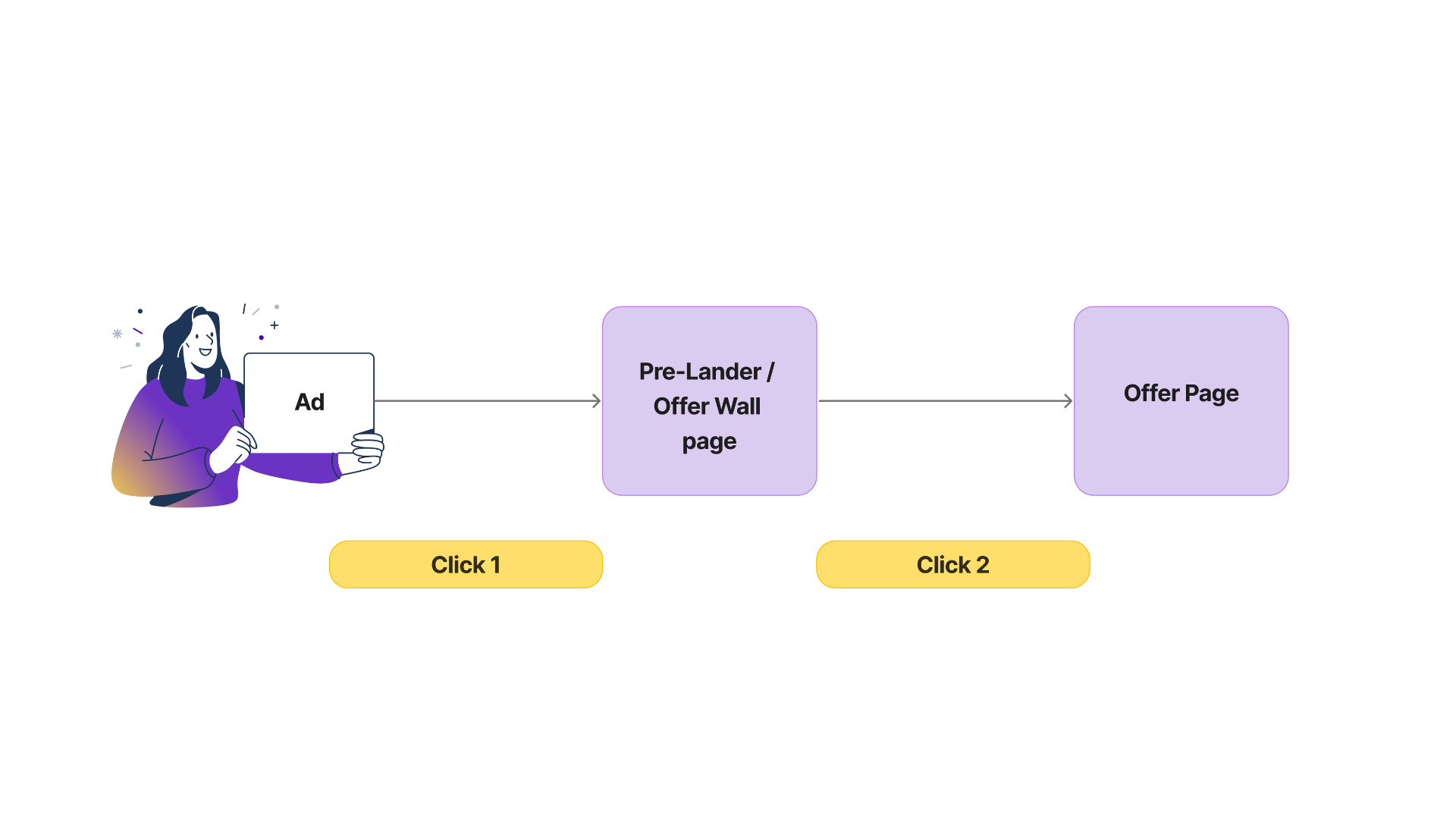
- AD (Google/Facebook/Affiliate Link): User clicks (CLICK 1) on AD and lands on your Pre-Lander / Offer Wall.
https://www.PRELANDER.com?oid=11&affid=2PreLander / OfferWall page: From the Offer Wall, the User clicks (CLICK 2) on a link to reach the final Offer. - The below string must be added to the Offer Page URL in order for the Transaction ID to carry through from the click on the PreLander
Code Example
To be placed on the offer wall / listicle page:
- You will need to replace the TRACKING_DOMAIN with the actual tracking domain for the offer. The OFFER_PAGE will need to be replaced with the actual Offer Page URL. And finally replace the advertiserId with the correct value.
- Advertiser/Offer page: User lands on the final Offer page with all the Transaction ID from the initial click.
https://www.OFFER_PAGE.com?_ef_transaction_id=9f3e7c3bef2d4b6ba0c2bf4bcee45310
- To use this model with Direct Linking, the standard JavaSscript SDK Click Script must be placed on the Offer Page. You must use the correct TRACKING_DOMAIN here as well.
- When the user lands on the Offer Page, the Transaction ID will be saved in the first party cookie.
- Conversions will track normally using the standard JavaScript SDK Conversion Script.
Showing Conversions on the Parent Offer Only
In some cases, you may want conversions to be visible to the partner only on the Offer Wall (parent) Offer, rather than on each child Offer. To do this, the child Offer redirect links within the Offer Wall should use your internal partner tracking links.
Click Script
The click script below is used when the Offer Wall uses a direct link and there are child Offer redirect links within the site. All child Offer redirect links must use the same domain, which replaces the INSERT_TRACKING_DOMAIN placeholder. Replace INSERT_ADVERTISER_ID with the Advertiser ID for the Offer Wall. The transaction ID from the Offer Wall will pass into the sub1 parameter of the child Offers.
Child Offer Custom Settings
- Create a custom setting for the internal partner so that the payout is $0 on the child Offers, since the payout will be recorded on the parent Offer Wall Offer.
Postbacks to the Parent Offer
Place a postback on the child Offers to fire back to the original Offer Wall, for example:
- The adv1 parameter lets you see which child Offer originated the conversion.
Passing Amounts to the Parent Offer
- RPS/CPS child Offer: Expose sale_amount and pass it through so the payout can be calculated on the parent Offer Wall Offer:
- RPA/CPA child Offer: The amount can be hardcoded in the child Offer postback, or you can use custom settings on the Offer Wall so that if adv1=CHILD_OFFER_ID, then the payout is set accordingly.


