Home
Offers & Tracking
Offer Management Tools
How To Bulk Edit Offers

SERIES:

How To Bulk Edit Offers

Learn how to bulk edit your Offers if you need to change large quantities and save time.

Overview

The Bulk Edit feature allows you to make changes to multiple Offers simultaneously, saving you significant time and effort.

This is especially useful when:

  • Advertiser agreements change, requiring adjustments to visibility settings to maintain traffic quality.
  • You need to update tracking domains, Default Landing Page URLs, or event settings across multiple Offers.
  • Making adjustments to payouts, labels, or other key settings in one go instead of editing each item individually.
What's Changed Last updated Sep 4, 2026 ▼
Sep 4, 2026 Added
Bulk Edit can now tie an Offer's Base Conversion Event to a Global Advertiser Event. New section: Tying The Base Conversion Event Across Many Offers.

One limit to know before you start:

Heads up
Bulk edits are limited to 100 Offers per session. If you need to update more, you’ll need to complete multiple bulk edit sessions.

Watch this short video to learn:

  • How to bulk edit events
  • How to bulk edit tracking domains
  • How to bulk edit Default Landing Page URLs

Step-by-Step Guide: Bulk Editing Offers

1
Navigate to Bulk Edit
To edit multiple Offers: Go to
Offers -> Manage
Click the
Bulk Edit
button.
2
Select the Offers To Edit
Use the search bar
or filters
(status, label, advertiser) to find specific Offers.
Click on an item to move it from Available to Selected, or select all items at once.
3
Choose Fields to Edit
Select the field(s) you want to update.
Complete the required fields for each selection.
Example: If selecting Revenue, you'll be prompted to enter Base Revenue Type and Revenue Per Conversion values.
To edit multiple fields at once, click
Add
.
4
Review and Apply Changes
Click Review to see a preview of your changes before finalizing.
Once confirmed, click
Apply
to save changes.
__wf_reserved_inherit
Pro Tip!
Need to add an Advertiser Level Event to the additional events on multiple Offers? Follow these steps:
Select General Field: Advertiser and Revenue & Payout Field: Additional Events
Click
Edit Additional Events
Click
Add Event
This allows you to streamline event management across multiple Offers with minimal effort.

Tying The Base Conversion Event Across Many Offers

The Pro Tip above covers the extra events that fire after a conversion. The base conversion, the main action on the Offer, has its own separate field in Bulk Edit. It is usually the one worth doing in bulk, because the base conversion is what Postback Controls tend to target.

A common case: you run 40 Offers for the same Advertiser and you want one Postback Control to govern the base conversion on all of them. Opening 40 Offers to set the same thing 40 times is exactly the work Bulk Edit exists to remove.
1
Select Your Offers, Then Add The Field
Get to Bulk Edit and pick your Offers exactly as in Steps 1 and 2 above
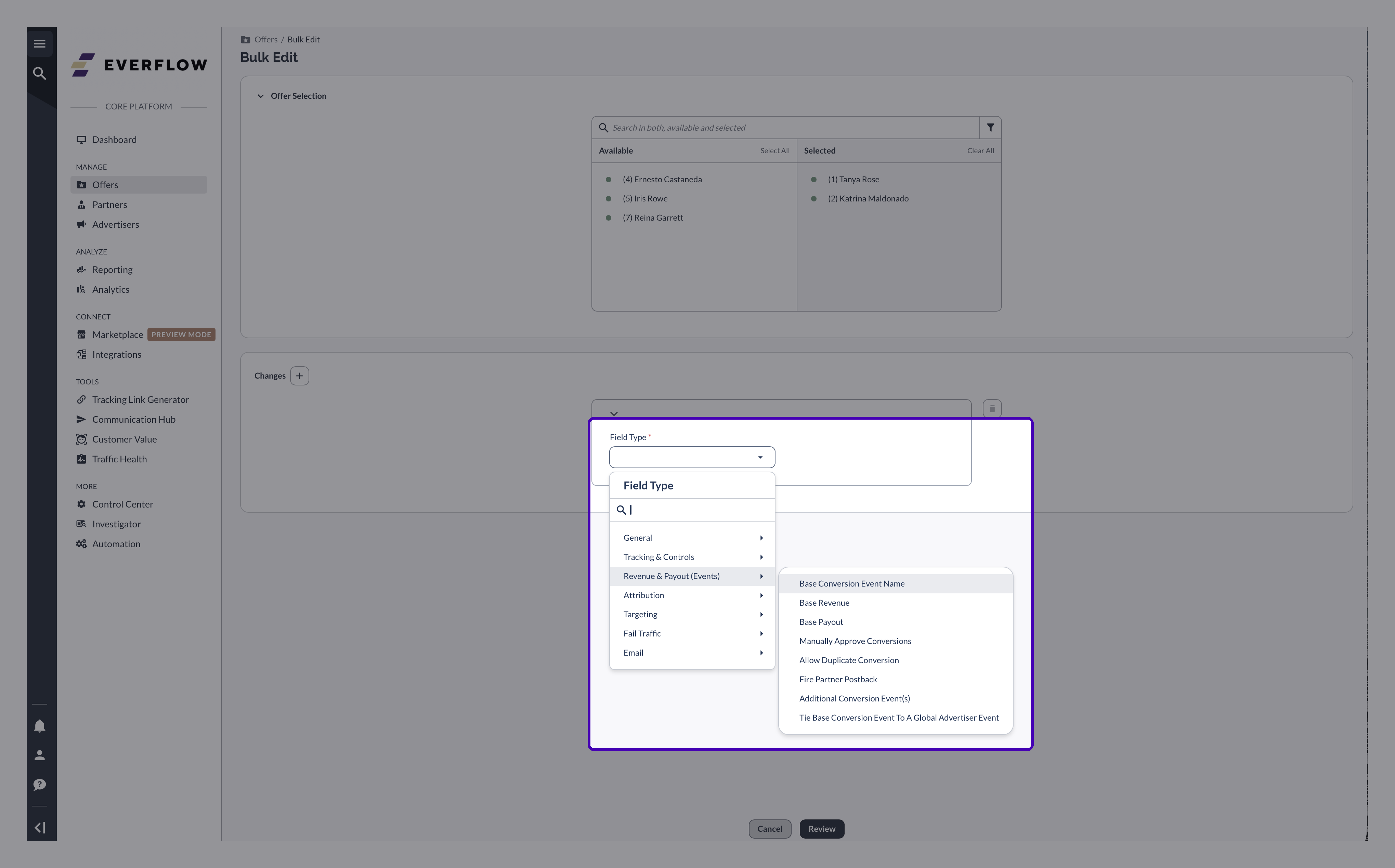
Under
Changes
, click
to add a change
Set
Field Type
to
Tie Base Conversion Event To A Global Advertiser Event
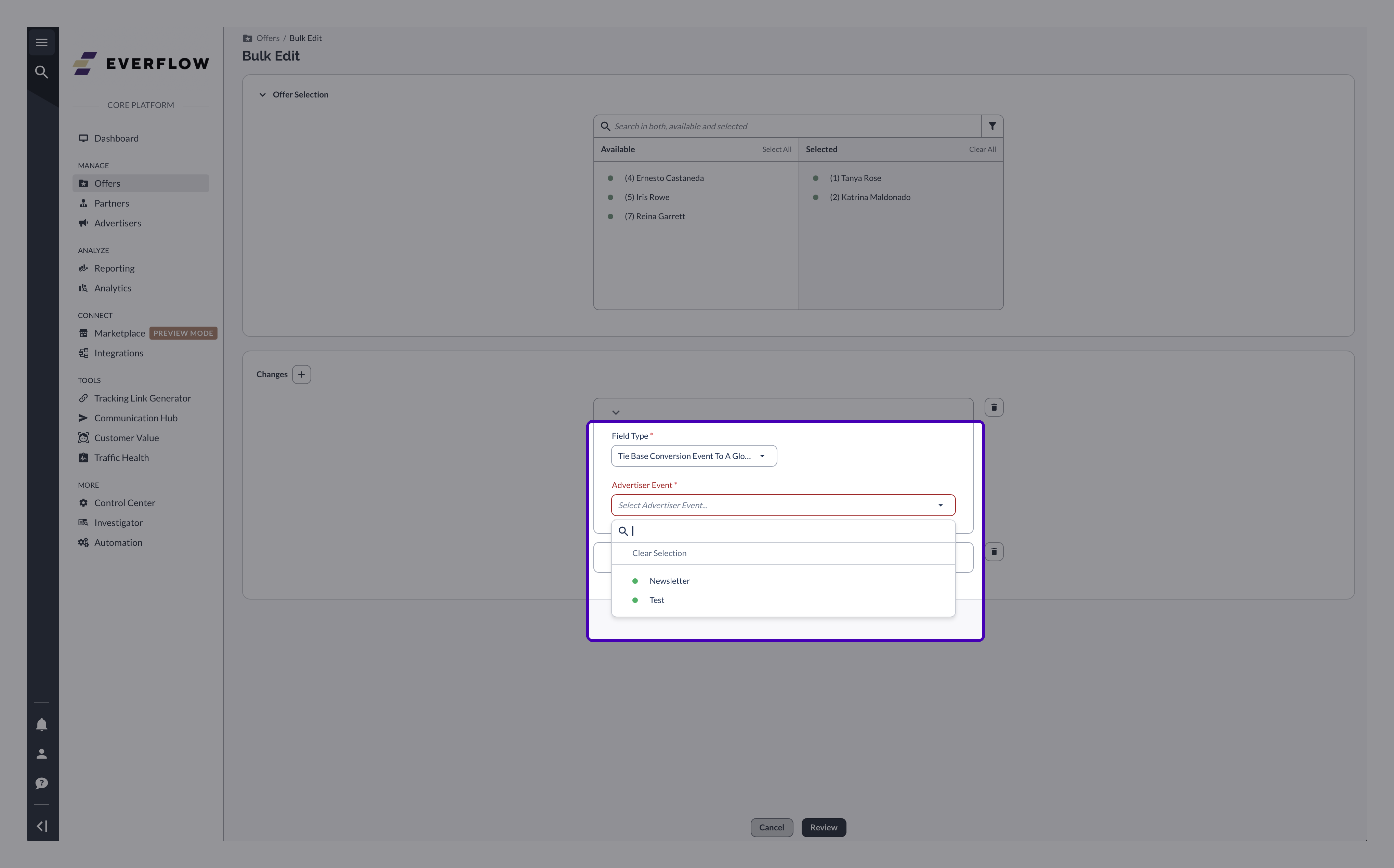
Choose the Advertiser Level Event you want them all tied to
Click
Review
. The review step names the event it is about to apply, so you get one last look before anything is written
Click
Apply
Bulk Edit Field Type menu open on Revenue and Payout (Events), showing the Tie Base Conversion Event To A Global Advertiser Event option
The Advertiser Event dropdown in Bulk Edit, listing the Advertiser Level Events available to tie

Remember the 100 Offer ceiling from the top of this article. If you are tying more than that, split it into several sessions and pick the same event each time.

If you see an Update Advertiser warning

Add this field without also including the Advertiser field in the same bulk edit and you get: “Add an Advertiser change to this request to pick an Advertiser Event.” with an Update Advertiser button beside it. Clicking that button adds the Advertiser field for you. It is not an error, it is a guard: a Global Advertiser Event belongs to one Advertiser, so the two settings need to travel together for the tie to make sense.
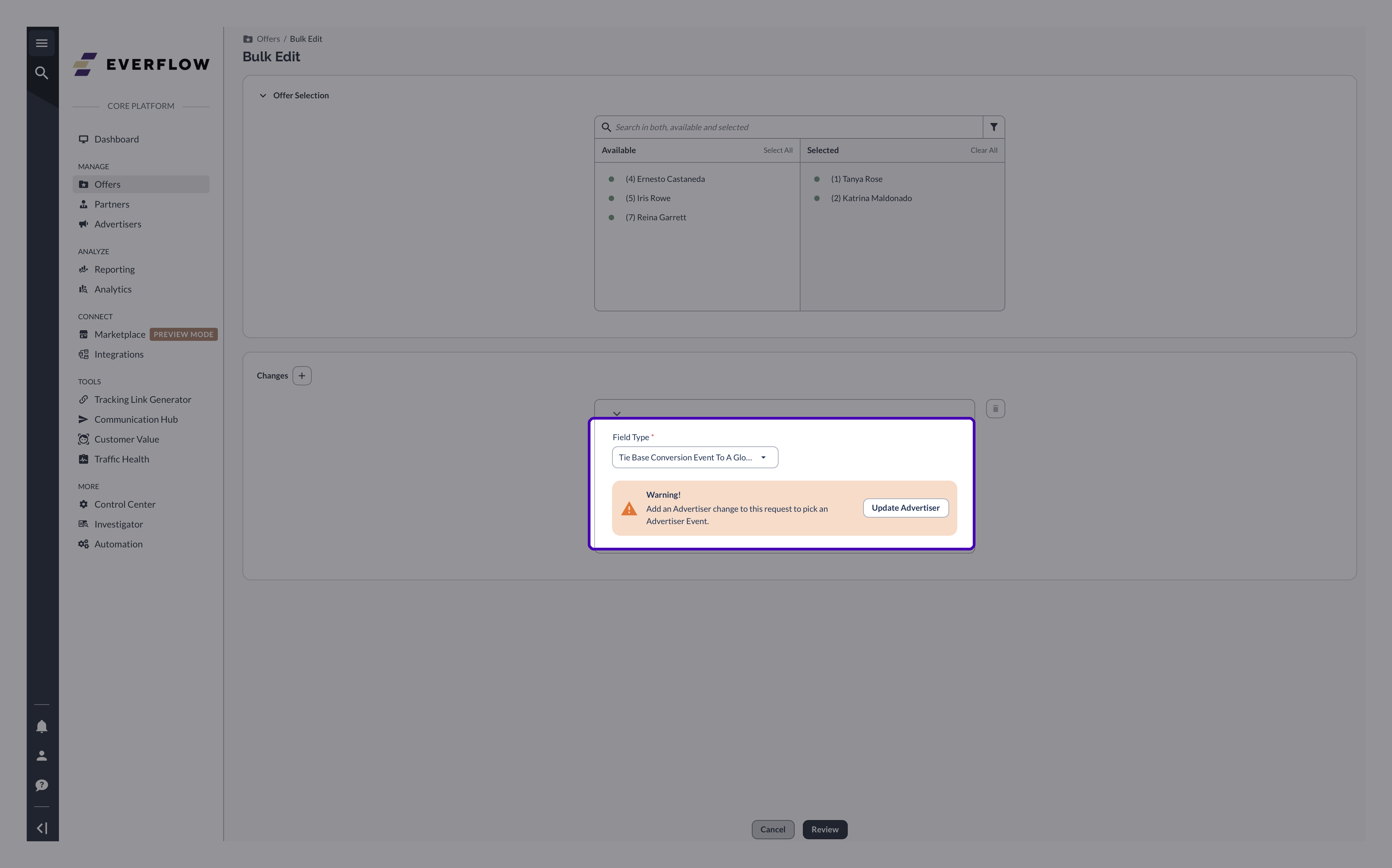
The Update Advertiser warning in Bulk Edit, shown when the Advertiser field is not part of the same request
Explore Related Content
Keep going on events and rules:

→ How To Create & Assign Advertiser Level Events, for creating the event in the first place and tying it on a single Offer.

→ Postback Controls To Reject, Approve, Or Hold Conversions, for the rule that makes the tie worth setting up.

Next in This Series