Home
Integrations Library
MMP, App, & PPC Integrations
Adjust Direct Integration

SERIES:

Adjust Direct Integration

Connect your Adjust account to Everflow for unified mobile app reporting, automatic data syncing, and streamlined campaign management without complex postback setups.

Overview

The Adjust integration lets you bring all your mobile app performance data directly into Everflow without complex postback setups. You'll get unified reporting across all your campaigns, cleaner attribution, and save hours of manual configuration work.

Instead of juggling multiple dashboards, you can view everything in one place: map Adjust campaigns to Everflow offers, track partners who don't use Everflow links, and get complete visibility into your mobile performance data. Plus, clicks from this direct integration don't count toward your Everflow billing.

__wf_reserved_inherit

This guide shows you how to connect your Adjust account to Everflow step by step.

Step-By-Step Guide

1
Start the Integration
Go to
Integrations -> MMP
in the Core Plarform
Find
Adjust
in the list of available integrations
Click
Connect Integration
Enter your
Adjust API key
This will sync all apps connected to your Adjust account
Fill in the
Account ID
(if required)
Add a
Name
for this integration
Click
Connect
Keep in mind that you can only use one Adjust API key.
2
Add and Configure Your App
After connecting, click
Add Integration
to set up your first app
Fill in the
App General Information:
App ID: Your app's unique identifier
App Name: Give your app a clear name
Sync Start Date: Choose when to start pulling data from
UTC Offset: Set your timezone
3
Choose Your Mapping Depth
This is important - you can't change this later!

Under
Mapping Dimensions
, choose how detailed you want your data mapping:
Enable Campaign ✓
Enable Partner ✓
Enable Adgroup ✓
Enable Creative ✓
Heads Up!
The more options you enable, the more detailed your data will be, but you'll also need to do more mapping work in the next steps.
__wf_reserved_inherit
4
Map Your Campaigns
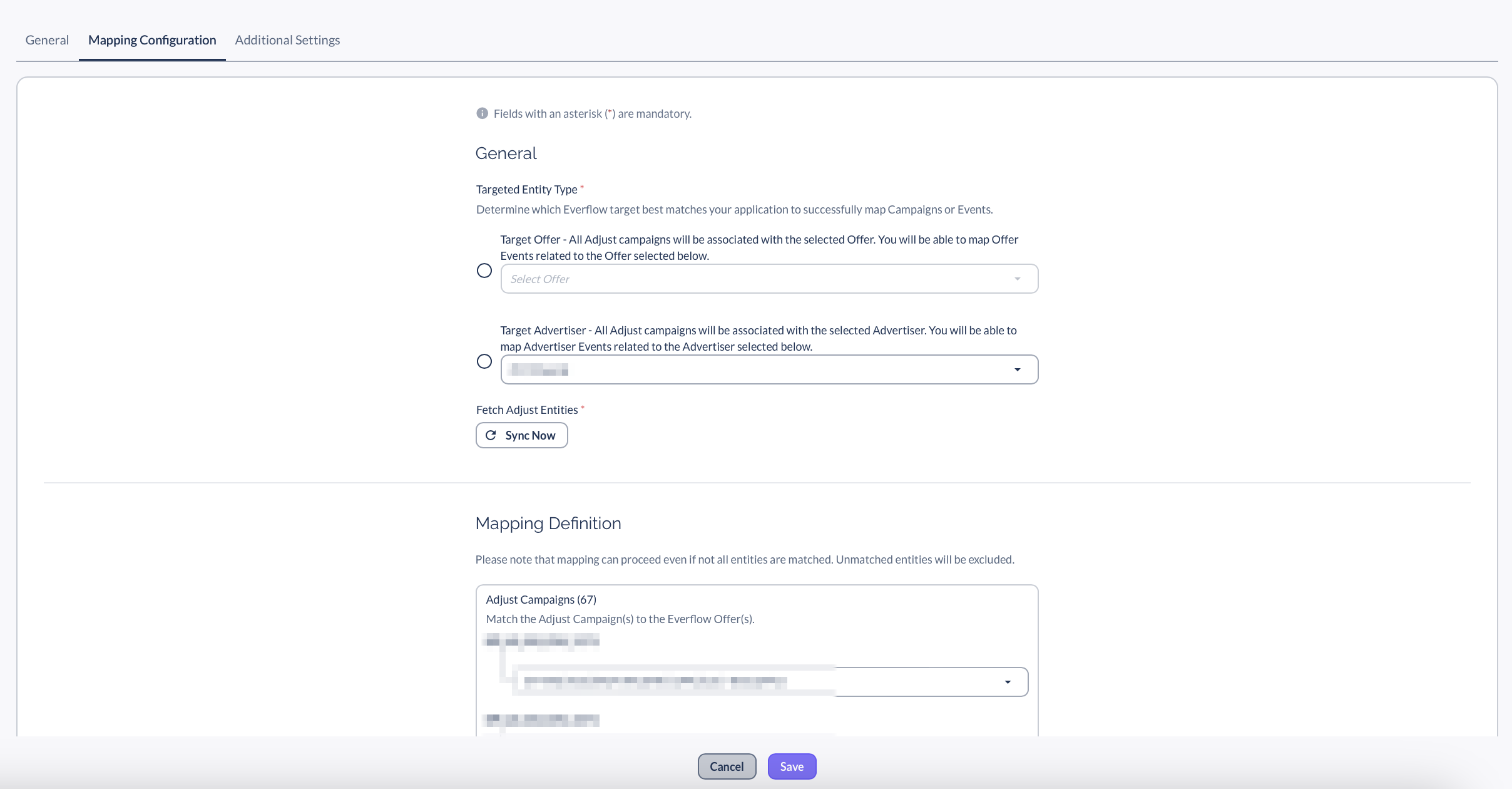
Go to the
Mapping Configuration
tab
First, select your
Target Entity Type
(Target Offer or Target Advertiser) in the General section
Click
Sync Now
to fetch your Adjust entities.
Then you'll see a list of your Adjust campaigns
For each campaign, select which Everflow offer or advertiser it should connect to using the dropdown menus
Example mapping:
"Dream's Squeaky Ball Performance 2024_Pet Lovers Campaign" → Select matching Everflow Offer or Advertiser
"Rope Toy Premium Family Campaign" → Select matching Everflow Offer or Advertiser
5
Map Your Other Entities
In the
Mapping Configuration
section, you'll also see other Adjust and Everflow Entities like Partners or
Adjust Events
Match those as well.
For example, you should match each Adjust event you need to the correct Everflow event:
"fetch_treats" → "(54) Fetch Treats"
"toy_purchases" → "(52) Toy Purchase"
"dream_rewards_signup" → "(53) Dream Rewards Signup"
__wf_reserved_inherit
6
Set Custom Event Costs (Optional)
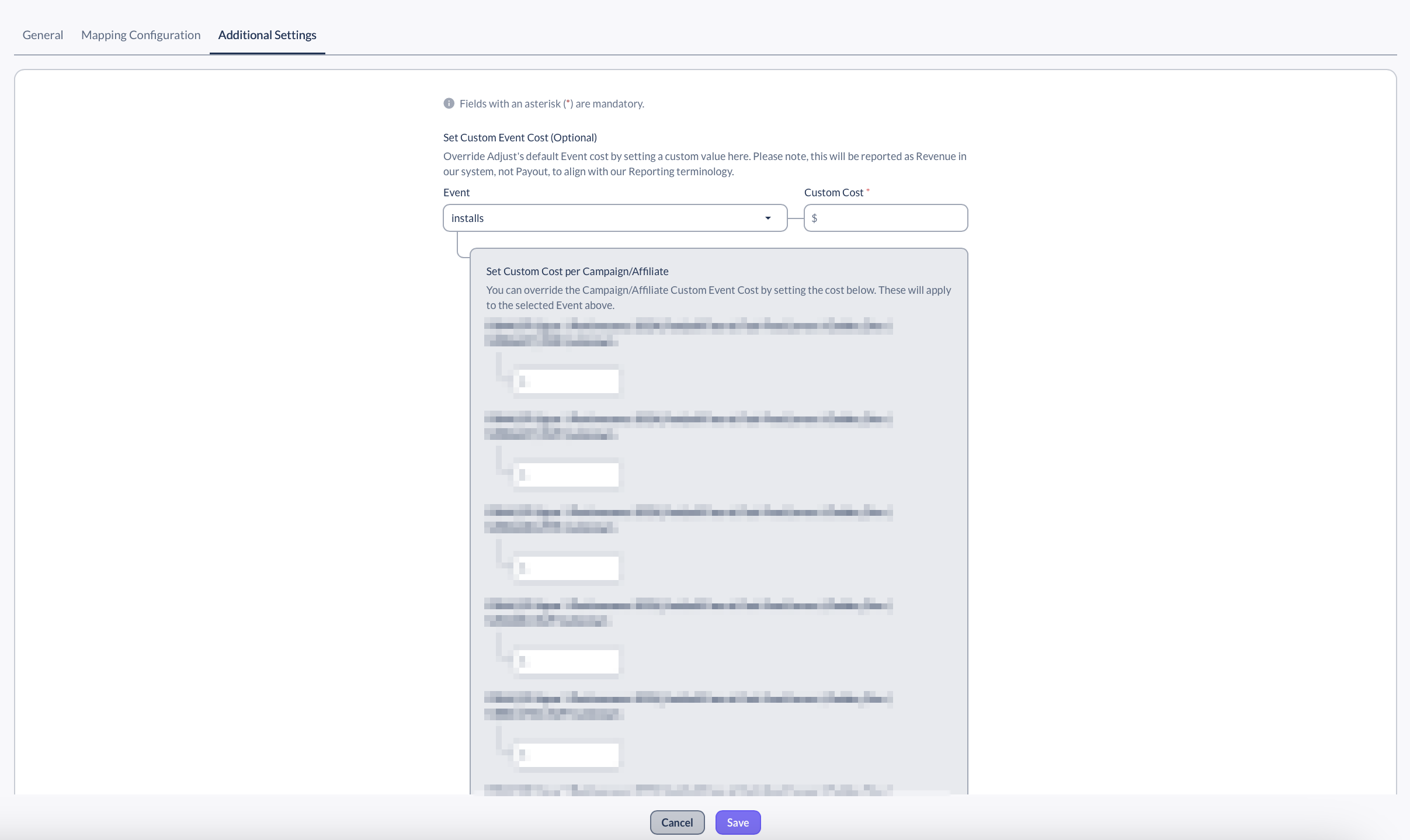
Go to the
Additional Settings
tab
If you want to override Adjust's default event costs, you can set custom values here
Select an event from the dropdown and enter your custom cost
7
Save Your Configuration
Review all your settings
Click
Save
to finish the setup
__wf_reserved_inherit

Viewing Your Integration Data

Once your integration is running, you can view all your Adjust data directly within the integration:

Go to
Integrations -> MMP -> Adjust
Click the
Report
tab to see your data
Use the date picker to select your reporting period
Filter by specific campaigns, partners, or events using the dropdown filters

Available Report Columns

Your Adjust integration data includes these key metrics:

Basic Information:

  • ID, Date, Offer, Partner
  • Adjust Event ID, Campaign ID, Adgroup ID, Creative ID, Partner ID

Performance Metrics:

  • Impressions, RPM, CPM, Gross Clicks
  • RPC (Revenue Per Click), RPA (Revenue Per Action)
  • Revenue, Payout, Gross Sales
  • Total Conversions and others

Customization Options:

  • Use Columns Customization to show/hide specific data fields
  • Apply Table Filters to focus on specific offers, partners, or campaigns
  • Export your data for external analysis

Metrics Mapping

Adjust
Everflow
clicks
clicks
impressions
impressions
Installs
conversions
All Revenue
Gross Sales
Costs
Revenue
Costs * Payout %
Payout
Event Counter
Events (mapped event)

Bottom Line

Once your Adjust integration is running, you'll have all your Adjust mobile app data flowing into Everflow automatically.

Your campaigns will update daily, events will track properly, and you can focus on optimizing performance instead of managing data feeds. The integration handles the technical work so you can spend time on what matters: growing your business and improving ROI.

Need Help?

Make sure your Adjust API key has the right permissions and double-check that your campaign mappings are correct. Remember that you can't change the mapping depth after saving, so choose carefully. If you run into issues, start with fewer mapping dimensions - you can always create a new integration later with more detail.

Quick Tips

Start with fewer mapping dimensions if you're unsure about your setup needs. Use clear, descriptive names for your integration to keep things organized. Test with a small date range first to make sure everything is working correctly before expanding to your full historical data.

Next in This Series