Home
Marketplace Platform
Getting Started With The Marketplace
Marketplace Publisher Sign Up & Profile Creation

Marketplace Publisher Sign Up & Profile Creation

Learn about how to sign up and edit your Marketplace Profile if you are not an Eveflow client.

Overview

This guide is designed to demonstrate how to sign up for the Marketplace, and how to fill in and edit your Marketplace profile. All of which you can do directly inside the Everflow platform.

Note This article is intended for Partners aka Publishers who are not using the marketplace Platform and are not using the Core Platform. If you are a Partner who is using the Core Platform, navigate to the Customer help desk for more guides.
1 Reach Out Reach out to our team via our Partner Form. If there is a match, we will contact you with the direct signup form!
2 Verification Once you have successfully completed the form (provided by our team if there was a match), you will get a Verification Email. Navigate to Verify Email to proceed.
3 Approval After email verification, our Marketplace team will review your account. Keep an eye on your inbox to get a confirmation email that your profile was approved.
4 Profile Creation In the approval email, you will be asked to create a password for your new marketplace account: Set up a new password and click "Save Password" when finished. You will then see a prompt to return to the sign in page. Sign in with the email address associated with your account. You will also be asked to complete Two-Factor Authentication using either Google Authenticator or your phone number.

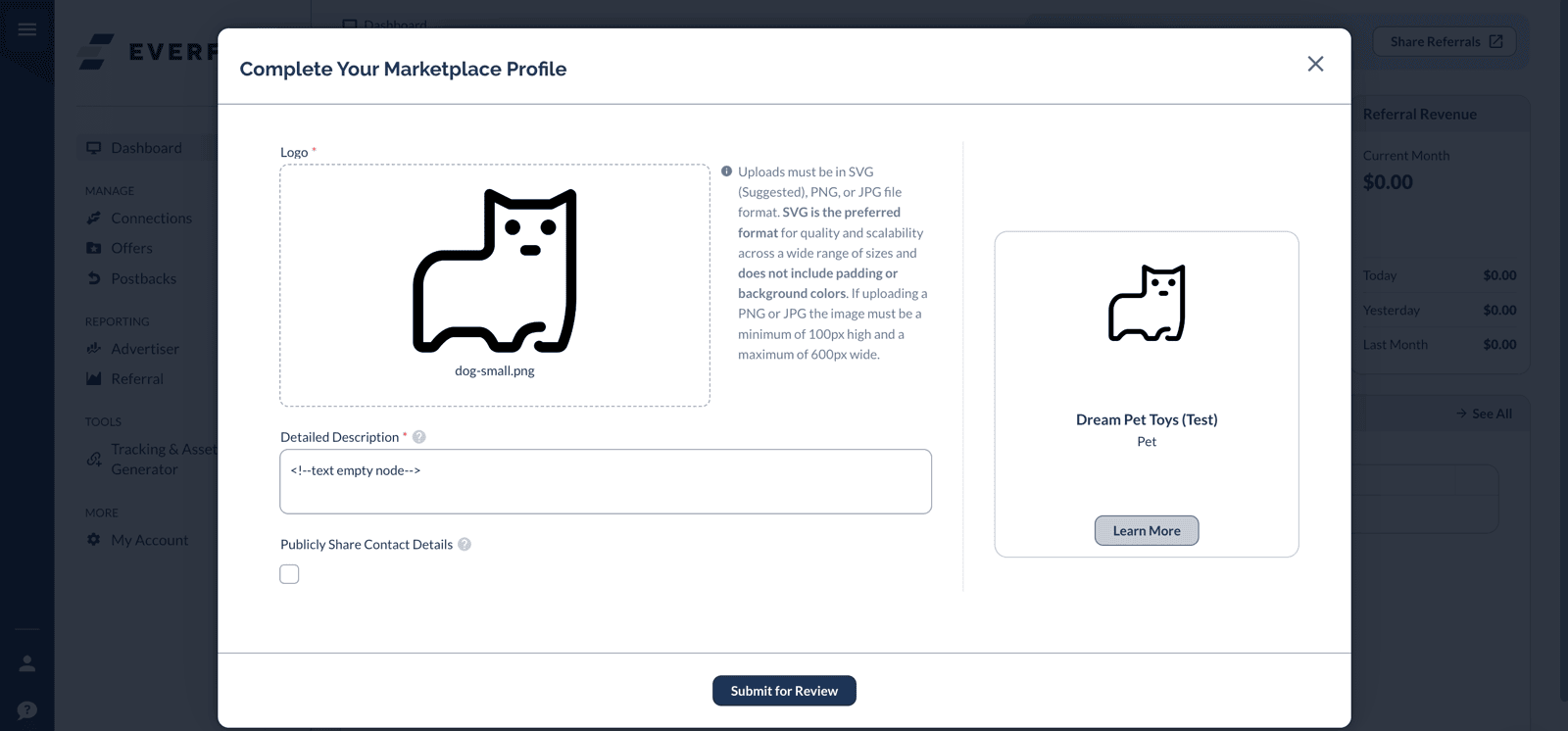
  • On your first sign-in, you must complete your full marketplace profile before your account can be showcased. Otherwise, your profile will not be visible in the marketplace.
    • Upload your Logo, fill in Detailed Description, and select whether your want to Publicly Share Contact Details.
    • Once done, hit Submit for Review.
You can always edit your profile card and change description or logo.

Click the image or link below to learn more about profile card and profile creation process using our [Marketplace Sign-Up Demo].

How To Edit and Request Marketplace Profile Changes

Once your profile is approved, you may edit it directly from the Marketplace.

Click My Profile at the top right corner, then click Edit and make the desired changes. When you reach the Review stage, click Request Changes.

The Marketplace Team will be notified that a request has been made, and you will receive an email update once it has been reviewed.

Tips for a Strong Marketplace Profile

Your Marketplace profile is what Advertisers see when deciding whether to approve your connection request. A strong profile significantly improves your approval rate.

Use a professional logo — A clear, recognizable logo builds trust and makes your profile stand out in the Marketplace directory. Write a detailed description — Explain your traffic sources, audience demographics, and promotional methods. Advertisers want to know where their traffic will come from. Highlight your verticals — If you specialize in e-commerce, finance, health, or another vertical, make it clear. Advertisers search for partners with relevant experience. Share contact details — Enabling public contact details makes it easier for Advertisers to reach out with special opportunities or custom terms. Keep your profile updated — As your traffic grows or you expand into new channels, update your description to reflect your current capabilities.
Heads Up! Your profile must be complete and submitted for review before it will be visible in the Marketplace. Incomplete profiles are not shown to Advertisers, which means you will miss connection opportunities.
Pro-Tip: After your profile is approved, check the Marketplace regularly for new Advertisers. Being an early applicant often leads to better payout terms and more personalized support from the brand.
Next in This Series