


.svg)

Overview
Billing is the one page in the Partner Platform where the money side of your account lives. It is where you tell the network how to pay you, where you check whether you are actually payable, and where every invoice and every transaction is kept.
This article is a tour of that page. If you are setting up for the first time, start at the top. If you are here to work out where a payment went, skip to Transactions.
Setting Up Your Payment Information
Nothing else on this page works until this part is done. It takes a few minutes and you only do it once.
The full walkthrough of that form, screen by screen, is in Setting Up Your Everflow Pay Account. Come back here once it is submitted.
Reading Your Billing Settings
The Billing page opens on the General tab. The card at the top is a summary of how you are set up, and it is the fastest way to see whether anything is wrong.
The General Card
Four fields, and one of them matters more than the rest.
Some payment methods add a Recipient Name field alongside these, showing who the payment is made out to. Here is the card on an account paid by check.
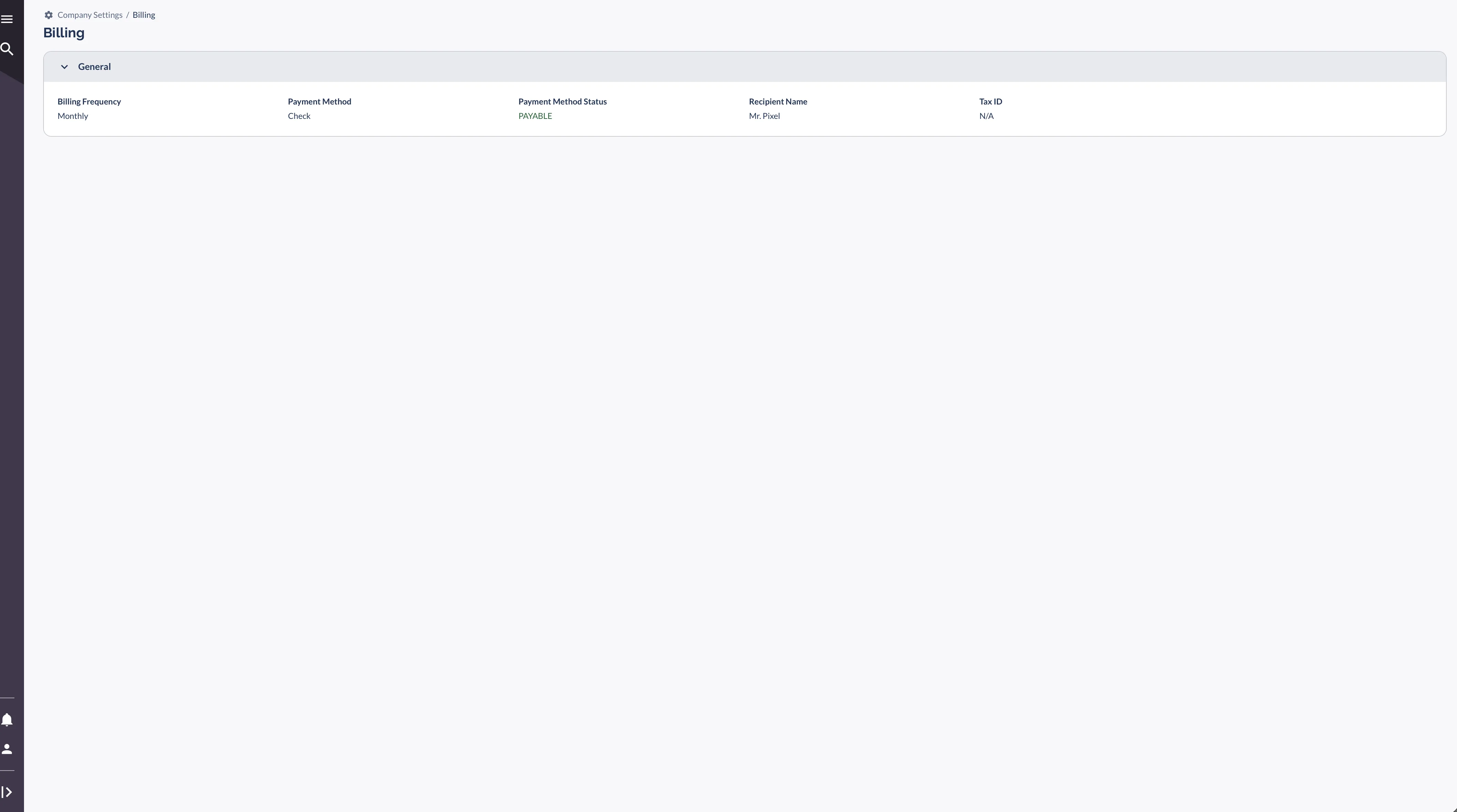
If that status reads NOT PAYABLE, the page shows a Configuration needed below warning naming what is missing. Payment Timeline & What to Expect covers what each cause means and how to clear it.
The Terms Your Payer Sets
Two more settings decide the timing, and neither is yours to change.
Worth being precise about the minimum, because the usual explanation is not quite right. Falling short does not automatically push your balance into the next cycle. The payment is blocked, and the balance only rolls forward if your payer has configured an invoice threshold. If you are consistently under the line, that is a question for your account manager rather than something that will resolve itself.
Your Transactions
The Everflow Pay Transactions tab lists every payment that has been processed for your account. This is the record to check when an invoice says it was paid and you are trying to match it to something in your bank.
What Each Record Shows
Two words you may have seen elsewhere do not belong here. Payments never end at "Completed", they end at Paid, and "Failed" is not a payment status at all. If you see a payment that reads Rejected, the cause is almost always incorrect banking details.
Filtering the List
Your Invoices
Invoices are generated automatically on your billing frequency. Each one covers a single billing period and breaks your earnings down by offer.
The Three Numbers at the Top
If Current Balance is not moving and you expect it to, the cause is usually upstream of billing: conversions still on hold, or a balance under the minimum payout.
Inside a Single Invoice
Click into any invoice to see the detail behind the total.
- The date range it covers
- Amount billed, amount paid, and the remaining balance
- A per-offer breakdown, with earnings and conversion count for each offer
- Creation and modification dates
Which Currency You Are Invoiced In
If you are paid through Everflow Pay, your invoice is generated in the currency of your payer's Everflow Pay funding wallet, which is US dollars today. That applies whatever currency preference is set on your account or on the platform, so an invoice may be denominated differently from what you saw before your payer moved to Everflow Pay.
This is about the invoice, not about your bank account. You can still hold a bank account in your own currency and receive the payout converted into it, which is the normal arrangement for international partners.
Downloading a Copy
Every invoice has a Download link that saves a PDF. Keep them. They are what your accountant will ask for, and they are the cleanest record of what you earned and when.
Common Billing Questions
The ones that come up most.
Why have I not been paid yet?
Check four things in this order. Your Payment Method Status reads PAYABLE. Your conversions have been approved rather than sitting on hold. Your balance clears the minimum payout. Your net terms have actually elapsed. If all four are fine, contact your account manager with the invoice number.
Can I change my billing frequency?
No. It is set by the company paying you as part of your agreement. If you need a different schedule, ask your account manager.
What happens if my balance is below the minimum payout?
The payment is not issued. Whether the balance carries into the next cycle depends on whether your payer has configured an invoice threshold, so it is worth asking rather than assuming.
How do I update my payment method or bank details?
Go to Company Settings > Billing and edit them from the panel there. Changes apply to future payments only, so anything already in progress completes on the old details.
Where do I see my earnings broken down by offer?
Click into any invoice. The per-offer breakdown shows conversion count and earnings for each offer in that period.
If something on this page looks wrong and your account manager cannot explain it, they can escalate an Everflow Pay problem to the Everflow Pay team at pay.help@everflow.io.
→ How To Get Paid As A Partner. How your earnings are calculated and which payment methods Everflow supports.
→ Setting Up Your Everflow Pay Account. The payee setup form, screen by screen.
→ Payment Timeline & What to Expect. How long a payment takes, what it costs, and what to do when it is late.


